Functional specification
SWD MIS — Detailed Functional Specification
Based on Development Scope 2 and the developer meetings of 25 November 2026
- Version 1.2.2
- Screen mockups
- Updated 28 November 2026
- Rishi
- 15 items
- 3 delivery phases
How requirements are labelled
Stated in Development Scope 2 or agreed in the meetings.
Not yet settled in the meetings. A sensible default is given so work can start, and the product owners can change it.
A decision is needed before this part is built. Each one is listed again under Open questions.
Every requirement has a number, such as 4.12 for item 4, requirement 12. B is Bugs and errors fixing, M is Database migration and X is the requirements that apply across all items. Quote the number in tasks, tests and bug reports.
At a glance
The 15 items are grouped by the delivery phase they belong to. Choose one to jump to it.
Phase 1 · Stabilise
Phase 2 · New functions
Overview
About this document
This document turns the 15 points of Development Scope 2 into detailed functions, rules and settings that the developers can build and test against.
It draws on four sources: Development Scope 2 (with its database migration note and engagement terms), the two developer meetings held on 25 November 2026, the bugs and errors audit summary dated 19 November 2026, and the infrastructure summary of the production server. The first meeting ran 56 minutes. The second, after a short break, ran 71 minutes.
Developers build from it, the product owners confirm it, and the programme team tests and accepts against it.
Status labels
Every requirement carries one of three labels, written out in plain words.
| Label | What it means |
|---|---|
| Agreed | Stated in Development Scope 2 or agreed in the meetings. |
| Proposed | Not yet settled in the meetings. A sensible default is given so work can start, and the product owners can change it. |
| To confirm | A decision is needed before this part is built. Each one is listed again under Open questions. |
Requirement numbers
Every requirement starts with a number in square brackets, such as [4.12]. The part before the dot is the item (1 to 15), or B for Bugs and errors fixing, M for Database migration and data restoration, or X for the requirements that apply across all items. The part after the dot counts the requirements in that group, in the order they appear.
A number never changes and is never used twice. If a requirement is removed, its number is retired and the Change log says so. A requirement added later takes the next free number in its group, even when it sits in the middle of the page. Developers and testers quote the number in tasks, tests and bug reports.
Other tabs in this document
Seven tabs sit beside this one: Build order, Scale and volumes, External services, Risks and assumptions, Data model, Messages, and New screens. They hold the dependencies, volumes, outside services, risks, data groups, messages and extra screens that the developers are asked to confirm. Screen mockups for 30 key screens sit inside each item and together in the Screen mockups section under Design, beside their requirement numbers. Anything not yet confirmed carries the Proposed or To confirm label.
Words used
- "Must" means required for acceptance. "Should" means expected unless there is a good reason. "May" means optional.
- "The Department" is the client organisation that uses the system. "Staff" are the Department users who sign in.
- "Office" means a location where staff work. An office may have to keep working without internet.
How the meeting notes were used
Both transcripts are machine-generated, and many technical passages are garbled. Only what could be understood with confidence was treated as agreed. Anything unclear is marked Proposed or To confirm. Please correct any place where this document misreads what was meant.
Not covered here
Commercial terms (to be discussed separately with the developers), the detailed project plan and Gantt chart (the product owners will prepare these), and the engagement terms, which stay as written in the scope document.
Overview
Background and context
SWD MIS is a live case-management and payments system that the Department already uses for registration, manual disbursement of funds and audit. This programme makes it safer, able to work offline, and able to report.
The live system has no reports at all today, as stated in the meeting. Known bugs, loading failures and security weaknesses also remain (Bugs and errors fixing, and Item 15).
The system today
| Part | Current state |
|---|---|
| Technology | ASP.NET Core 9 web application and API, with a PostgreSQL 17 database. |
| Code structure | One solution of six projects: REST API, web front end, data layer, view models, infrastructure (authentication, PDF, tokens) and utilities. |
| Production hosting | Docker containers for the database, API and web application, behind an nginx reverse proxy. Traffic reaches the server through a Cloudflare tunnel with TLS. The servers are hosted by the Department. |
| Database | PostgreSQL 17.9 with 89 tables, about 31 MB in June 2026. |
| Documents | Plain files on the server disk, in four folders: Enrollment, Household, Member and CaseManagement. |
| Settings and secrets | Database password and mail credentials sit in a protected environment file that is kept out of the code repository. No environment files were handed over, so each setting is filled in from an example file. |
| Test environment | Microsoft Azure (container apps and a managed PostgreSQL server). It is shut down at present because costs reached about USD 200 in three weeks. The cause is not yet known. |
| Loose ends | A staging configuration exists but is not running. One web address meant for an information portal has no service behind it yet. |
Conditions that shape the design
- Internet is limited and unreliable. Offices may lose connection for hours, and some may only connect briefly each day. The system must keep working through this (Item 4).
- Staff use the system, not the public. As understood from the meeting, only Department staff sign in and there is no portal for beneficiaries. To confirm
- The household is the main unit. Family arrangements vary and not everyone holds an identity card, so the Household ID, not a personal ID number, is the main reference (Item 7).
- Data is small but sensitive. Volumes are modest, so performance mostly means slow links and older office computers. The records hold personal, family and payment details.
- Email and phone use vary. Not every beneficiary has an email address, which affects one-time codes (Item 8).
People and roles
| Role | Who | Responsibility |
|---|---|---|
| Programme lead | Althaf | Overall lead, with the final say on scope and commercial matters. |
| Product owners | Ragu and Shivam | Own the requirements and priorities, and accept the work. Shivam also runs the project day to day: planning, reporting, deployment and contact with end users. |
| Developers | Raja and Venkatesan | Build, test and deliver. Raja has over 12 years of .NET experience, plus React, Python, Java, PostgreSQL, SQL Server and Docker. Venkatesan has over 15 years in web and mobile development, plus React, Next.js, FastAPI, MySQL and PostgreSQL. |
| The Department | Client staff | Give requirements, test, accept and run the system. |
Timeline
The engagement runs six months, as the scope document states. In the meeting the developers expected delivery after month 4 or 5, with testing in month 5. The next programme phase is expected to start in April, and the system should be stable by then. The exact go-live date is To confirm
Early completion does not end the engagement. Developers stay available until the pilot goes live and is accepted (engagement terms in the scope document).
Overview
How the whole system works
One picture of how the people, the office app, the central system and the reports fit together. It adds no new requirements: each item's own section holds the detail and its status.
Swipe sideways to see the whole chart.
Read it from the top down. Staff sign in and work in the Windows app on an office computer. Every save goes into a local queue first, so work carries on without internet, and the app syncs to the central system when a connection is available. The dashboards read from the central copy. The dashed line shows the one automatic link between steps: recording a death stops that person's payments (Item 7).
Where each part of the chart is specified
| Part of the chart | What happens there | Item |
|---|---|---|
| Who uses it | Staff only. Each person has a role that limits what they can see and do. | 6 |
| Sign-in and permissions | Password, plus a one-time code where required, and short-lived tokens. Role and area decide access. | 3, 6 |
| Each office computer | A Windows app in one window, with pages open as tabs. It works with or without internet. | 2, 4 |
| 1 Set up | Master lists, users, roles and permissions. | 6 |
| 2 Register | Six-step household form, Household ID, alternate contacts, documents, duplicate check, one-time code on a mobile number change, deceased members. | 7, 8, 9 |
| 3 Enroll | Programme rules and age limits decide who is eligible. | 7, 10 |
| 4 Pay | Payment lists by programme and period, paid by bank, cash or digital platform, then reconciled. | 10 |
| 5 Follow up | Case intake, assignment, approval, decision and closure. Grievances follow the finalised rules. | 11 |
| Household ID bar | One number joins every record. One search finds a household, document, entitlement or payment. | 7, 9 |
| Local copy and change queue | Every save is queued first, then sent in order with retries and checksums. | 4 |
| Central system | Application server, database, document store and audit log. | 4, 5 |
| Backup and recovery | Scheduled backups, point-in-time restore and an offsite copy. | 14 |
| Dashboards and reports | One dashboard per role, with export and an as-of time on every figure. | 12 |
| Help Centre | Guides open from any screen, and kept on the computer for offline use. | 13 |
| Release path | Private repository, automatic test deployment and one-step rollback. | 1 |
| Testing and security | Known faults fixed, security review, tests, user acceptance and penetration test. | 15 |
Overview
Delivery approach and decisions from the meetings
Work runs in three phases and two-week sprints, tracked on Azure DevOps boards, under a fixed budget that allows about 15% of extra scope.
Phases
| Phase | Focus | Items | Status |
|---|---|---|---|
| 1. Stabilise | Fix the known bugs and the endless "Loading..." screens. Set up the repository, test environment and pipeline so there is working code to build on. | Item 1, Bugs and errors fixing (the first part of Item 15), and an early code audit | Agreed |
| 2. New functions | Build the new modules, starting with sign-in, access and the offline foundations. New features also start producing the data that reports need. | Items 2 to 11 | Agreed |
| 3. Reports and finishing | Dashboards and reports, Help Centre, backup and recovery, security and penetration testing, final stabilisation and the migration handover. | Items 12 to 14, the rest of Item 15, and the database migration | Dashboards agreed as last; the rest Proposed |
The phases set the order of work. The scope document also asks the developers to work flexibly across items that depend on each other, so a later item may start early when that helps.
Decisions made
| Topic | Decision | Status |
|---|---|---|
| Code and pipeline | A private GitHub repository under the organisation. GitHub Actions builds, tests and deploys to the Azure test applications. GitHub and Azure DevOps were both free for this use, and GitHub was chosen for the code. | Agreed |
| Task tracking and communication | Azure DevOps boards hold the work items, bugs and sprint plan. They are the single place for task communication, instead of WhatsApp, Teams or spoken agreements. The product owners create the project and invite the developers by email. | Agreed |
| Sprints | Two-week sprints, each ending with a delivery of working functionality. The exact length is confirmed when the project plan is set. | Agreed in principle |
| Daily stand-up | A short daily call at a time that suits everyone, so progress can be followed each day. | Agreed |
| New accounts | A fresh email address owns the new subscriptions, so they do not clash with existing accounts. | Agreed |
| Test environment budget | About USD 80 a month is acceptable for the Azure test environment. Cost alerts are needed after the earlier overspend. | Agreed as a target |
| Data in development | Developers have access to real data. A signed agreement and a non-disclosure agreement with the development team cover this. | Agreed |
| Change control | Changes are accepted once the product owners confirm them, though they can add time or cost. The scope document allows about 15% extra scope within the fixed budget. Beyond that, both sides agree. | Agreed |
| Code audit | Early on, the developers review the existing code in depth and say how much time that needs. | Agreed |
| Hosting, file storage, text messages and email | Four services still to be chosen. Raja gives a best and a second-best option for each, with approximate prices. The product owners and programme lead then decide. Each choice is held in environment settings, so changing it needs no code change. | To confirm |
| Container registry | The pipeline builds Docker images and each environment pulls the approved image. The development team chooses the registry as part of its own option. | Development team's choice |
Actions from the meetings
- Raja: send the best and second-best options, with approximate prices, for hosting, file storage, text messages and email.
- Developers: say how much time the early code audit needs, and confirm how often to back up and how a restore will work (Item 14).
- Product owners: create the Azure DevOps project, invite the developers, and set up the fresh email address for new subscriptions.
- Product owners: prepare the detailed project plan and Gantt chart. The developers break each item into small pieces for the sprints.
- Product owners: describe how the access permission screen should look (Item 6), and send further input on grievance management (Item 11).
- Product owners and the Department: decide whether one-time codes are needed for mobile numbers (Item 8).
- Everyone: hold the next meeting the following day, using the Azure DevOps boards.
- Commercial terms: discussed separately between the developers and the programme lead and product owners.
Item 1 · Phase 1 · Stabilise
Repository, test environment and pipeline
This item gives the programme team control of the code: they can open it, run it, release a version and roll one back, without needing the developers.
Agreed, unless a line is marked Proposed or To confirm. The scope document sets six tasks, and the meeting confirmed this is the first step of the work.
What the meetings added
The first step is the test environment, repository and pipeline, so that every approved change shows up on the test site automatically. GitHub holds the code and runs the pipeline. Azure DevOps boards track the tasks. The Azure test environment was shut down after costs reached about USD 200 in three weeks, so cost control is now part of this item.
The development team has already put forward its own option for the repository, test environment and pipeline, as described above. This item follows that option and builds on it. Where the detail below goes further than their option, read it as suggested improvements. Where the two differ, the development team's option is used unless the product owner decides otherwise.
Detailed functions
Private repository
- 1.1The repository is private and owned by the organisation, never by a developer's personal account.
- 1.2It holds the complete source code: all six projects, Docker files, compose files, database scripts and documentation.
- 1.3Before upload, remove passwords, keys, connection strings, certificates, environment files, backups, uploaded documents and any real data. Scan the whole history for secrets, and start from a clean history if any are found.
- 1.4An example settings file lists every setting with dummy values.
- 1.5The main branch is protected. Changes arrive through reviewed pull requests and only when the automated checks pass. Proposed
- 1.6Everyone with access uses two-step sign-in. Organisation owners keep admin rights and developers get write rights. Proposed
Build and run
- 1.7A person with the listed tools can clone the repository and run the website and API with a short, documented set of commands.
- 1.8The guide lists the required tools and versions, and every setting.
Automated pipeline (GitHub Actions)
- 1.9On every pull request: build, run the automated tests, and check packages for known vulnerabilities. Proposed
- 1.10When a change is approved and merged: build the Docker images, label them with a version and commit number, store them in the registry, and deploy to the Azure test applications.
- 1.11Release to production is a separate step. It needs manual approval and is run by the Department's internal team. Proposed
- 1.12A failed build emails the developers. Secrets live in encrypted pipeline settings, never in code. Proposed
- 1.13Each release has a version number shown on an About page, so anyone can see what is running. This also supports the version checks in Item 4. Proposed
Database change tracking
- 1.14Every change to tables, fields or relationships is a numbered migration script kept in the repository and applied in order.
- 1.15Migration scripts must be safe to run twice and must also work on the production database (see Database migration and data restoration).
Test deployment and recovery
- 1.16Demonstrate three things live: a successful deployment, a deliberately failed release, and a return to the previous working version.
- 1.17A rollback is one documented action. It redeploys the earlier image and restores the database backup taken just before the release.
- 1.18Target: back on the previous working version within 15 minutes. Proposed
- 1.19The pipeline backs up the test database before every deployment. Proposed
Handover guide
- 1.20Plain-language instructions for the internal team on getting access, running the system, deploying, rolling back, database migration, backup and recovery, adding users, finding logs and watching costs.
- 1.21A walk-through session with the team.
Test environment cost control
- 1.22A budget alert at USD 80 a month, with warnings at 50%, 80% and 100%. Proposed
- 1.23The smallest suitable sizes for the database and containers, stopped or scaled down outside working hours where Azure allows. Proposed
- 1.24A monthly cost summary sent to the product owners. Proposed
- 1.25Raja finds and reports what caused the earlier cost. Proposed
Environments
| Environment | Purpose | Data | Deployed by |
|---|---|---|---|
| 1.26Developer computer | Build and try changes | Real data | The developer |
| 1.27Test (Azure) | Check each release, run demonstrations, acceptance testing by the internal team | Real data | The pipeline, automatically after approval |
| 1.28Production | Live use by the Department | Real data | The internal team, by manual approval |
An existing staging set-up is not running. It is reused only if the product owners want a third environment.
How we know it is done
- 1.29The internal team gets into the repository and, using only the handover guide, runs the system.
- 1.30A change merged into the main branch appears on the test site with no manual steps.
- 1.31A broken release is rolled back within 15 minutes, live.
- 1.32A scan of the full repository finds no passwords or keys.
- 1.33The monthly test environment cost stays within the agreed budget, and the cost alerts have been tested.
Open questions
- The development team settles the container registry, whether a separate staging environment is needed, and who deploys to production, within its own option. It reports each choice at the next sprint review.
Phase 1 · Stabilise
Bugs and errors fixing
Every known bug and error is reproduced, fixed and retested first, so that the new work in Phase 2 is built on code that works.
This is the first piece of work in Phase 1, alongside Item 1. It brings together the bug and error material that the scope document places under Item 15, the audit summary of 19 November 2026, and what the meetings decided about the order of work. The security review, the formal penetration test and final acceptance stay in Item 15 and come later. The order of work is agreed. The details below are Proposed unless marked otherwise.
What was agreed
- B.1Phase 1 starts with the known bugs and the endless "Loading..." screens, because fixing them first gives the developers working code to build on. New modules follow in Phase 2. Agreed.
- B.2Bug fixing and stabilisation are inside the agreed scope and the fixed budget. The developers are responsible for resolving bugs and integration issues that arise from their work. "Bugs and technical issues resolved" is one of the final delivery expectations in the scope document. Agreed.
- B.3Every bug is a task on the Azure DevOps board, which is the single place for task communication, instead of WhatsApp, Teams or spoken agreements. Agreed.
- B.4Early on, the developers review the existing code in depth and say how much time that needs (Item 15). Agreed.
- B.5A short daily call follows the fixing day by day, and each two-week sprint ends with working functionality that the product owners can see. Agreed in principle.
What the audit found
The audit was carried out on the test environment on 19 November 2026. It judged the application not yet ready for production sign-off because of the functional issues it observed, and said that further fixing and checking are needed. The summary in the scope document lists seven findings. The full audit report lists 14, but it was not available when the scope document was written, so the other seven are not yet known.
The product owner also saw the six-step registration keep loading when a step was completed, and could not tell whether the server or the screen was at fault.
What counts as a bug or an error
A bug is something that does not do what the live system or this document says it should. Wanting it to do something different is a change, not a bug.
| Kind | Examples | How it is handled |
|---|---|---|
| Known findings | The seven in the scope document and the other seven in the full audit report | Listed below. All are fixed in Phase 1. |
| Hangs and endless waits | The six-step registration, the Total Payee figure, any screen stuck on "Loading..." | Fixed in Phase 1, and every screen is checked for the same fault. |
| Server errors | The repeated HTTP 500 on Case Sub Category | Fixed in Phase 1. |
| Wrong or missing data on screen | An empty service list, historical fiscal years offered | Fixed in Phase 1. |
| Missing rules | Invalid age ranges accepted | Fixed in Phase 1, on the screen and on the server. |
| Screen script errors | The grievance chart that does not draw | Fixed in Phase 1. |
| Labels, keyboard use and help text | Fields with no visible label, weak support text | Fixed in Phase 1 for what the audit named. The rest follows Item 13 and the accessibility checks in Item 15. |
| Found by the code audit | Security weaknesses, faulty logic, secrets left in the code | High findings are fixed in Phase 1. Others are scheduled (Item 15). |
| Found later | By testing, user acceptance or daily use, in old or new work | Recorded on the board and fixed under the same rules. |
| Not a bug | A new feature, or a different rule from the one in this document | Handled as a change under change control (see Delivery approach). |
How the work is done, step by step
- B.6Get the starting material. The repository, test environment and pipeline from Item 1; the full 14-finding audit report; a test sign-in for every role, because the audit did not test lower roles; and a copy of the real data on the test environment, used only by the named people covered by the signed agreement.
- B.7Log every fault as a bug. One task each on the board, filled in as set out under "How a bug is recorded". The seven known faults and the registration hang go in first. The other seven follow as soon as the full report is shared.
- B.8Reproduce it on the test copy. Follow the steps with the role named in the task and confirm the fault. If it cannot be reproduced, say so on the task and ask for the missing detail. Do not close it silently.
- B.9Find the cause before changing anything. Use the server log, what the server sends back, and the database. Write down whether the cause is code, data or settings.
- B.10Write a test that fails. Where it is practical, an automated test that shows the fault, so the fix can be proved and the bug cannot return unnoticed.
- B.11Fix it at the cause. A friendly message is added as well as the fix, never instead of it.
- B.12Review and merge. Another person reviews the change and the automated checks in Item 15 pass. Nobody merges their own work.
- B.13Release to the test site. The pipeline from Item 1 puts the change on the test site, with no manual steps.
- B.14Retest. Someone other than the developer follows the original steps with the same role, and with a lower role where that matters.
- B.15Close with evidence. The task holds a screenshot or short recording of the fix, the test that was added, and the release that carried it. The product owners see the fixed bugs at the sprint review.
The order faults are fixed in
The audit recommended an order, and the work follows it. Blocking errors come first because they stop people doing their work.
- B.16Blocking errors. Server errors and failures that stop registration, enrollment and cases.
- B.17Screens, rules and settings. Dashboard, validation, branding and configuration defects.
- B.18End-to-end regression tests. Whole tasks run from start to finish on representative data. The audit asked for dummy data. Real data is used instead, under the signed agreement.
- B.19Access, security, mobile and payments. A first pass over the screens that were fixed, with lower roles and on a phone. The full security testing and the penetration test follow in Item 15.
- B.20Evidence and acceptance. The evidence is gathered and the Department signs acceptance of the Phase 1 task list (Item 15).
The known faults, one by one
Stage 1: blocking errors
| Severity | Area | What was found | Where to look first | What must be fixed | Done when |
|---|---|---|---|---|---|
| B.21High | Case Sub Category | The page fails repeatedly with an HTTP 500 server error | The server log, the failing call and the database. Then test create, read, update and delete on the page. | Find the cause in the server log, fix it, and make the page show a clear message if the data cannot load | The page loads for all roles with valid and empty data; a deliberate failure shows a friendly message, not a crash |
| B.22High | Case Registration | No service can be selected, so a case cannot be registered | The service master data, what the server sends back, permissions, and how the screen uses the list | Fix the service list so it loads and is filtered correctly for the chosen category | A case can be registered end to end for every service in the list |
| B.23High | Enrollment | The Total Payee figure stays on "Loading..." | The calls the screen makes, its loading and error handling, the calculation and how its data is mapped | Fix the query or call that never returns, add a timeout and an error state | The figure appears within 3 seconds and matches the number of payees in the list |
| B.24High Proposed | Registration, six steps | Completing a step keeps loading and the process hangs. The cause is not known. | Whether the server, the network or the screen fails. Try a normal and a slow connection, and check which request never returns, including document upload. | Find the cause, fix it, and give every step a timeout with a retry | A full registration with all six steps and documents completes on normal and slow connections (Items 4 and 9) |
The registration hang is reproduced and fixed in the first sprint. It is not counted as done until the full registration in the last column completes.
Stage 2: screens, rules and settings
| Severity | Area | What was found | Where to look first | What must be fixed | Done when |
|---|---|---|---|---|---|
| B.25Medium | Grievance Dashboard | A JavaScript error stops a chart drawing | How the chart reads and draws its data, with empty and failed data | Fix the chart code and make it handle empty or failed data | The chart draws with data, with no data, and when the data call fails; no errors in the browser console |
| B.26Medium | Payment Configuration | Historical fiscal years are shown | Where the list of fiscal years comes from, its default, and the check on which years are offered | Offer only valid current and future fiscal years, with the current year as default | Only valid years are listed (Item 10) |
| B.27Medium | Age Validation | Invalid age ranges are accepted, with no explanation | The rules on the screen and the rules on the server | Validate on both the screen and the server: a minimum cannot exceed a maximum, ages cannot be negative or beyond a sensible limit, and ranges cannot overlap where overlap is not allowed. Show a clear message. | Every invalid range is refused with a clear message, on the screen and when sent directly to the server |
| B.28Medium | Accessibility and support content | Form labels and support text are weak | Every form: labels, keyboard use and help text | Visible labels on every field, keyboard use, plain-language errors, and support text (Item 13) | A check of every form finds no field without a label |
The other seven findings join these tables as soon as the full audit report is shared. The audit's recommended steps also mention branding and configuration defects, yet none of the seven findings describes a branding one, so some may be among the other seven. To confirm
What the audit confirmed works
- Household search and filtering.
- Household record details.
- The required-district validation.
- Five households and 25 members that reconcile with the dashboard figures.
These become the first automated checks, before any fixing starts, so that a fix cannot break them without anyone noticing.
No screen waits forever
The known faults share one pattern: a request goes out, never comes back, and the screen says "Loading..." for ever. Fixing the known cases is not enough, so the same rule is applied to every screen that fetches data.
- B.29Each such screen handles four states: loading, loaded, empty and failed.
- B.30Loading shows a clear indicator and gives up after a set time. Proposed: 30 seconds for pages and figures. Uploads and large reports show progress instead of a single wait.
- B.31Failed says what could not load, offers a Try again button, and shows a reference code. Support uses the code to find the matching entry in the application log (Item 5). Trying again never creates a duplicate record.
- B.32Empty says so plainly, for example "No data for these filters".
- B.33A button that saves is switched off while it saves, so a double click cannot send the request twice. It ends in a clear "Saved" or an error message.
- B.34The pattern is built once and used everywhere, so each fix covers many screens.
- B.35After the known faults are fixed, someone opens every menu item in every module with each role and records every hang, browser console error and server error as a bug. The audit did not cover every screen, so this sweep finds what it missed.
How a bug is recorded
Every bug is one task on the board. A task is not ready to work on until these fields are filled in.
| Field | What goes in it |
|---|---|
| Title | What is wrong, in one line, with the screen it happens on |
| Module and item | For example Enrollment and Item 10 |
| Where it was seen | The test site, the live system or the Windows app, with the version |
| Role | The role used, and the office or district where that matters |
| Browser or device | And whether the connection was normal or slow |
| Steps to reproduce | Numbered, starting from sign-in |
| Expected and actual result | What should happen, and what happens |
| Evidence | A screenshot or short recording, the error reference code if one was shown, and any message in the browser console |
| Severity | Critical, High, Medium or Low (see below) |
| Found by | The audit, the code review, a test, user acceptance or daily use, with the date |
| Owner and status | Who is working on it, and where it stands (see below) |
| Closed with | The release it went out in, the test that was added, and who retested it |
The life of a bug
| Status | Meaning | Moved on by |
|---|---|---|
| New | Logged, not yet checked | Whoever found it |
| Confirmed | Reproduced, with its severity and cause noted | Test lead |
| In progress | A developer is fixing it | Developer |
| Ready to retest | Fixed and on the test site | Developer |
| Closed | Retested by someone else, with evidence and a regression test | Tester |
| Reopened | The retest failed. It goes back to In progress with notes. | Tester |
| Needs detail | It could not be reproduced after a real attempt, so it waits for more detail from the person who reported it | Test lead |
| Not a bug | It works as designed, or it is a change. A change goes to the product owners under change control. | Product owners |
| Duplicate | The same as another task. It is linked to that task and closed. | Test lead |
How serious a bug is, and how fast it is fixed
Every bug gets one of four severities. The test lead proposes it when the bug is logged, and the product owners can change it. The targets count from the day the bug is confirmed.
| Severity | Meaning | Proposed target |
|---|---|---|
| Critical | The system is down, data is lost or exposed, or money could be paid wrongly | Fix started at once, fix released within 1 working day |
| High | A main function does not work and there is no workaround | Fixed within 5 working days |
| Medium | A function is wrong or awkward but a workaround exists | Fixed within the sprint after it is found, or the next |
| Low | Wording, layout or minor irritations | Scheduled by priority |
Every fix is retested by someone other than the developer, and a test is added so the bug cannot come back unnoticed.
Rules for every fix
- B.36One bug, one task, one change. The change names the task, so the history shows why it was made.
- B.37The cause is fixed, and the automated test that would have caught the fault is added.
- B.38A rule that is checked on the screen is also checked on the server, and tested by sending the request directly to the server.
- B.39A fix that changes the database structure comes with a numbered migration script. A fix that corrects data is also a script, run on the test copy first and recorded. Nobody edits live data by hand (see Database migration).
- B.40A fix that changes how the system behaves for its users is shown to the product owners before release, so it is never a surprise.
- B.41A Critical bug takes a short path: the fix is started at once, goes through the pipeline to the test site, is retested, and then goes to production by manual approval. If it goes wrong, the release is rolled back within 15 minutes (Item 1).
Where fixes are tested
- B.42On the test environment, with a copy of the real data, by the named people who are covered by the signed agreement. Never on the live system.
- B.43Retesting is done by someone other than the developer: the test lead or a Department tester. Who exactly is To confirm
- B.44Registration and document upload are also tried on a slow connection, because the offices have weak internet.
- B.45Each fix is tried with the role the fault was found in, and with at least one lower role.
- B.46Browsers: current versions of Chrome and Edge, with tablet screens usable (Item 2). Wider browser and phone testing is in Item 15.
Keeping the product owners informed
- B.47At the daily call: the bugs found, fixed and blocked since the day before.
- B.48The board shows bugs by severity and status at any time.
- B.49Each sprint review includes a short summary of bugs found, fixed, retested and still open, by severity, with every open Critical or High bug named.
- B.50Each release comes with a short note listing the bugs fixed in it.
- B.51At the end of the phase, the full bug summary goes with the acceptance task list.
After the known list
- B.52Phase 1 clears the known list. Bug fixing does not stop there.
- B.53Bugs found in the new work of Phases 2 and 3 are fixed by the developers under the same rules and the same targets. The regression tests grow as each fix adds one.
- B.54Low bugs, and code audit findings below High, are scheduled by priority on the board.
- B.55Anything that turns out to be a new feature and not a bug goes to change control.
Details not to miss
- B.56A timeout hides a hang, it does not cure it. Find the request that never returns and fix it, then add the timeout.
- B.57An error message does not cure an HTTP 500. The cause is fixed, and the message is added as well.
- B.58A fix that works for a Super Admin may fail for a lower role. Test with each.
- B.59The cause of the registration hang is not known. Treat the server, the network and the screen as equal suspects until the log shows which one fails.
- B.60The audit was carried out on the test environment. On each test copy, check that a fault really appears there, and note it on the task if it does not, since settings may differ.
- B.61Some faults may be in the data and not in the code, such as the service list or the fiscal years. A data fix is a script, as set out above.
- B.62Real data is never given to an AI tool, whatever it might help with (Item 15).
Also in Phase 1
- B.63Item 1: the repository, test environment and pipeline are built first, so every fix lands in controlled code and reaches the test site automatically.
- B.64Item 15: the early code audit, the move to a supported .NET version and the automated checks on every change.
- B.65Item 15: the Phase 1 acceptance, signed by the Department.
How we know it is done
- B.66The seven findings, the other seven from the full audit report and the registration hang are fixed, retested by someone else and closed with evidence.
- B.67There are no open Critical or High bugs.
- B.68The sweep of every menu item in every module with each role is finished, and no screen waits forever. A failed screen shows a reference code that finds its log entry.
- B.69Every fixed bug has an automated regression test. The features the audit confirmed as working run as automated checks. All of them pass on every change.
- B.70Open Medium and Low bugs are on the board with an owner and a planned sprint or priority, and the product owners have seen the list.
- B.71The bug summary for the phase is handed to the product owners.
Open questions
- Can the full 14-finding audit report be shared with the developers now? Only seven findings are in the scope document, so the other seven are needed before work starts.
- Do the branding and configuration defects named in the audit's recommended steps exist among the other seven findings?
- Is a Critical fault found in the current live system fixed there at once, or only in the new build?
- Does the move to a supported .NET version (Item 15) happen before these fixes or after them?
- Who creates the test sign-ins for each role on the test copy, and who retests: the test lead, a Department tester, or both?
- Is 30 seconds the right give-up time for the offices with the weakest internet?
Item 2 · Phase 2 · New functions
Single-view navigation
Every menu and task opens inside one application window as an in-app tab, so staff never end up with a pile of browser tabs and never lose their place.
Agreed, unless a line is marked Proposed or To confirm. The scope document sets the goal and includes a screenshot of the intended look. In the meeting the product owner showed the behaviour: opening an administrative page adds a tab inside the application, and each new page adds another, much like a desktop program.
Screen mockups for this item1 screen · S2.1ShowHide
Drawn in the look of the current system, with fictional sample data. Each number on a screen ties to the requirement numbers listed under it. All screen mockups
What the screenshot shows
The mock-up shows a tab bar directly under the header. Each tab has an icon, the page name and a close mark, and the active tab is highlighted. The Dashboard tab has no close mark. The left-hand menu stays in place (Dashboard, Settings, Administration, Registration, Enrollment, Payment, Case Management and GRM). The breadcrumb and the notification bell stay as they are.
What the live screen has today
From the screen-by-screen walkthrough of the current system, captured on the test copy. It shows the frame the tabs will sit in. No tab bar appears in any of the captures.
- Left-hand menu. Eight entries: Dashboard, Settings, Administration, Registration, Enrollment, Payment, Case Management and GRM. The last one is GRM (grievance redress). Earlier text here read it as "CRM"; it now says GRM.
- Sub-menus. Choosing an entry opens a list of pages beside the menu. Registration: Dashboard, Search, Registration, Household Master, School. Enrollment: Dashboard, Beneficiary Enrollment, Search, Enrollment Rule. Payment: Dashboard, Manage Paysheet, Payment Reconciliation, Search, Payment Criteria, Payment Cycle, Payment Cycle Detail. Settings has thirteen pages. Administration has at least five: Users, Groups, Menu Groups, Institution and Designation. The Case Management and GRM sub-menus are not in the captures.
- Every page is one full-width panel with a title and a collapse arrow. List pages add a Create New button. A footer with "About" and "Contact" sits at the bottom.
- Home page. The Dashboard shows three groups of figures: System Control (users), Settings (constituencies, districts and villages) and Household Registration (households, members and average household size). It has a Refresh button and a last refresh time.
- The Registration menu has a School page that the captures do not show. What it holds is To confirm

Detailed functions
Opening pages
- 2.1Choosing any menu item opens it in a new in-app tab and switches to that tab.
- 2.2If the page is already open, its existing tab comes to the front and no second copy opens. Proposed
- 2.3Pages that belong to one record, such as a household, open one tab per record. The tab title includes the record's name or Household ID. Proposed
- 2.4Links inside pages, such as "view household" or "open payment list", also open in an in-app tab. Nothing in the system opens a new browser tab or window. Links to outside websites are the only exception.
Tab bar
- 2.5Each tab shows an icon, a short title and a close mark. The Dashboard tab is always first and cannot be closed.
- 2.6The active tab is clearly highlighted.
- 2.7When there are too many tabs to fit, the bar scrolls with arrows and a list button shows every open tab. Proposed
- 2.8A right-click menu offers "Close other tabs". (Proposed, optional)
Working in tabs
- 2.9Switching tabs does not reload the page. Each tab keeps what was in it: filters, scroll position and typed text.
- 2.10Closing a tab with unsaved changes asks "You have unsaved changes. Close anyway?" first. Closing never saves anything silently.
- 2.11After a tab closes, the tab to its left becomes active. Proposed
- 2.12A limit of 10 open tabs protects older office computers. At the limit, a message asks the person to close one. Proposed
- 2.13Reloading the browser page brings the open tabs back. The browser's Back button does not leave the application by accident; it asks first. Proposed
Sign-in, sessions and errors
- 2.14A timeout or sign-out applies to the whole window, not to one tab. After a timeout the whole screen shows the sign-in page, never a sign-in page nested inside a tab.
- 2.15Error and permission-denied pages appear inside the tab with a clear message and a reference code (Bugs and errors fixing).
- 2.16A menu item appears only when the person's role allows it (Item 6).
Offline
- 2.17Tabs keep working offline for pages that work offline (Item 4). A page that cannot work offline shows a clear "Not available offline" message inside its tab.
Keyboard and screen readers
- 2.18Tabs can be reached and changed with the keyboard: arrow keys move between tabs, Enter opens one, Delete closes one. Screen readers announce them as tabs and keyboard focus is clearly visible. (Proposed. The audit found keyboard navigation needs review.)
Supported browsers
- 2.19Current versions of Chrome and Edge, with tablet screens usable. Cross-browser testing is covered in Item 15.
Note for the developers
2.20The current front end is a server-rendered MVC application. The developers choose how pages sit inside tabs, for example one frame per tab or loading each page into a panel. Whichever they choose must meet the rules above, especially: state kept when switching, one session for the whole window, and no stray browser tabs. Proposed
How we know it is done
- 2.21Open at least five different pages from the menu. All open as tabs, and no new browser tabs or windows appear.
- 2.22Open the same page twice. Only one tab results.
- 2.23Type into a form, switch to another tab and back. Nothing is lost.
- 2.24Close a tab with unsaved changes. The warning appears.
- 2.25Reload the browser. The tabs return.
- 2.26Let the session expire. The whole window shows the sign-in page.
- 2.27Open, switch and close tabs using only the keyboard.
Open questions
- Which pages may open more than once, for example several households side by side?
- Is a limit of 10 tabs acceptable on the office computers?
Item 3 · Phase 2 · New functions
Authentication and password security
Sign-in is audited against current security guidance and then tightened: strong passwords, short-lived access tokens, lock-out after repeated failures, and a full record of every sign-in attempt and session.
The scope document sets three goals: audit the JWT token and existing login methods, review password policy and password storage, and record login attempts and sessions. The meetings agreed the principles but not the numbers, so most settings below are Proposed.
Screen mockups for this item4 screens · S3.1 · S3.2 · S3.6 · S3.7ShowHide
Drawn in the look of the current system, with fictional sample data. Each number on a screen ties to the requirement numbers listed under it. All screen mockups
What the meetings covered
- Sign-in today uses a one-time code sent by email at user registration, and again for an admin who was added during testing. This is the "two-layer" sign-in the product owner mentioned.
- Raja explained the token approach (JWT). A short-lived access token of 15 or 30 minutes proves who the user is on each request. A longer-lived refresh token quietly gets a new access token, so people are not signed out every 15 minutes. The server controls the lifetimes.
- A password policy must be enforced when accounts are created. Raja listed a minimum of 8 characters with letters, numbers, capitals and special characters. The product owner asked for the detail to be worked out, using 12 characters as the example.
- Lock-out after repeated wrong passwords was discussed, but the number was unclear in the recording.
- Raja advised that keeping packages and the .NET version up to date is the main way to close known vulnerabilities (Item 15).
What the live screen has today
From the walkthrough of the current system, captured on the test copy. The Manage System Control page holds the sign-in settings the system uses now.
- Settings on the page. OTP Hour (8), Time Zone Interval (360), Idle Session Time Out in minutes (15), Password Expiry Period in days (60) and a Version Update Date. The walkthrough calls them system-wide settings. It does not show whether each one is enforced.
- Password expiry. The live value is 60 days. This document proposes 90 days, and asks whether passwords should expire at all (Password rules). The Department decides which applies. To confirm
- Idle time-out. The live value is 15 minutes of inactivity. Compare it with the session lengths proposed under Sign-in rules.
- OTP Hour. The label does not say what the 8 controls. The one-time code rules proposed in Item 8 expire after 5 minutes. To confirm what the live setting does.
- Two-step sign-in and login history. The Manage Users list has a Two Factor Status column, which reads ENABLED on the rows captured, and a View Login History button. So a per-user two-step switch and a login history page exist today. How they work was not shown. To confirm
- Test banner. Banner Content (first row) reads TEST DATA ONLY. There are fields for a second and third row and an Is Banner Active tick box, which was not ticked. Upload Logo shows a broken picture.
- Mobile app settings. Download Convergence Lite URL (empty) and Mobile Version No (0.00) suggest a mobile app exists or was planned. It is not one of the 15 items. To confirm

Audit of the existing sign-in
3.1The first deliverable is a short written review of how sign-in works today, compared with current guidance from OWASP and NIST. It covers:
- how tokens are created, signed and checked: the algorithm, key length, where the key is kept, lifetime and contents
- cookies and session handling
- how passwords are stored
- one-time codes, password reset, user creation and any default accounts
The review lists findings with a severity and the fix made for each. Critical and high findings are fixed before the first production release.
Password rules
| Rule | Setting | Status |
|---|---|---|
| 3.2Minimum length | 12 characters. The meeting mentioned 8, and 12 is suggested because staff handle personal and payment data. | Proposed |
| 3.3Maximum length | 128 characters, so passphrases and password managers work. | Proposed |
| 3.4Character mix | At least one uppercase letter (A to Z), one lowercase letter (a to z), one number (0 to 9) and one special character, for example ! @ # $ % & * ? - _ | Agreed in principle (the meeting named letters, numbers, capitals and special characters); exact list Proposed |
| 3.5Spaces | Allowed, so a phrase can be used. | Proposed |
| 3.6Blocked passwords | Rejected if on a list of commonly used or breached passwords, or if it contains the user's name, user name, email address or the system name. Simple sequences (123456, abcdef) and repeated characters (aaaaaa) are rejected. | Proposed |
| 3.7Reuse | A password cannot repeat any of the last 5 used. | Proposed |
| 3.8Expiry | Change every 90 days, with a 14-day warning. Current guidance favours no scheduled expiry unless a password may be compromised, so the Department's own policy decides. | To confirm |
| 3.9Temporary passwords | Set by an admin, valid for 24 hours, and must be changed at first sign-in. | Proposed |
| 3.10Changing a password | Needs the current password. The user gets an email each time a password changes. | Proposed |
| 3.11Reset | A single-use link or code sent by email, valid for 30 minutes. | Proposed |
| 3.12Help while typing | A live checklist shows which rules are met. Pasting is allowed. | Proposed |
How the 12-character rule behaves:
| Example | Result | Why |
|---|---|---|
| Password1! | Fails | Only 10 characters, and a very common password. |
| correcthorsebatterystaple | Fails | Long enough, but no capital letter, number or special character. |
| Tide-Moves-Slowly-42 | Passes | 20 characters with capitals, lowercase, numbers and a special character. |
| Jx7#mQ2$vP9! | Passes | Exactly 12 characters with all four types. |
Sign-in rules
| Rule | Setting | Status |
|---|---|---|
| 3.13Two-step sign-in | Password, then a one-time code. The email code exists today. Required for Super Admin and Admin roles. Other roles follow an administrator setting. | Existing; who must use it is Proposed |
| 3.14Authenticator app | Offered as an option because the codes work without internet (Item 4). | Proposed optional |
| 3.15Lock-out | After 5 failed attempts within 15 minutes the account locks for 15 minutes. An admin can unlock it sooner. The user gets an email. | Proposed |
| 3.16Attempt limit | At most 10 sign-in requests a minute per address and per user name. | Proposed |
| 3.17Error messages | The same message whether the user name or the password is wrong. | Proposed |
| 3.18Account states | Active, Locked, Disabled, Not yet activated. A disabled account cannot sign in. | Proposed |
| 3.19Idle time | Sign out after 20 minutes without activity, with a warning 2 minutes before. | Proposed |
| 3.20Longest session | 12 hours, then sign in again. | Proposed |
| 3.21Sessions at once | Up to 3 per user. An admin can end any session. | Proposed |
| 3.22Sign out | Ends the session on the server as well as in the browser. | Proposed |
Tokens (JWT)
Short-lived access tokens with refresh tokens are agreed in principle. The values are Proposed.
- 3.23The access token lasts 15 minutes.
- 3.24The refresh token lasts for the session, up to 12 hours, and is stored on the server only as a hash. Each use gives a new refresh token and cancels the old one. If an old refresh token is used again, the whole session is cancelled and the event is recorded. This catches stolen tokens.
- 3.25Tokens are cancelled on sign-out, password change, role change and when an account is disabled.
- 3.26The access token holds only the user ID, role, session ID and expiry. It holds no names, ID numbers or household details.
- 3.27Tokens are signed with a strong algorithm and a long random key kept in secure settings, never in code. The server checks signature, issuer, audience and expiry on every call. There is a documented way to change the key without signing everyone out.
- 3.28The browser keeps tokens in secure cookies that page scripts cannot read (HttpOnly, Secure and SameSite), not in local storage. Forms carry protection against cross-site request forgery.
- 3.29Everything travels over HTTPS (TLS 1.2 or newer).
Password storage
3.30Passwords are stored only as salted hashes made with a slow, modern method such as Argon2id, never in readable form and never in any log. Older hashes are upgraded the next time a user signs in. (Proposed, as part of the audit)
Login and session records
3.31The system records each of these:
- every sign-in attempt, with success or failure and the reason
- sign-out, lock-out and unlock
- password change and reset
- one-time code sent, accepted or refused
- token refresh failures
- session start, end and timeout, and sessions ended by an admin
Each record holds the date and time, the user name entered, the user ID if matched, the result and reason, IP address, browser and device, office or server, session ID and sign-in method.
Screens and alerts (Proposed):
- 3.32A "Login history" page for admins, with filters.
- 3.33Each user sees their last successful sign-in and any failed attempts since, when they sign in.
- 3.34An "Active sessions" list lets users end their own sessions and admins end any session.
- 3.35Email alerts to Super Admins for many failed attempts on one account, a successful sign-in right after many failures, lock-outs, and privileged sign-ins from a new address.
Retention follows the audit log (Item 5).
Offline
3.36Offline sign-in is described in Item 4. The password and lock-out rules apply offline too, and offline failed attempts are sent to the central record when the connection returns.
How we know it is done
- 3.37The written audit is delivered and its critical and high findings are fixed.
- 3.38The four example passwords behave as shown above. An 11-character password fails. Each missing character type fails. A blocked password fails. Reusing one of the last 5 fails.
- 3.39The 6th wrong attempt within 15 minutes is blocked. An admin can unlock the account and the user gets the email.
- 3.40An access token stops working after 15 minutes and a refresh gets a new one without asking for the password. Reusing an old refresh token ends the session.
- 3.41After a role change or an account being disabled, the user loses access within 15 minutes at most.
- 3.42The login history lists every test attempt with the right details. No password or token appears in any log.
- 3.43Page scripts cannot read the tokens.
Open questions
- Is the minimum 12 characters or 8?
- Should passwords expire, and how often?
- Which roles must use two-step sign-in, and is an authenticator app acceptable for staff?
- Are the lock-out numbers and session lengths acceptable to the Department?
- What does OTP Hour (8) on the System Control page control? Is 60 days the Department's chosen password expiry?
- What are Download Convergence Lite URL and Mobile Version No for? Is there a mobile app that must keep working?
Item 4 · Phase 2 · New functions
Offline-first operation and synchronisation
Staff can sign in and keep registering households and recording payments when the internet is down, and the system sends everything to the central server safely once the connection returns.
The approach is agreed. Each office computer runs a Windows app that keeps its own copy of the data, works without internet, and sends its changes to the central system automatically when a connection is available. This follows the development team's proposal. Everything below is Proposed unless marked otherwise.
Screen mockups for this item5 screens · S4.2 · S4.3 · S4.5 · S4.6 · S4.7ShowHide
Drawn in the look of the current system, with fictional sample data. Each number on a screen ties to the requirement numbers listed under it. All screen mockups
What the meetings covered
- Internet is limited. An office may lose connection for hours, or have only one to two hours of connection a day. Syncing could happen automatically when the connection returns, or once a day.
- Raja described two copies of the system: one on a local computer in Docker and one in the cloud. Staff use the local copy when the internet is down, and the two databases are synchronised when it returns. A flag in the database marks what still needs sending. A failed transaction is rolled back.
- Documents are harder. Files must be synchronised too, and large uploads on slow links (10 to 40 Mbps was mentioned) are slow, so they should run in the background.
- The development team proposed a Windows app, built as a shell around the existing web system (WebView2 or Electron), that stores data locally first and syncs automatically.
- Updating many office computers is a known challenge. Either each office pulls the new version, or a service engineer or remote tool installs it.
- About 10 offices with one computer each was mentioned in passing. To confirm
What was agreed
The development team's approach is the one to build. Each office computer runs a Windows app that keeps its own copy of the data and sends changes to the central system when a connection is available.
| Topic | What was agreed | Status |
|---|---|---|
| 4.1Way of working | Offline first. Every save goes to the computer's local store first, and the screen confirms from there, whether the computer is online or not. There is one way of working, not a separate online mode and offline mode. | Agreed |
| 4.2Two copies of the data | A local copy on each office computer and a central copy in the cloud. Staff work on the local copy when the internet is down, and the two copies are synchronised when it returns. | Agreed |
| 4.3The application | A Windows app built as a shell around the existing web system, so the screens and rules stay the same. The development team chooses between WebView2 and Electron. | Agreed |
| 4.4Local database | How the local copy is built is for the development team to choose and explain. The meeting described PostgreSQL in Docker. An embedded database inside the app, such as SQLite, is the lighter alternative. The rules in this item are the same either way. | Development team's choice |
| 4.5Syncing | Automatic. A flag in the database marks what still needs sending. When a connection is available, waiting changes go to the central system and changes made elsewhere come back. A change that fails is rolled back. A daily sync at a set time is the fallback. | Agreed |
| 4.6Documents | Uploaded files are synchronised too, in the background, because large files on slow links take time. | Agreed |
| 4.7Updating computers | Every computer needs the app and must be kept up to date. The update route is described under Installing and updating the app. | Proposed |
The scope document had suggested starting with an installable web app, and adding a Windows app or a local office server only if a real limit showed up. The meetings settled on the local-first Windows app from the start, so a local office server shared by several computers is not part of this build.
How to build it, step by step
- 4.8Build the Windows shell. An installer puts the app on a computer. The app opens the existing web system, with the local store inside it. Local data is encrypted on disk.
- 4.9Build the local store and the queue of changes. Every save goes into the queue before the screen confirms it (see Local queue of changes).
- 4.10Prove it on one form first. Use household registration on a real office computer: register a household, close the app, cut the power, reopen the app and reconnect. The household arrives in the central system exactly once.
- 4.11Build the sync service: the fixed order, batches, retries and checksums, with the server's duplicate and version checks (see Synchronisation).
- 4.12Add the duplicate checks and the conflict rules, including the screen where an officer resolves a conflict.
- 4.13Extend the same rules to every function that works offline: search and view, edits, cash payments, document attachments, grievance intake and Help Centre articles (see What works offline).
- 4.14Add offline sign-in, the registration of each computer, and the admin switch that turns off a lost computer (see Offline sign-in).
- 4.15Add background upload of documents (see Documents offline).
- 4.16Add the update route: automatic updates, a minimum-version check, and a way to reach offices with poor connections (see Installing and updating the app).
- 4.17Run the offline test cases on real office computers (see Testing offline cases), then roll out office by office (see Database migration and data restoration).
Details not to miss
- 4.18Computers in one office do not share unsent work. Two staff could register the same person, or pay the same person, before either computer syncs. The duplicate checks and one-office payment lists reduce the harm at sync time. The design must not assume that one computer can see another computer's unsent work.
- 4.19Windows only. Every office computer must run a supported version of Windows. To confirm
- 4.20Every computer needs the app, kept up to date. Old versions can break sync, so the central server refuses a sync from a version below the minimum and shows "Update required".
- 4.21Local data is protected. Data on each computer is encrypted, and an admin can switch a lost or stolen computer off (see Offline sign-in).
- 4.22The same rules on the computer and the server. Required fields, age checks and duplicate checks must behave the same in the app as on the server. The development team explains how it will keep them the same.
- 4.23Choose the shell with care. Electron carries its own copy of a browser, which the team must keep patched. WebView2 uses the browser runtime that Windows keeps up to date. Proposed: prefer WebView2, unless Electron is needed for a specific reason.
- 4.24A save is confirmed only after it is in the local queue. Nothing leaves the queue until the central server confirms it.
- 4.25Unsynced work lives on one computer. Until it syncs, the only copy is on that computer. The status bar shows what is waiting, and a warning appears when changes have waited more than 3 days.
- 4.26Documents are slow to send. Large uploads on links of 10 to 40 Mbps run in the background and resume after an interruption.
- 4.27The server decides the order of changes. The computer's clock is kept for information only.
What works offline
| Works offline | Needs a connection |
|---|---|
| Sign in, within the limits below | Creating or changing users and roles |
| Search and view the households held on this computer | Password reset |
| Register new households and members | Digital payments |
| Edit household and member details | Changing a mobile number that needs a one-time code |
| Record cash payments against a downloaded payment list | Reports covering all offices, and live dashboards |
| Attach documents, which are sent later | First sign-in on a new computer |
| Record grievance intake | Restoring a backup |
| Read Help Centre articles, which are kept on the computer | |
| View dashboards as of the last sync, clearly labelled |
Offline sign-in
- 4.28A person who has signed in on this computer while online can sign in offline. The computer keeps a protected, salted hash of the password together with the role, permissions and data scope. It never keeps the password itself, and it encrypts this data on disk.
- 4.29Offline sign-in works for at most 7 days after the last online sign-in on that computer. After that, an online sign-in is needed. To confirm
- 4.30Only computers registered by an admin can sign in offline, so a lost or stolen computer can be switched off.
- 4.31Email codes cannot arrive offline. For two-step sign-in offline, the options are an authenticator app code, or no second step on a registered computer. To confirm
- 4.32The password rules and lock-out apply offline too. Five wrong attempts lock the offline account for 15 minutes.
- 4.33An account disabled centrally stops working on a computer at its next sync, or when its 7 days run out.
Data kept offline
- 4.34Each office holds the households of its own districts, the reference lists (programmes, categories, mobile prefixes), the payment lists assigned to it, and the Help Centre. To confirm whether any office needs the whole database.
- 4.35Local data is encrypted on disk.
- 4.36The first sync on a new computer downloads this starting set.
Local queue of changes
- 4.37Every change made offline is saved in a local queue before the screen confirms success.
- 4.38Each queue entry holds a unique change ID created on the computer, the record type and ID, the action (create, change or deactivate), the changed fields with old and new values, who made it, the computer's time, the office or computer ID, and the application and database versions.
- 4.39Entries stay in order. Each shows one state: Waiting, Sending, Sent or Needs attention.
- 4.40New records get a globally unique internal ID created on the computer, so two offices never clash. The readable Household ID comes from a block of numbers allotted to each office (Item 7). To confirm
- 4.41Records created or changed offline show "Not yet synced" until they are sent.
- 4.42A status bar shows Online, Offline or Syncing, the number of waiting changes and the time of the last successful sync. A warning appears when changes have waited more than 3 days.
Synchronisation
Syncing is automatic and follows a fixed order.
- 4.43Check that the central server answers, not only that the network is up.
- 4.44Send waiting changes oldest first, in batches of about 50. Each batch is applied in one database transaction: it fully succeeds or is rolled back.
- 4.45Receive changes made elsewhere since the last sync, for this office's data.
- 4.46Refresh the reference lists.
- 4.47Send queued documents in the background.
- 4.48Show the result: how many were sent, received and need attention.
Syncing starts when the connection returns, every 5 minutes while online, when someone presses "Sync now", and at a set time each day as a fallback.
Rules:
- 4.49No duplicates from retries. The server remembers every change ID it has processed. Sending the same change again after a dropped connection does nothing the second time.
- 4.50Interrupted connections. A sync resumes from the last batch the server confirmed. Failed sends retry after 30 seconds, 1 minute, 5 minutes and 15 minutes, then every 15 minutes. Nothing leaves the queue until the server confirms it.
- 4.51Same checks as online. The server applies the same rules as online: required fields, age checks, permissions and duplicates. A change that breaks a rule is not lost. It is marked Needs attention with the reason.
- 4.52Integrity. Each batch carries a count and a checksum that the server verifies. After each sync, counts and checksums per record type are compared between the office and the central database. A mismatch triggers a repair download of the affected records and shows on the sync report.
- 4.53Time. The server decides the order of changes. The computer's clock is kept for information only, and a clock more than 5 minutes out shows a warning.
- 4.54Versions. Every record has a version number that rises with each change, plus who changed it, when and where.
- 4.55No hard deletes. Records are deactivated, not erased, so deletions can sync and be audited.
- 4.56Old software. The central server refuses a sync from a version older than the minimum supported one and shows "Update required". The scope document warns that old versions can break sync.
Duplicate checks
- 4.57An exact match on an identity document number or birth certificate number is rejected as a duplicate, with a link to the existing record.
- 4.58A probable match, such as the same name and date of birth with a similar address, is saved and flagged "Possible duplicate" for an officer.
- 4.59The officer can merge the two records or mark them "Not a duplicate". A merge moves all payments, documents, cases and history to the record that is kept, and is audited.
- 4.60The same rules run online when a record is saved.
- 4.61Payments carry a unique payment key made of household, programme, period and member, so one person cannot be paid twice for one period. If two offices pay the same person offline, the second payment is flagged for finance review at sync. To prevent this in practice, each payment list is assigned to one office and one pay point (Item 10).
Conflicts
A conflict means the same record changed in two places since the last sync. The system spots it through the version number: the office sends the version it started from, and a newer version on the server means a conflict.
| Kind of change | Rule |
|---|---|
| 4.62Different fields of one record changed in each place | Merged automatically, field by field. |
| 4.63The same ordinary field changed in both places, such as an address or notes | The later change by server time is kept, and the other is saved in the conflict history. |
| 4.64Sensitive fields changed in both places: names, date of birth, identity numbers, payment details | Not decided automatically. An authorised officer chooses. |
| 4.65A status change that stops payment: deceased, suspended or ineligible | Applied straight away, then reviewed by an officer. To confirm |
| 4.66Payments | Never overwritten or merged. Corrections are new reversing entries, and duplicates go to finance review. |
| 4.67Documents | Never overwritten. Both are kept as versions. |
| 4.68Reference lists and settings | The central version wins. |
| 4.69One side deactivated a record and the other edited it | Flagged for an officer. |
The conflict screen shows both versions and the original side by side. The officer keeps one, or chooses field by field. Every decision is audited. Conflicts older than 7 days are highlighted. Only roles with the "Resolve sync conflicts" permission can decide (Item 6).
Documents offline
- 4.70Documents attached offline are saved on the computer and queued.
- 4.71They upload after the data, in the background, in pieces of about 1 MB that can resume after an interruption, and a checksum confirms each file arrived whole. The upload speed limit is a setting, so staff keep enough bandwidth.
- 4.72The record shows "Document waiting to upload" until the file arrives. Until then the only copy is on that computer.
- 4.73After a confirmed upload the local copy is deleted after 30 days.
- 4.74Documents opened earlier can be reopened offline from a small cache. Others show "Not available offline".
Installing and updating the app
- 4.75The first start of the app registers the computer with the central server, and an admin approves it. The first sync then downloads the starting data for that computer (see Data kept offline).
- 4.76Updates install automatically when the computer is online, in a set quiet window. Proposed
- 4.77The central server knows the minimum supported version. A computer below it cannot sync and shows "Update required".
- 4.78A new release must work alongside the previous one during a rollout period, so offices can update at different times.
- 4.79Offices with poor connections are updated by a service engineer or a remote tool. The meeting mentioned about 10 offices with one computer each. To confirm
- 4.80A central admin page lists every computer with its last sync, waiting changes, app version and errors. An alert fires if a computer has not synced for 3 days.
- 4.81An admin can switch off a computer. It then cannot sync or sign in, and its local encryption key is removed.
Testing offline cases
4.82The scope document names offline testing as a main part of the work. At minimum:
- starting the day offline, a connection dropping during a form, a connection dropping during sync, and a power cut while saving
- two offices editing the same household, the same new person registered at two offices, and two offices paying the same person
- a wrong computer clock, an old application version, 1,000 waiting changes, an expired offline sign-in, a switched-off computer, and an interrupted document upload
Pass means no lost data, no duplicates created, and every conflict shown to an officer.
How we know it is done
- 4.83One-form proof: register a household on an offline computer, close the app and reopen it, and the household is still there. After reconnecting, it appears centrally exactly once.
- 4.84A connection dropped in the middle of a sync leaves no duplicate or missing records.
- 4.85A deliberately created conflict appears on the conflict screen, and each rule in the table behaves as written.
- 4.86Offline sign-in works within 7 days and stops after that. A switched-off computer cannot sign in or sync.
- 4.87A document queued offline arrives complete and its checksum matches.
- 4.88Counts and checksums match between the office and the central database after every test.
Open questions
- Do all office computers run a supported version of Windows?
- How many offices and computers are there, and do several computers in one office need to share unsent work?
- How long an outage must be supported: hours or days?
- How long may offline sign-in last (7 days proposed), and what is the second step offline?
- Does each office need only its own districts, or the whole database?
- How are readable Household IDs issued while offline?
- Which shell does the development team choose, WebView2 or Electron, and how is the local database built? The team reports its choice at the next sprint review.
- Who pays by cash during an outage, and how is the payee checked (Item 10)?
- Are the conflict rules for status changes right?
Item 5 · Phase 2 · New functions
Audit logging
Every important action is written to a protected audit trail that shows who did what, when, from where and what changed, and authorised staff can search it.
The scope document asks for records of user activities, changes, approvals, deletions, payments and administrative actions, kept centrally and with sensitive data protected. In the meeting the product owner added that the log needs a proper page with filters. Only staff sign in, so the log is about staff actions. The details below are Proposed unless marked otherwise.
Screen mockups for this item1 screen · S5.1ShowHide
Drawn in the look of the current system, with fictional sample data. Each number on a screen ties to the requirement numbers listed under it. All screen mockups
Two kinds of log
The meeting kept these apart: the audit log is not the application log.
| Audit log | Application log | |
|---|---|---|
| Purpose | Accountability: who did what to which record | Technical health: errors, warnings and slow requests |
| Read by | Auditors, Super Admin and chosen Department managers | Developers and technical support |
| Stored in | The central database, in protected tables | A log tool or log files |
| Kept for | A long time To confirm | About 90 days |
What is recorded
| Area | Events recorded |
|---|---|
| 5.1Sign-in and security | Sign-ins and failures, sign-out, lock-outs, password changes, one-time codes and session ends (Item 3). |
| 5.2Users and access | User created, changed or disabled. Role created or changed. Permission ticks changed. Role assigned. Access reviews (Item 6). |
| 5.3Households and members | Every creation, change and deactivation with before and after values. Opening a full personal record. Transfers between households. Head of household changes. Deceased updates (Item 7). |
| 5.4Approvals | Each approval or rejection with approver, decision and comment: enrolments, payment lists and case decisions. |
| 5.5Deletions | Every deactivation or void, with the reason. |
| 5.6Payments | Payment lists created, approved, locked and released. Each payment marked paid, unpaid or reversed. Amount changes. Cash reconciliation. Requests to the digital platform and its replies, as references only. Payment settings (Item 10). |
| 5.7Documents | Upload, replacement, view, download and void (Item 9). |
| 5.8Grievances | Created, assigned, status changes, resolution, closure, and viewing confidential notes (Item 11). |
| 5.9Offline and sync | Sync start and end, conflicts and their decisions, merged duplicates, computers and offices registered or switched off (Item 4). |
| 5.10Administration | Changes to settings such as password rules, prefixes and programmes. Exports and printed reports. Backup runs and restores. Migration actions. Help Centre edits. |
| 5.11Automatic actions | Anything the system does by itself, such as stopping a deceased member's payments, recorded as done by "System". |
What each entry holds
- 5.12A unique entry number, with the date and time stored in universal time and shown in local time.
- 5.13Who: user ID, name and role at that moment, or "System" for automatic actions.
- 5.14What: the action type, module, a plain-words description such as "Changed mobile number", the record type and ID, and always the Household ID, so everything about a household can be found together.
- 5.15Before and after values for each changed field, with sensitive ones masked.
- 5.16The result: succeeded, failed or denied. Also the reason or comment where one is required, for example on deletions.
- 5.17Where from: IP address, browser and device, office or server, whether it happened offline, and the original time on the computer.
- 5.18Technical details: session ID, request reference and application version.
Protecting the log
- 5.19Append only. No one, including Super Admin, can edit or delete entries through the system. The application's database account can add and read audit entries but cannot change or delete them. Corrections are new entries.
- 5.20Saved with the change. The audit entry and the change are saved in one database transaction, so a change cannot be saved without its entry.
- 5.21Tamper evidence. Each entry carries a fingerprint (hash) that includes the previous entry's fingerprint. A daily check recomputes the chain and reports any break. The day's last fingerprint is also stored outside the database, with the backups.
- 5.22Sensitive data. The log never holds passwords, tokens, one-time codes or document contents. Identity numbers, payment account details and mobile numbers appear masked, showing only the last 3 or 4 characters, in old and new values.
- 5.23Looking is logged. Viewing or exporting the audit log creates its own entry.
- 5.24Offline entries. Entries made offline wait in the local queue and are sent with the changes. They keep their original time and show "created offline".
The audit log page
- 5.25Filters: date range, user, role, action type, module, record type, Household ID, result, office, offline or not, and free text.
- 5.26Columns: time, user, role, action, record, Household ID and result. Staff can sort and page, and open an entry to see before and after values.
- 5.27Export to CSV or PDF. The export is itself logged. Only roles with the permission can see or export. A read-only Auditor role is suggested (Item 6).
- 5.28Every household, member, payment and case page has a History tab that shows its own audit entries.
- 5.29A search across one year of entries answers in under 3 seconds.
Application log
- 5.30Unhandled errors, warnings and slow requests in the API and web application are captured automatically, with the technical detail.
- 5.31The error page shows the person a reference code. Support uses it to find the matching log entry. This also ends the silent "Loading..." failures found in the audit (Bugs and errors fixing).
- 5.32Personal data and secrets never go into application logs. Log levels are a setting.
- 5.33The meeting agreed that errors must be captured and checked automatically. It preferred a ready-made tool over plain text files, because errors are easier to read there. Azure Application Insights was mentioned, with the developers saying its free level covers small volumes, and New Relic was also named. Which tool to use, and at what monthly cost, is To confirm
- 5.34Each office computer writes rotating log files locally and sends them to the centre when online.
- 5.35An email alert goes to the developers when errors spike.
Retention
- 5.36Audit entries are kept for 7 years. To confirm against the Department's records rules. Older entries may move to cheaper storage but stay searchable on request.
- 5.37Application logs are kept for 90 days.
How we know it is done
- 5.38Every event area above produces an entry with all the fields.
- 5.39Changing a field records the old and new values, and masked fields are masked.
- 5.40The application's database account cannot update or delete audit rows, tested directly.
- 5.41Editing an entry directly in the database is caught by the daily check.
- 5.42The page filters work and exporting is logged.
- 5.43An offline change appears with "created offline" and its original time.
- 5.44A deliberate error produces a reference code and a matching application log entry.
- 5.45No password, token or one-time code appears in any log.
Open questions
- How long must audit entries be kept?
- Which roles may read and export the log, and is a read-only Auditor role wanted?
- Should opening a full personal record be logged, or only changes? Logging opens shows who looked, but adds volume.
- Which application log tool, and at what monthly cost?
- The Menu Permission tree has a System Audit group. What pages does it hold today, and is any of it an audit log?
Item 6 · Phase 2 · New functions
Access management
Administrators can create roles and tick exactly what each role may do, the system watches powerful accounts, and access is reviewed on a regular schedule.
The scope document lists role-based access control and permissions, privileged access monitoring and periodic reviews, and offline compatibility. In the meeting the product owner asked for flexibility: for example, creating a Manager role and ticking read, edit and view access. The existing role feature was described as confusing, and the product owner will describe how the new screen should look. The details below are Proposed unless marked otherwise.
Screen mockups for this item2 screens · S6.2 · S6.7ShowHide
Drawn in the look of the current system, with fictional sample data. Each number on a screen ties to the requirement numbers listed under it. All screen mockups
Roles today
The meeting named these roles: Super Admin, Admin, Social Welfare Officer, Enumerator and a role for the Department of Disability. One further role name was unclear in the recording. All of them need checking against the live database.
What the live screens have today
From the walkthrough of the current system, captured on the test copy. Four screens carry access today: User Groups, Menu Permission, Manage Users and Template Role Management.
- User Groups. A Create form (Name, Group Description, Active?) above a Group List. Five groups are listed: Department of Disability, Social Welfare Officer, Super Admin, Enumerator and Ready Only Access. Each row has buttons to view its users and its dashboards, Active and Approved markers, and Edit and Delete columns.
- The role that was unclear. There is no Admin group in the list. Ready Only Access, spelled that way on the screen, is probably the role whose name was unclear in the recording. To confirm
- Menu Permission. On the left is a tree of eleven menu groups: Settings, Administration, Registration, Program Master, Enrollment, Compliance, Payment, Case Management, GRM, System Audit and Reports. On the right is a grid with one row per role and six action columns: Read/View, Edit, Export/Download, Add, Delete and Approve/Lock. Four roles are in the grid: Enumerator, Social Welfare Officer, Ready Only Access and Department of Disability. Super Admin is not. The cells were empty and no menu group was open, so how ticks are set is not shown. The proposed grid under The permission screen builds on this one.
- Manage Users. Filters: Role, Email, Name, Active?, Status, Applicant, Division, District, Village and Is Village Mapped. Columns: Full Name, Email, Group, District, Villages, Programs, Status, Two Factor Status, Approved, Edit, Delete and Password. Buttons: Create New, Search, Clear Filters and View Login History. A user already has one group, a place and a list of programmes. The rows captured show one group each.
- Template Role Management. A separate screen that chooses dashboard panels for a role (Item 12). The role selected in the capture is Compliance Officer, which is not in the Active group list. To confirm
- Institution and Designation. Manage Institution lists six institutions, each with a contact and a division. Designation lists staff titles such as MIS Specialist and Social Welfare Officer. Nothing on either screen shows that it grants permissions.
- Approved. Every list in the walkthrough has an Approved column with a lock icon, and the grid has an Approve/Lock action. A record-approval step seems to exist today. What it does is To confirm


Starting set of roles
| Role | Intended use | Key limits |
|---|---|---|
| 6.1Super Admin | Runs the system: users, roles, settings and backups. | Only 2 or 3 accounts. Every action is monitored. |
| 6.2Admin | Day-to-day administration of users and data. | Cannot change role definitions or system settings. |
| 6.3Social Welfare Officer | Registers and reviews households, handles cases and approves. | Limited to the officer's own districts. |
| 6.4Enumerator | Collects and enters registration data. | Creates and edits own entries. No approvals, payments or exports. |
| 6.5Department of Disability | Views and works on members of the disability programme. | Limited to that programme. |
| 6.6Auditor (new, suggested) | Reads the audit log and reports. | Read-only everywhere. |
Custom roles
- 6.7A Super Admin can create a role with a name and description and tick its permissions. They can also copy an existing role and change the copy.
- 6.8Built-in roles cannot be deleted. A role that still has users cannot be deleted until those users move to another role.
- 6.9Each user has one role, and combined duties are covered by a custom role. To confirm whether a user may hold several roles instead.
The permission screen
- 6.10One grid. Rows are screens and functions, grouped by module: Dashboard, Registration, Households, Members, Enrolment, Documents, Payments, Case management, Grievances, Reports, Audit log, Users and roles, Settings, Help Centre editing, Offices and sync, and Backup.
- 6.11Columns are the actions: View, Create, Edit, Deactivate, Approve, and Export or print. The meeting used both "read" and "view". They are treated as one, called View.
- 6.12Each cell is a tick box, with "tick all" for a row, a column and a whole module.
- 6.13Edit, Approve and Export need View. Deactivate needs Edit.
- 6.14Special permissions are extra rows: Resolve sync conflicts, Unlock accounts, View full identity numbers, Merge duplicates, Reverse a payment, Close a grievance, Download documents, Restore a backup, and View confidential grievances.
- 6.15Each role also has a data scope: all records, only certain districts, only certain programmes, or only records the user entered. To confirm. The Department of Disability role suggests programme limits.
- 6.16Sensitive fields, such as full identity numbers and payment account details, are masked unless the role has the matching special permission.
- 6.17Saving shows a summary of what changed and asks for a reason. The change is audited. It reaches signed-in users within 15 minutes at most, when their access token refreshes.
Enforcement
- 6.18Every screen and every API call checks permission on the server. Hiding a button is not enough. Without permission the request is refused, a "Not allowed" message shows, and the attempt is logged.
- 6.19The default is no access. A new role starts with nothing ticked.
- 6.20Menu items appear only for screens the role can view (Item 2).
- 6.21Typing a page address directly does not get around the check.
- 6.22The audit did not test lower-role access, so this is tested here (Item 15).
User management
- 6.23A user has a name, email, mobile number, role, office, data scope and status: Active, Disabled, Locked or Not yet activated.
- 6.24Admins create users. The user activates the account by email and sets their own password (Item 3).
- 6.25Users with history are never deleted, only disabled.
- 6.26Disabling an account on the day a person leaves is part of the written procedure.
Privileged access monitoring
Privileged accounts are Super Admin, Admin, and any role that can manage users, roles, settings or backups, or export everything.
- 6.27A "Privileged activity" page lists their sign-ins, role and permission changes, exports, unlocks, restores and settings changes. Activity outside 07:00 to 19:00 local time, a setting, is marked.
- 6.28Email alerts go to Super Admins when a privileged account is created, when role permissions change, when a privileged user signs in from a new computer or address, when a large export runs, and when privileged sign-ins fail repeatedly.
- 6.29No more than 3 Super Admin accounts exist, and at least 2.
- 6.30Creating or promoting a Super Admin can need approval from a second Super Admin. (Optional)
Periodic access reviews
- 6.31Every 3 months, To confirm, the system produces an access review list. It shows every user with role, office, data scope, status and last sign-in.
- 6.32The reviewer marks each line Keep, Change or Remove. Lines left unreviewed trigger a reminder after 14 days.
- 6.33The reviewer also sees which role permissions changed since the last review.
- 6.34Accounts unused for 60 days are flagged. After 90 days they are disabled automatically.
- 6.35The completed review is saved, can be exported, and is audited.
Offline compatibility
- 6.36Roles, permissions and data scope are kept on registered computers together with the offline sign-in (Item 4).
- 6.37Permission changes reach offline computers at their next sync. A disabled account stops at that sync, or when the offline period ends.
- 6.38Offline actions are checked again on sync against what the user was allowed at that time. If the user lost a permission in the meantime, the change is flagged for review, not silently refused or accepted.
How we know it is done
- 6.39A new custom role created by ticking works exactly as ticked. A user with only View cannot edit through the screen, by calling the API directly, or by typing an address.
- 6.40Each existing role and the new Auditor role is tested against a written matrix, and no one can reach anything not ticked.
- 6.41Changing a role's ticks affects a signed-in user within 15 minutes.
- 6.42The privileged alerts arrive.
- 6.43An access review list is generated and completed once.
- 6.44A permission removed centrally takes effect on an offline computer after its next sync.
Open questions
- One role per user, or several?
- Which data scopes are needed: districts, programmes, own records?
- Which roles may see full identity numbers?
- How often should access be reviewed, and who reviews?
- Does the Department want a second approval for new Super Admins?
- The live menu has Program Master, Compliance and System Audit groups. What does each hold, and does each stay a separate area in the new grid?
- Is Ready Only Access the read-only role the meeting meant? Is a Compliance Officer role in use?
- Why is Super Admin missing from the Menu Permission grid? What does the Approved lock on each record do?
Item 7 · Phase 2 · New functions
Household ID support
Every record in the system hangs off a Household ID, with alternate contact details, a controlled way to change household ownership, and automatic updates when a beneficiary dies.
The scope document lists three goals: use the Household ID as the primary reference across all records, support alternate household contact information, and automatically update deceased beneficiary records and payment eligibility. In the meeting the product owner stated that the Household ID is the main key and that every new record must link to it. Raja raised family IDs, households with many members, and changes of ownership. Althaf explained that family arrangements vary, that not everyone holds an identity card, and that a change of ownership can start as a manual request. The details below are Proposed unless marked otherwise.
Screen mockups for this item2 screens · S7.1 · S7.6ShowHide
Drawn in the look of the current system, with fictional sample data. Each number on a screen ties to the requirement numbers listed under it. All screen mockups
Household ID as the main reference
- 7.1Each household has one Household ID, generated by the system. It is never reused and never changed, and it holds no personal data.
- 7.2The format is short and easy to read aloud, with a check digit to catch typing mistakes. To confirm the format. Offline offices draw from blocks of numbers (Item 4).
- 7.3Every record about a person, payment, document, case, grievance or enrolment carries the Household ID, directly or through the member, and can be found through it. The database enforces the link, so no such record can exist without a household.
- 7.4The Household ID is searchable everywhere, shown at the top of every household-related screen, carried in every audit entry (Item 5) and used to group reports.
- 7.5The migration maps every old record to a household with no orphans (see Database migration and data restoration).
The household record
A household record holds the Household ID, status (Active, Inactive or Closed), address, district and constituency, head of household, members with their relationship to the head, contacts, and creation and change details.
- 7.6Relationship types are a configurable list: head, partner, child, parent, sibling, other relative and non-relative. The system does not assume marriage as the basis of a household.
- 7.7A member belongs to one household at a time, and the history of earlier households is kept. The discussion suggested some people may be linked to more than one family in practice. To confirm
- 7.8Identity document types include national ID card, passport, birth certificate number and other. An identity card is not required, because not everyone has one. The birth certificate record is mandatory (Item 9).
Changing the household
- 7.9A member moves to another household. Staff raise a transfer request with a reason and an effective date. Both households are updated, eligibility is recalculated, and the history is kept.
- 7.10A change of head of household ("ownership"). Staff raise a request with a reason, such as separation, death of the head or a move, and a comment. A Social Welfare Officer approves it. The previous head stays in the history. Payments follow each person's own eligibility, not the title.
- 7.11Splitting and merging households. Splitting moves chosen members to a new household with a new ID. Merging combines two households, for example after a duplicate is found. Both need approval and are audited. (Optional)
Alternate contact information
- 7.12Each household has a primary contact and up to 3 alternate contacts.
- 7.13A contact holds a name, relationship, mobile number with country prefix, email, address, preferred way of being contacted, and whether the number is verified (Item 8).
- 7.14A contact may be a household member or someone outside it, such as a relative living elsewhere.
- 7.15The system uses the primary contact and falls back to an alternate when the primary is missing, invalid, or deceased.
- 7.16Every change to contact details is audited. Mobile number changes follow the one-time code rule (Item 8).
Deceased beneficiaries: automatic updates
The trigger is an officer recording a death on the member's record, with the date of death and the source: a death certificate number, a registry notice or a family report. The meeting said birth and death data is already captured through an existing form. Whether deaths can also arrive by import from a registry is To confirm
When a member is marked deceased, the system does the following by itself:
- 7.17Sets the member's status to Deceased, with the date of death. Setting it back needs an authorised user and a reason.
- 7.18Stops payment eligibility from the date set by the rule below, and cancels unpaid payments after that date.
- 7.19Removes the person from payment lists not yet issued. On lists already issued, the pay point shows "Deceased, do not pay". An office that has not yet synced cannot see this flag, so such payments are caught by the report on payments after death.
- 7.20If the person was head of household, flags the household "Head deceased, action needed". An officer names a new head within 30 days, a setting. Until then the alternate contact is used.
- 7.21Recalculates household eligibility where a programme depends on who is in the household. The rules for this are To confirm
- 7.22Notifies the responsible officers in the system and by email, and creates a task.
- 7.23Writes audit entries recorded as done by "System".
- 7.24Counts the person in reports as "Exited: deceased". The existing screens already count members who exited or graduated.
When payment stops is To confirm. The proposal is that no payment is made for any period that starts after the date of death. The Department's policy decides, and the alternatives are to stop from the date of death or from the following month.
Other rules:
- 7.25Mistakes. If a death was recorded in error, an authorised user reverses it with a reason. Eligibility is restored from the original stop date, and any back payments are created as arrears for approval.
- 7.26Overpayments. A report of payments after the date of death lists any payment made after a recorded death, for follow-up.
- 7.27Evidence. A death certificate upload is required (Item 9). If it is not yet available, "Reported, certificate pending" is allowed for 30 days. To confirm
- 7.28History. Deceased people stay in historical records and counts. Their personal data is kept under the retention rules.
How we know it is done
- 7.29Every record type has a Household ID, and the database refuses a record without one.
- 7.30With the primary contact removed, the alternate contact is used.
- 7.31Transfers and head changes need approval and keep their history.
- 7.32Marking a member deceased sets the status, stops payments by the agreed rule, cancels unpaid payments, shows the flag on issued lists, creates the head-of-household task, sends the notification, writes the audit entries and updates the counts.
- 7.33Reversing a death restores eligibility and creates arrears.
- 7.34The report of payments after death shows a test payment made after a recorded death.
- 7.35After migration, every old record links to a household and there are no orphans.
Open questions
- What is the Household ID format, and how do offices get number blocks?
- Can one person belong to more than one household?
- From when does payment stop after a death, and what happens to payments already made?
- Where do death records come from: staff entry only, or an import from a registry?
- Who approves a change of head of household?
- Which programmes depend on who is in the household?
Item 8 · Phase 2 · New functions
OTP and mobile number management
Changing a mobile number requires a one-time code (OTP), and the system accepts every mobile prefix licensed now or in future without a code change.
The scope document lists two goals: one-time code verification for mobile number changes, and support for existing and future licensed mobile prefixes. In the meeting the codes in use today were described as emailed ones, used at user registration and for an admin added during testing. The product owner said the team would stay with email verification for now and that it was not yet certain whether mobile-number codes are needed. The firm need was prefix support, because numbers carry different prefixes. Althaf noted that many household members may have no email address, and that codes are currently visible in a database table. Raja agreed to add the prefix handling. Details are Proposed unless marked otherwise.
Screen mockups for this item1 screen · S8.1ShowHide
Drawn in the look of the current system, with fictional sample data. Each number on a screen ties to the requirement numbers listed under it. All screen mockups
Two decisions are open
- Whose number the code protects. Staff accounts, or the mobile numbers of households and members, or both.
- How a code reaches a mobile number. No text-message service has been chosen yet; it is one of the four services still to be decided. Email cannot protect a number change for someone with no email address. The options are a text message through the chosen service, an email to the user's address, or an in-person check by an officer.
The design below works with any delivery method. Until the decisions are made it ships with email and the officer check.
One-time code rules
| Rule | Setting |
|---|---|
| 8.1Length and type | 6 digits, made with a secure random generator. |
| 8.2Life | Valid for 5 minutes and used once. |
| 8.3Storage | Stored only as a hash with its expiry, and deleted after use or expiry. Today the codes can be read in a database table, and this is fixed. |
| 8.4Wrong entries | 5 wrong tries cancel the code. |
| 8.5Resending | A 60-second wait between sends, and at most 3 sends in 15 minutes. A new code cancels the old one. |
| 8.6Binding | A code works only for the request it was made for: the user, the purpose, and the number or address it was sent to. |
| 8.7Message | Short. It holds the code, how long it lasts and "do not share", with no personal data. |
| 8.8Rate limits | Applied per account and per address. |
Changing a mobile number
- 8.9An authorised user opens the household contact or the member and chooses "Change mobile number".
- 8.10They enter the new number: a country prefix from a list, then the number. The system checks the format and prefix (below). It warns if another household already uses the number. Shared phones are common, so this is allowed but flagged.
- 8.11The system sends a code by the chosen method, and the user enters it.
- 8.12If the code is correct, the number is saved as "Verified" with the date. The old number stays in the history. If an email address or old number exists, a notice of the change goes to it.
- 8.13If a code cannot be delivered, for example no signal, no text service or working offline, an officer can use "Verified by officer". The officer checks identity or calls the number, picks a reason, and the number is saved as "Not verified by code". Only roles with that permission can do this, and it is flagged and audited.
- 8.14Three failed codes cancel the request and the old number stays.
- 8.15Offline, the change waits as "Pending verification". The old number stays active until the code is confirmed online.
Prefix management
- 8.16A Super Admin manages a table of prefixes on a settings screen, with no code change or release needed. Each row holds the country calling code, operator, allowed leading digits, minimum and maximum length, active-from and active-to dates, and status.
- 8.17It starts with the prefixes licensed today, supplied by the Department or the telecom regulator. To confirm the list and its source.
- 8.18A new operator or number range needs only a new row with its start date.
- 8.19Numbers are stored in international format, with the country code first, and shown in local format. People can type them with or without the prefix, and with spaces or dashes.
- 8.20Overseas numbers, such as a relative living abroad, are accepted through a country-code list with per-country length checks, using a maintained phone-number validation library. The local prefix table takes priority for local numbers.
- 8.21An unknown prefix shows "This prefix is not recognised. Check the number, or ask an administrator to add the prefix."
- 8.22Landlines are accepted as contacts and marked "cannot receive text messages".
- 8.23Searching by phone number works without the prefix (Item 9).
Other uses of one-time codes
8.24Email codes continue for staff two-step sign-in and for registration (Item 3). The same code engine and rules serve them.
Services and settings
8.25The delivery services are environment settings, as agreed in the meeting: the email server, the text-message service, the sender name and the keys. Changing a setting and restarting is enough, with no code change. Text-message delivery status is recorded as sent, delivered or failed. A failure is retried once and then shown to the user. The cost per message is tracked.
Audit
8.26Every request, send (never the code itself), verification, failure, cancellation and officer verification is audited with the Household ID (Item 5).
How we know it is done
- 8.27A code expires after 5 minutes, cannot be reused, is cancelled after 5 wrong tries, and the resend limits hold.
- 8.28Codes cannot be read in the database.
- 8.29The number change works on all four paths: verified by code, verified by officer, failed code, and offline.
- 8.30A number with a new prefix works after adding one row, without a release.
- 8.31An unknown prefix, a wrong length, and spaces or dashes are all handled, and the number is stored in international format.
- 8.32An overseas number is accepted.
- 8.33Audit entries exist and never contain the code.
Open questions
- Does the code protect staff numbers, household numbers, or both?
- How is the code delivered: text message, email or officer check? If text, which service?
- Where does the list of licensed prefixes come from, and who keeps it up to date?
- May two households share a mobile number?
- What happens when a household has no email address and no signal?
Item 9 · Phase 2 · New functions
Registration and document management
Registration cannot be completed without a birth certificate record, every document is stored centrally and securely, and staff can find any household, document, entitlement or payment from one search box.
The scope document lists three goals: mandatory birth certificate records, centralised document storage, and a unified search across household information, documents, entitlements and benefit history. In the first meeting Raja asked which file storage to use, and the discussion covered the main cloud options, storage tiers and file sizes. In the second meeting the product owner showed that registration and document management already run locally but are incomplete, and that documents are plain files. The audit found that household search and filtering work, and that the required-district check works. Details are Proposed unless marked otherwise.
Screen mockups for this item3 screens · S9.2 · S9.3 · S9.6ShowHide
Drawn in the look of the current system, with fictional sample data. Each number on a screen ties to the requirement numbers listed under it. All screen mockups
Registration
- 9.1Keep the existing multi-step registration form, which the product owner described as six steps, and finish it. The steps and fields on the live form are listed below, under What the live screens have today.
- 9.2Required fields are checked as the person types and again on saving. Messages say what is wrong and what is allowed. The audit found invalid age ranges accepted without any explanation.
- 9.3Progress is saved as a draft, so a long registration can be resumed.
- 9.4No click leaves the screen on "Loading..." forever. The product owner saw this in the registration steps. Every wait has a timeout and an error message with a retry (Bugs and errors fixing).
- 9.5Before the final save, the system runs the duplicate check (Item 4) and assigns the Household ID (Item 7).
- 9.6Registration works offline (Item 4).
- 9.7The required-district check works today and must keep working.
What the live screens have today
From the walkthrough of the current system, captured on the test copy. Household registration is one page with a six-step progress bar. Each step has Previous and Next buttons, and the last has Submit.
- Registration. Registered District (required), Application Date (required, with a date picker, filled with today's date), Application Approval Date (required, filled with today's date) and Ref. Record No.
- Geographical Location. Constituency, District and Village (all required), Mobile/Cell Number (required), Email Address, Confirm Email Address and Note.
- Member Roster. A banner says the first member must be the Household Head. Required fields: First Name, Last Name, Date of Birth, Age, Gender, Marital Status, employment status, Organization Name, Country of Birth and Tribe. Middle Name is optional. Age is read-only and fills in from the date of birth. An Add Member button adds each member one by one.
- Map Member ID. A Members table (Member Name, Gender, Date of Birth, Relationship, Is Identity Available) with an Add Unique IDs button on each row, and a Member Identities table (Full Name, Unique ID No, ID Type, Note). In the captures the head's identity changes from Update Pending to Yes after a Disability ID and a Health ID are added.
- Documents Upload. Select Document Type, a file box with Upload and Browse buttons, and a table of uploaded files (File Name, File Type, Image, Action). Only .jpg, .jpeg and .pdf files are allowed.
- Declaration and Consent. A declaration that the information is correct and that wrong information can make the household ineligible. The Interviewee's Full Name (required) is chosen from a list. Submit opens a Transaction Confirmation box: "Are you sure you want to process this transaction?", with Cancel and Yes.
What this means for the build:
- No birth certificate step. None of the six steps asks for a birth certificate. The Document Management list has a Birth Certificate type, alongside National ID, Photo, Proof/Evidence and SSN, and the Unique Identifier list has a Birth Registration ID type. The mandatory record below can be built from these two. Whether Next is blocked with no file uploaded was not captured. To confirm
- No Household ID. Ref. Record No. is the only reference on the six steps. What it is, and how it relates to the Household ID in Item 7, is To confirm
- Document sizes. Document Management shows a size of 3000 for four types and 10000 for Proof/Evidence. The unit is not shown; it may be kilobytes. To confirm
- Household Master is not a list of households. Its tabs are Disability, Education Attain, Relation HH, Marital Status, Employment Status, Occupation, Pension, Country Of Birth, Tribe and Payee HH Status. Each has a code, a name, a Dependent flag, a Next Question and Questions to Skip. It appears to set the choices on the registration form.
- Search is per module. Registration, Enrollment and Payment each have their own Search page, and Case Management has Manage Case. There is no single search box, so Unified search below is new work.
- A red step. In one capture the Map Member ID step is red instead of blue. The walkthrough does not say why. It may mark a validation problem. To confirm


Mandatory birth certificate record
A birth certificate record is mandatory. Registration cannot be completed for a member without one.
- 9.8The record holds the certificate number, the issuing authority, the date of issue, a scan or photo of the certificate, and the officer who checked it with the date.
- 9.9The same certificate number cannot be used for two people. The officer checks that the date of birth on the certificate matches the member's date of birth.
- 9.10To confirm: does every member need one, or only children?
- 9.11To confirm: what happens when a certificate truly cannot be produced now, for example because it is lost or not yet issued? The proposal is a temporary exception that needs a supervisor's approval, a stated reason, other evidence uploaded and a follow-up date 90 days away. Open exceptions show on the dashboard (Item 12). If the product owners do not agree to exceptions, none are allowed.
Central document storage
Today documents are plain files on the server disk, in four folders. The new storage works as follows.
- 9.12Location. One central store, chosen from Azure storage, AWS S3 or local server folders. The code uses one storage layer, so the choice is a setting. Raja will give the best and second-best options with prices (see Delivery approach). The decision is To confirm
- 9.13Names. Files are stored under system-made unique names, arranged by Household ID, member, category and year. The original file name is kept in the record only. No personal data goes into file names.
- 9.14Details kept for each document. Document ID, Household ID, member (optional), category, title, description, original file name, type, size, checksum, uploaded by, date and office, version, status (Active, Replaced or Voided), verified by and date, expiry date where relevant, and confidentiality (Normal or Restricted).
- 9.15Categories. A configurable list. The starting list is Birth certificate, Identity document, Death certificate, Disability or medical certificate, Application form, Case document, Grievance attachment, Payment evidence and Other.
Upload rules:
| Rule | Setting |
|---|---|
| 9.16Allowed file types | PDF, JPG and PNG. |
| 9.17Largest file | 10 MB. The meeting mentioned about 10 MB, with PDFs typically around 5 MB and photos under 1 MB. Photos are shrunk on upload to stay under about 2 MB while remaining readable. |
| 9.18Checks | The real file type is checked, not only the name. A malware scan runs before the file is accepted. Executable files and macros are refused. File names are cleaned. |
| 9.19Duplicates | The same checksum within a household shows a warning. |
- 9.20Security. Files are encrypted on disk and in transit. There are no public links. A file opens only through the system after a permission check, and with cloud storage only through short-lived links. Every view and download is logged. Documents marked Restricted are visible only to roles given that permission.
- 9.21Versions. Replacing a document keeps the old one as Replaced and overwrites nothing. Removing a document marks it Voided, with a reason. Permanent deletion happens only after the retention period, by a Super Admin, through a documented process.
- 9.22Storage tiers and cost. Documents are written once and read rarely. The meeting noted that frequent-read storage is costly and the cheapest tier suits this use. The proposal is the standard tier for the first 90 days and a cooler tier after that. The archive tier is used only for closed cases older than a set number of years, because archived files can take hours to retrieve. The developers give a storage cost estimate with their options.
- 9.23Existing files are moved into the new store and linked to households and members, with checksums. Files that match no record are listed (see Database migration and data restoration).
- 9.24Offline. Documents captured offline are queued and sent later (Item 4).
Unified search
One search box sits in the header and on the dashboard. It searches these areas:
| Area | What it matches |
|---|---|
| 9.25Households | Household ID, names of the head and members, address and district. |
| 9.26Members | Name, date of birth, identity, passport or birth certificate number, mobile number and email. |
| 9.27Documents | Title, category, document or certificate number, file name and upload date. |
| 9.28Entitlements | Programme, status, and start and end dates. |
| 9.29Benefit and payment history | Payment reference, period, amount, method and status. |
How it behaves:
- 9.30Results are grouped by type, with counts. Each result shows its Household ID and the key detail, and opens in a tab (Item 2).
- 9.31Filters cover type, district, constituency, programme, status and date range.
- 9.32Matching ignores capital letters and accents, finds partial words and tolerates spelling mistakes, for example with PostgreSQL similarity search. ID numbers match exactly. Phone numbers match with or without the prefix. Dates of birth can be typed in several formats.
- 9.33Results respect the user's role and data scope (Item 6), with sensitive fields masked.
- 9.34Results appear within 2 seconds on production-sized data.
- 9.35Offline, the search covers the data on the computer and labels results "Offline data, as of" with the time.
- 9.36A benefit history view for each household and member shows a timeline of programmes, payments (month, amount, method and status) and changes.
- 9.37The household search and filtering that work today must keep working.
How we know it is done
- 9.38A registration cannot be completed without a birth certificate record, apart from any exception path the product owners agree.
- 9.39The same certificate number used twice is refused.
- 9.40A wrong file type, an oversized file, a renamed executable and a test infected file are all refused.
- 9.41A replaced document keeps its old version, and a voided document stays on record.
- 9.42A document opens only for permitted roles, and the view is logged.
- 9.43Searching by Household ID, by a name with a typo, by birth certificate number, by document title, by programme and by payment reference finds the right record.
- 9.44Search results hide records outside the user's data scope.
- 9.45Existing files move across with matching checksums.
- 9.46No registration step is left on "Loading...".
Open questions
- Does every member need a birth certificate, or only children? What happens when one cannot be produced?
- Which storage provider, and what retention period applies to documents?
- Is 10 MB per file right? Which categories are Restricted?
- Who supplies the list of registration steps and fields?
- What is Ref. Record No. on the first step, and does it become the Household ID? Why is Map Member ID red in one capture?
- What does the School page in the Registration menu hold?
Item 10 · Phase 2 · New functions
Payment management
Staff can build payment lists, pay beneficiaries in cash with full control and reconciliation, send payments to an external digital payment platform, and report monthly, quarterly and annually.
The scope document lists three goals: cash payment processing and payment lists, integration with an external digital payment platform, and monthly, quarterly and annual payment reporting. In the meeting the product owner said the payment module already exists with a balance, and that the payment gateway, the payment process and the reporting still need building. The audit found the Total Payee figure stuck on "Loading..." and historical fiscal years shown in Payment Configuration. It did not verify complete payment transactions or reconciliation. The scope document also says the programme consultant may require physical payment collection to keep working through long outages (Item 4). Details are Proposed unless marked otherwise.
Screen mockups for this item4 screens · S10.3 · S10.5 · S10.7 · S10.8ShowHide
Drawn in the look of the current system, with fictional sample data. Each number on a screen ties to the requirement numbers listed under it. All screen mockups
What the live screens have today
From the walkthrough of the current system, captured on the test copy. The Payment menu has seven pages: Dashboard, Manage Paysheet, Payment Reconciliation, Search, Payment Criteria, Payment Cycle and Payment Cycle Detail. The last two are not in the captures.
- Payment Criteria. A list with Fiscal Year, Name, Paysheet Type, Is Enroll, Is Compliance, Max Non Compliance, dates, Active and Approved. Four criteria are listed: Death Program, Aged Program, Disabled Program and Birth Benefit. Paysheet Type is Bank or Division. All four show Is Enroll Yes, Is Compliance No and Max Non Compliance 0. The Enrollment Rule list has a fifth benefit, Back To School, with no criteria in the captures. To confirm
- Manage Paysheet. Generate Paysheet asks for Payment Criteria, Bank Name (set to In Cash in the capture), a criteria detail and Payment Cycle, all required. Its buttons are Generate, Include Arrear Beneficiaries, Cancel and Export Provisional Paysheet. Below it are Search Paysheet (Household Id No, Member Id No, Program Type) and a Summary Paysheet table (TRN ID, Payment Criteria, Cycle Detail, Bank, Total Payee, Total Payee Approved, Total Members and Total Members Approved). So paysheet generation, a cash option, arrears and a provisional export exist today. The cash controls in this item build on them.
- Payment Reconciliation. Filters: Payment Criteria, Criteria Details, Payment Cycle, Bank Name and Reconcile Status. The result table has Criteria, Cycle, Generated Dt, Bank, Total HH Count, Total Member Count, Total Amount, Reconcile Approved and Reconcile Status. It reconciles a whole paysheet by bank. It does not show cash issued against cash paid for each pay point or officer, which this item proposes.
- Search. A long filter list (geography, criteria, cycle, bank, payee bank account, Main and Sub transaction IDs, household, member and payee IDs, gender, education, school, reconciled, age, approved and reason) above a Paysheet Data table (Main TRN ID, Payment Criteria, Payment Cycle, HH ID, Member ID, Member Name, Payee ID, Payee Name and Amount). It has an Export To Excel button.
- Dashboard. Beneficiary Payment Dashboard: filters for District, Bank Name, Gender and Payment Cycle; four figures (Total Payee Paid, Total Members Paid, Total TRN Value and Total TRN Value Reconciled); and panels for payment by payee count, by member count and by division per quarter. Everything read zero or No Data Available in the capture.
- Not in the captures. The Payment Cycle pages, the steps behind the Approved column, receipts, and any link to a digital payment platform.


The payment cycle
- 10.1Set up. Programmes, rates, payment frequency, the fiscal year and pay points are configured (see Payment settings).
- 10.2Eligibility run. The system lists everyone eligible for the period: active, enrolled, not deceased or suspended, and with the required records in place.
- 10.3Draft payment list. One list per programme, period and pay point. It shows the payee, Household ID, amount, method (cash or digital) and status.
- 10.4Review and approval. A preparer builds the list, a reviewer checks it and an approver approves it. The preparer cannot approve their own list. An approved list is locked.
- 10.5Release. Cash lists go to the pay points. Digital payments are sent to the platform.
- 10.6Payment. An officer marks cash payments as paid. The status of digital payments comes back from the platform.
- 10.7Reconciliation. Cash handed out is compared with cash issued, and the platform's report with the system's records. Differences are listed.
- 10.8Close the period. Totals are fixed and the reports are available.
Cash payments
- 10.9Payment lists. Printable and exportable as PDF or Excel. They show Household ID, name, programme, period, amount, a space for a signature or mark, page totals and a grand total. They can be filtered and sorted by district, programme, pay point and status.
- 10.10One list, one pay point. Each list is assigned to one office, one pay point and its officers. Only they can mark payments. This stops two offices paying the same person during an outage (Item 4).
- 10.11Recording a payment. The officer checks identity, then marks the payee as Paid with the date and time. The record notes who collected. A representative collecting for the payee is recorded with name, relationship and identity check, and flagged for review. Capturing a signature or mark on screen is optional. To confirm
- 10.12Offline. All of this works offline and syncs later. Duplicate payments are flagged at sync (Item 4).
- 10.13Receipts. A printable receipt for each payment. Receipt numbers come in blocks allotted to each pay point, so numbers never clash offline.
- 10.14Warnings at the point of payment. "Deceased, do not pay", "Suspended" and "Already paid for this period" show prominently (Item 7).
- 10.15Unclaimed payments. After a set number of days, a setting such as 60, a payment becomes Unclaimed. What happens to unclaimed amounts, whether carried forward or returned to the fund, is To confirm
- 10.16Cash control. Cash given to an officer is recorded. At the end of each pay day a reconciliation sheet shows cash issued, cash paid, cash returned and any difference. A difference needs an explanation before the day closes.
- 10.17Corrections. A wrong payment is never edited. It is reversed with a reason and a new payment is made.
- 10.18Limits. Amounts are checked against the programme rate. A different amount needs an approved adjustment.
Digital payment platform
The platform is not yet named. To confirm: the provider, whether it has an API, which payment types it supports (bank transfer or mobile wallet), its fees, whether it offers a test environment, and the contract. The design below does not depend on the provider.
- 10.19One "payment platform adapter" sits between the system and the provider, so changing provider means changing the adapter, not the system.
- 10.20Approved digital payments are sent in batches. Each payment has a unique reference, so sending it again never pays twice.
- 10.21Status comes back by notification or by checking: Sent, Accepted, Paid, Failed or Returned.
- 10.22A failure shows its reason. The officer corrects the detail, for example an account number, and resubmits, or switches the payment to cash.
- 10.23Each day the system matches the platform's statement against its own records by reference and amount, and lists anything unmatched.
- 10.24If the provider has no API, the system exports a file in the provider's format and imports the result file instead.
- 10.25Timeouts and errors are retried with growing waits. A failure never leaves a payment in an unknown state: it shows "Status unknown, check" and is rechecked.
- 10.26Payee payment details, such as an account or wallet number, are sensitive. They are encrypted, shown masked, and every change is audited. Mobile numbers follow the one-time code rule (Item 8).
- 10.27Keys sit in secure settings and requests are signed. Releasing a batch needs a second person after approval.
- 10.28Digital payments need a connection. Offline offices pay in cash or wait.
- 10.29Fees per payment are recorded and reported.
- 10.30All testing happens in the provider's test environment before go-live.
Payment settings
- 10.31Programmes and rates, payment frequency, payment method for each programme, the fiscal year with its start and end, pay points, and the rules for unclaimed amounts.
- 10.32Only valid current and future fiscal years can be chosen, and the default is the current year. The audit found historical years displayed.
- 10.33A rate change has an effective date and never changes payments already made.
- 10.34Every change is audited.
Balance and funding
- 10.35The system already shows a balance. Funding added by hand, a top-up, is recorded with its source, date and the person who entered it.
- 10.36When a payment list's total is above the available balance, the approver sees a warning and must acknowledge it before approving.
Reporting
The scope document asks for monthly, quarterly and annual reports. In the meeting, weekly reports were also mentioned. To confirm whether weekly reports are wanted.
Every report can be filtered by programme, period, district, pay point, method and status. The reports are:
- 10.37payments by programme, period and district
- 10.38paid, unpaid and unclaimed payees
- 10.39total paid against budget and balance
- 10.40cash reconciliation by pay point and day
- 10.41digital platform reconciliation
- 10.42exceptions: duplicates, payments to deceased or suspended members, and rejected or failed payments
- 10.43arrears and reversals
- 10.44payment history by household
- 10.45a fiscal-year summary
Each report shows its "as of" time and which offices have not yet synced. It can be exported as PDF, Excel or CSV, and its total must equal the underlying list. The Total Payee figure stuck on "Loading..." is fixed (Bugs and errors fixing).
Controls in summary
10.46Preparer, reviewer and approver are separate people. Approved lists and closed periods are locked. Reversal replaces editing. Every action is audited (Item 5).
How we know it is done
- 10.47A full test cycle runs for cash and for digital: eligibility, list, approval, payment, reconciliation and close, with totals matching at each step.
- 10.48A preparer cannot approve their own list.
- 10.49Marking a payee paid twice is blocked. Two offices paying the same person offline creates a flag at sync.
- 10.50The deceased and suspended warnings appear.
- 10.51A cash day closes only with a reconciliation and an explanation for any difference.
- 10.52In the provider's test environment: a failure, a return, a resubmission and an unmatched item are all handled, and a resend never pays twice.
- 10.53Reports reconcile to the lists and to the balance. Monthly, quarterly and annual reports give correct totals.
- 10.54Fiscal year selection offers only valid years.
Open questions
- Which digital payment platform, and does it have an API and a test environment?
- How are cash payees checked, and how are representatives handled? Is a signature or fingerprint needed?
- What happens to unclaimed payments?
- Are weekly reports wanted?
- How many approval levels does a payment list need?
- How long may an office pay in cash while offline?
- Does Back To School have its own payment criteria? What do Is Compliance and Max Non Compliance control?
- What do the Payment Cycle and Payment Cycle Detail pages hold?
Item 11 · Phase 2 · New functions
Grievance management
The system will handle a grievance from intake to closure. The detailed rules are not finalised, so this section sets a baseline that can be adjusted when the Department's requirements arrive.
The scope document says to build grievance management based on finalised requirements. In the second meeting the product owner described the goal as applying the grievance handling rules and demonstrating a grievance from intake through closure. Raja described the basics as an intake form, routing, and case assignment. Althaf said more input will follow later. The audit found a chart error on the existing grievance dashboard. Everything below is Proposed, or To confirm, until the finalised requirements arrive.
Screen mockups for this item2 screens · S11.1 · S11.3ShowHide
Drawn in the look of the current system, with fictional sample data. Each number on a screen ties to the requirement numbers listed under it. All screen mockups
What the live screens have today
From the walkthrough of the current system, captured on the test copy. Case Management and GRM are two separate menu entries, each with its own dashboard and intake form.
- Case Registration (Case Management). Case Information (Services, Case Subject, Source, and Case Registration Date and Case Acknowledgement Date, both starting as today), Service Offered To (Household Id No and Target Member Id), Originator's Profile (member ID, name, address and contact), Case Description with a Preview Template link, and Upload Supporting Documents with an Attached Documents list. The Services list on this form appears to be the one the audit found with nothing to select (Bugs and errors fixing).
- Grievance Readdress Form (GRM). The screen spells the title "Readdress". Case Information (Case Category, Case Sub Category, Case Subject, Source, the same two dates and a tick box, Is The Complainant Registered Before), Complainant's Profile (Unique ID Type, Unique Id, name and date of birth), Complainant's Address, Case Description and Upload Supporting Documents.
- Two forms, almost one. The case form asks for a Service. The grievance form asks for a Case Category and Sub Category. The Case Group list has a GRM group. Whether a grievance is a kind of case, or its own record, is To confirm, and it shapes the baseline in this item.
- Settings behind the forms. Case Category has nine entries: Appeals, two coded categories for health and education services, Complaint, Enquiries, Information Update, Payment Claims, Quick Update and Targeting. Case Group has eight: Enrollment, GRM, Conditionality (Compliance), Payment, Settings, Administration, Targeting/Eligibility and Household. Case Registration Source has Email, Phone Call, Social Media and Walk in. Case Sub Category is in the menu, but its page is not in the captures. In one Manage Case capture its drop-down is drawn as a plain, unstyled list, and the audit found a server error on Case Sub Category. Whether the two are connected is To confirm
- Manage Case. A Basic Search (Case Id, Unique Id, Household Id, Member Id, complainant name and email, Case Category, Case Sub Category, Status, Subject, Division, District, Village, Assign to, and registered-from and registered-to dates) with Search, Clear Filters and Export To Excel. The list has View and History buttons.
- My Case List. Columns: Case Id, Case Subject, Case Description, Assigned By, Assigned Date, Expiry Date, Approved, Final Approval, View, Edit, Delete and Take Action. So assignment, an expiry date and a final approval step exist today. Item 11's routing and service times can reuse them. How Expiry Date is set is To confirm
- Dashboards. The Case Management Dashboard (Total Updates, Updates In Progress, Updates Resolved, monthly distribution and cases by geo location) and the GRM Dashboard (Total Registered, In Progress, Closed, monthly distribution, geo location and Case Category Breakdown). All were empty in the captures. The audit found a chart error on the grievance dashboard.
- Not in the captures. Escalation, closure, notices to the complainant, confidentiality rules and service times.
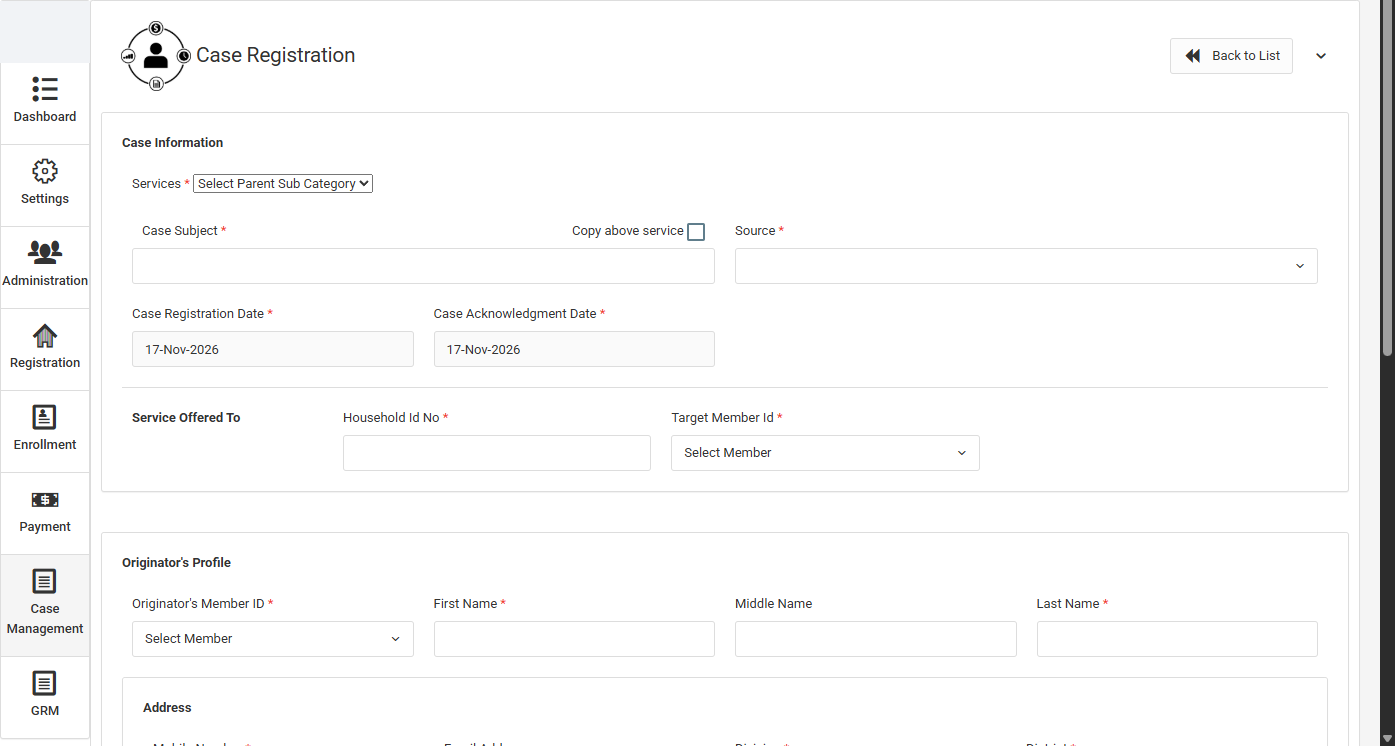

What is needed from the Department
- The approved grievance procedure and forms.
- The grievance categories.
- Response and resolution times.
- The escalation levels and who sits at each.
- Confidentiality rules.
- What must be reported and how often, including anything the programme's funders require.
The grievance path
11.1A grievance moves through these statuses: New, Acknowledged, Assigned, Under investigation, Resolution proposed, Awaiting complainant's response, and Closed. Two side paths exist: Escalated, when the complainant does not accept the resolution or a deadline is missed, and Reopened, after closure.
Intake
- 11.2Channels: in person, phone, letter, email or a drop box. Staff enter a grievance on the person's behalf.
- 11.3The form holds an automatic grievance number, date received, channel, the complainant (a household or member, a representative, or anonymous), preferred way of being contacted, category, description, the outcome the person wants, whether it is confidential, priority, location and attachments.
- 11.4Categories are a configurable list. A starting list is eligibility decision, payment problem, registration problem, staff conduct, service delivery, data error and other.
- 11.5The grievance links to the household record, and to the related payment or enrolment where known.
- 11.6The complainant gets an acknowledgement, a printed slip or a message with the grievance number, within 2 working days.
Routing and assignment
- 11.7Rules route a grievance by category and district to a responsible unit or officer.
- 11.8Confidential categories, such as staff conduct, go to a restricted group and never to the person complained about. A conflict-of-interest check is part of assignment.
- 11.9A case officer is assigned by hand or in turn. Reassigning needs a reason. A workload view shows each officer's open cases.
Investigation and action
- 11.10Officers keep notes, either internal or shared, with attachments, tasks with due dates, and site visits.
- 11.11Corrective actions can be started from the case, such as adjusting a payment or correcting data. Each is linked to the case and audited.
Resolution, escalation and closure
- 11.12A proposed resolution is recorded. Depending on category or amount, a supervisor approves it.
- 11.13The decision is communicated to the complainant, and their response, accepted or not accepted, is recorded.
- 11.14If it is not accepted, the case escalates to the next level, for example supervisor, manager and then committee, with a deadline at each level. The last level is final.
- 11.15Closing needs a reason: resolved, withdrawn, not eligible, or referred elsewhere. A supervisor approves closure.
- 11.16A closed case can be reopened within 30 days, with a reason.
- 11.17The complainant's satisfaction can be recorded.
Service times
These are settings. The starting values are Proposed.
- 11.18Acknowledge within 2 working days.
- 11.19Resolve standard cases within 20 working days and urgent cases within 5.
- 11.20Reminders go to the officer and supervisor before a due date. Overdue cases are marked and escalated automatically.
Confidentiality and access
- 11.21Roles control who can see grievances (Item 6). Confidential cases are visible only to named users.
- 11.22Anonymous grievances store no complainant identity.
- 11.23Viewing a confidential case is audited (Item 5).
- 11.24Complainant details never appear in lists shown to people without access.
Dashboard and reports
- 11.25Counts by status, category, district and age of case. Overdue cases. Average days to acknowledge and to resolve. The share resolved. Satisfaction. Export.
- 11.26The existing chart error is fixed, and charts handle empty data and failed loads without breaking (Bugs and errors fixing).
Offline and notices
- 11.27Intake works offline and syncs later. Grievance numbers come from blocks allotted to each office (Item 4).
- 11.28Assignment and escalation happen when online.
- 11.29Staff get in-app and email notices for assignment, due dates and escalation. The complainant is contacted only by the method they chose.
How we know it is done
- 11.30One grievance is walked from intake to closure: intake, acknowledgement, routing, assignment, investigation notes, proposed resolution, the complainant's response, escalation, closure and reopening.
- 11.31A confidential grievance is not visible to a user without access, and the person complained about cannot be assigned it.
- 11.32An anonymous grievance stores no identity.
- 11.33The reminder and overdue rules fire as set.
- 11.34The dashboard shows correct counts and handles empty data.
Open questions
- What are the Department's procedure, categories, response times, escalation levels and reporting requirements?
- Who may see which categories of grievance?
- May complainants be told by text message or email?
- Is a grievance a kind of case in Case Management, or its own record? The system has a case form and a grievance form with almost the same fields.
- How is the Expiry Date on My Case List set, and what does Final Approval mean?
Item 12 · Phase 3 · Reports and finishing
Dashboards and reporting
Each module gets its own dashboard, the main dashboard gives an overview, and reports can be filtered, drilled into and exported.
The scope document lists operational and executive dashboards, and reporting filters with drill-down. In the second meeting the product owner placed this in the last phase, because new features first produce the data to report on. The aim stated was a dashboard for every component, an overview on the main module of what exists and what is updated, reports with filters the user chooses, and export. Althaf confirmed that the live system has no reports today. The audit found that dashboard totals reconcile with the data for the five test households and 25 members, but also a chart error on the grievance dashboard and a total that never finishes loading. Details are Proposed unless marked otherwise.
Screen mockups for this item2 screens · S12.1 · S12.3ShowHide
Drawn in the look of the current system, with fictional sample data. Each number on a screen ties to the requirement numbers listed under it. All screen mockups
What exists today
The scope document's screenshot shows an enrolment analysis screen. It has filters for constituency, district, gender and who entered the record, with Refresh and Export Report buttons and a last refresh date. Its summary cards show total payees, total members, total active members and total members who exited or graduated, followed by enrolment by programme. This pattern is kept and extended.
What the live screens have today
From the walkthrough of the current system, captured on the test copy. Five dashboards exist: the home Dashboard, Beneficiaries Enrollment Analysis, Beneficiary Payment Dashboard, Case Management Dashboard and GRM Dashboard.
- One pattern. Each has filters at the top, Refresh and Export Report buttons and a Last Refresh Date line. All five show 16-11-2026 06:00 AM, so the figures seem to be refreshed on a schedule and not live. To confirm
- Mostly empty. The home Dashboard shows data, including five households and 25 members, which matches the audit's five test households and 25 members. On the other four dashboards the figures read zero or the panels read No Data Available. On the enrollment dashboard Total Payee still reads Loading... (Bugs and errors fixing).
- Enrollment panels. Total Enrollment Coverage, Enrollment By Program Wise, Beneficiary Enrollment Status (monthly and daily), Children Distribution By Age Group and By Age Group And Gender, Bi-Monthly Members Enrollment, Bi-Monthly Members Exit/Graduated, Members Relationship To Household Head, and Member Distribution By District and Gender.
- Which panels a role sees. Template Role Management picks a role, then moves panels between Available and Selected lists under nine sections: Main, Household, Targeting, Enrollment, Compliance, Payment, Information Update, Grievance and DataManagement. The captures show no save and no resulting dashboard.
- Report List. An Administration page lists titles by module, each marked Active or Deactive, with View Users and Edit buttons. Titles include Payment Reason Not Paid, Payment Program Wise, Payment By Division, Beneficiary Payment By Age, Household Survey Status and Household Marital Status. The meeting said there are no reports today. This list looks like the dashboard panels, not reports. To confirm
- Export. Dashboards have Export Report, and the payment dashboard also has Export All. Lists have Export To Excel and the paysheet page has Export Provisional Paysheet. The file types are not shown.
- Dates. Dates appear in several layouts: 16-11-2026, 2024-06-26, 25/12/2020 and 17-Nov-2026. The display rules should pick one. To confirm

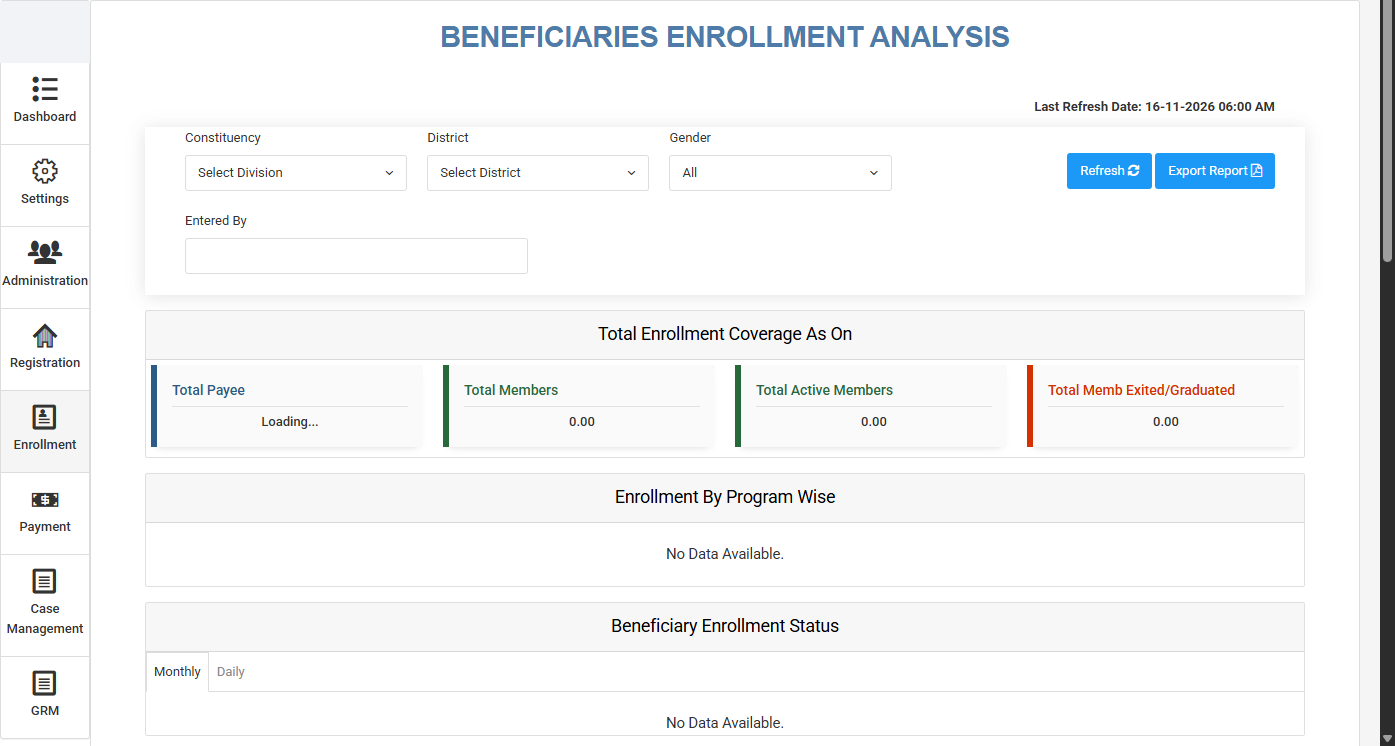
Dashboards
| Dashboard | Who uses it | What it shows |
|---|---|---|
| 12.1Main (executive) overview | Managers and the programme team | Total households and members, active and exited members (including deceased), new registrations this month, enrolment by programme, payments this period (paid, unpaid, unclaimed and the amounts), open and overdue grievances, data quality (missing birth certificates, possible duplicates), offices not yet synced, and monthly trends. |
| 12.2Operational | Officers | Today's tasks, queues, approvals waiting, overdue items and workload. |
| 12.3Registration and enrolment | Registration staff and managers | Registrations over time, enrolment by programme, district, gender and age group, exits and their reasons. |
| 12.4Payments | Finance and managers | Payments by period and status, reconciliation status, exceptions and balance. |
| 12.5Documents | Registration staff | Missing documents, birth certificate exceptions, upload queue. |
| 12.6Case management | Officers and managers | Open cases by type, age and officer. |
| 12.7Grievances | Grievance officers and managers | Counts by status, category and age, overdue cases and times (Item 11). |
| 12.8Access and audit | Super Admin and auditors | Privileged activity, access reviews due, sign-in failures. |
| 12.9Offices and sync | Super Admin and technical staff | Last sync, waiting changes, version and errors for each office. |
| 12.10Backup | Super Admin and technical staff | Backup status, last verified restore, storage used (Item 14). |
Each card shows a title, a value and an "as of" time. A tooltip gives the plain definition of the figure. Each card links through to the records behind it. People see only the dashboards their role allows, limited to their data scope (Item 6).
Filters
- 12.11A common set: date range, fiscal year, month, quarter, district, constituency, gender, age group, programme, status, payment method, pay point, office and who entered the record.
- 12.12Filters take effect when the user chooses Apply. Reset clears them. The last filters used are remembered for each user.
- 12.13Saved filter sets that can be shared are optional.
Drill-down
- 12.14Clicking a number opens the list of records behind it, and clicking a record opens it in a tab (Item 2).
- 12.15The list's total must equal the number clicked. This is checked by tests.
- 12.16A breadcrumb shows the path taken, for example Main, Enrolment, District, list.
- 12.17Drill-down respects permissions and data scope.
Reports
The live system has no reports, so the Department must confirm the starting list. The proposal covers the following.
- 12.18Registration and enrolment: new registrations, enrolment by programme, district, gender and age, exits and reasons, deceased members, possible duplicates, and data quality exceptions.
- 12.19Payments: the reports listed in Item 10.
- 12.20Grievances: the reports listed in Item 11.
- 12.21Documents: missing birth certificates and open exceptions.
- 12.22Users and access: user list and access review results.
- 12.23Audit extracts, sync status and backup log.
- 12.24Standard registers such as a household register.
Export
- 12.25PDF formatted for printing, with a header, the filters used, the date and time, and page numbers.
- 12.26Excel with the data itself, not pictures. CSV.
- 12.27Exports respect permissions, and sensitive columns are masked unless the role allows them.
- 12.28A large export, above a set number of rows, runs in the background and notifies the user when ready.
- 12.29Each file records who generated it, when, and with which filters. Every export is audited (Item 5).
- 12.30Scheduled monthly reports by email are optional.
Freshness and offline
- 12.31Dashboards read from the central database. A banner shows "Data as of the last sync" and how many offices have not yet synced, so people know figures may be incomplete.
- 12.32Heavy figures may come from summary tables refreshed on a schedule. The screen shows the last refresh date and time, as the current screen does, and Refresh recalculates on demand.
- 12.33Offline, a computer shows a summary of its own local data, clearly labelled.
Accuracy
- 12.34Every figure has a written definition, for example what "active member" means.
- 12.35Automated tests compare dashboard numbers with expected values on a fixed set of test data. The audit's five households and 25 members make a good starting set.
Display
- 12.36Charts have labels, colours that work for colour-blind readers, and a table alternative.
- 12.37Every dashboard handles three states properly: no data ("No data for these filters"), a failed load (a clear error with Retry), and loading that gives up after a timeout. The chart error and the endless "Loading..." found in the audit are fixed.
- 12.38A dashboard loads in under 3 seconds and a large report in under 30 seconds, on production-sized data.
How we know it is done
- 12.39Every dashboard in the table exists, shows only what the role may see, and every number drills down to a list with the same total.
- 12.40Each filter works alone and combined.
- 12.41The five-household test set gives the expected numbers.
- 12.42A report exports to PDF, Excel and CSV, with filters and time shown, and sensitive columns masked for roles without permission.
- 12.43The empty, failed and loading states all behave.
- 12.44The "as of" time and the unsynced office count are correct after a test sync.
Open questions
- Which figures and definitions does the Department want on the main dashboard?
- Which reports are needed first, and who receives them?
- Who may see the executive dashboard?
- Are scheduled emailed reports wanted?
- Are the titles on Report List dashboard panels or real reports? Why are some marked Deactive?
- Are the dashboard figures refreshed once a day, and is that acceptable?
Item 13 · Phase 3 · Reports and finishing
Help Centre
Staff can find answers inside the system, in a searchable library of user manuals and step-by-step guides that is open from every screen.
The scope document asks for integrated user manuals and step-by-step system guides. In the second meeting the product owner compared it with the help centre of a typical website: a search box, a list of topics, and a page to read when a topic is chosen, for example how to reach account settings. The audit also found that labels and support content need improvement. The infrastructure summary lists a web address for an information portal with no service behind it yet, which might be a home for this item. Details are Proposed unless marked otherwise.
Screen mockups for this item1 screen · S13.1ShowHide
Drawn in the look of the current system, with fictional sample data. Each number on a screen ties to the requirement numbers listed under it. All screen mockups
What the live screens have today
From the walkthrough of the current system, captured on the test copy.
- Help Creator. The Settings menu has a Help Creator page. Its body is blank in the capture, so no authoring screen and no published help is shown.
- System Information Content. The lower part of the System Control page holds editable text boxes: User Creation, Forget Password Email Content, Otp Content, Contact Us, About Us, About Convergence and Application Form. They look like the wording for emails and the About page. A footer on every page links to About and Contact.
- Nothing for the user. No help icon, tooltip or topic page appears in any of the captures.
- The Help Creator menu entry could be the home for Managing the content below. Whether anything sits behind it today is To confirm

The Help Centre page
- 13.1It opens as a tab (Item 2), and from a Help icon in the header.
- 13.2The home page has a search box and the topic groups: Getting started, Registration, Households and members, Documents, Payments, Grievances, Reports and dashboards, Users and access, Working offline and syncing, Security and passwords, Troubleshooting, and Frequently asked questions.
Articles and guides
- 13.3Each article has a title, a short summary, headings, numbered steps with screenshots, notes and warnings, related articles, a last-updated date and a version.
- 13.4Each article is marked for the roles that should see it. Admin guides are visible only to admins.
- 13.5Every task a role performs has a step-by-step guide. Examples: register a household, record a cash payment, change a mobile number, resolve a sync conflict, run a monthly payment report, and restore a backup.
- 13.6Full user manuals for each role, and an administrator manual, can be downloaded as PDF.
- 13.7A short "What is new" note is shown after each release.
- 13.8The developers write the first version of the content. The Department's staff keep it up to date.
Search
- 13.9Suggestions appear as the person types. The search covers titles, text and tags.
- 13.10Results show a short extract with the matching words highlighted, and tolerate spelling mistakes.
- 13.11When nothing matches, the page says so and shows how to contact support.
- 13.12A "popular articles" list helps people who do not know what to search for.
Help from inside each screen
- 13.13A Help button on each screen opens the matching article in a side panel, without leaving the page.
- 13.14Complex fields have short tooltips. For example, the password field shows the password rules (Item 3).
- 13.15Error messages link to the article that explains how to fix the problem.
Managing the content
- 13.16A Help editor role can create, edit, publish and unpublish articles in a simple editor inside the system, with text, images and attachments. No developer is needed for this.
- 13.17Articles have draft and published states and a version history. Categories and their order can be changed. Every edit is audited (Item 5).
- 13.18English is the first language. Other languages are To confirm
- 13.19The alternative is to keep the articles as files in the code repository, released with the system. That needs a developer for every wording change, so the in-system editor is proposed. To confirm
Offline
- 13.20Help articles are kept on each computer, so they open offline. They update at the next sync.
Feedback and support
- 13.21Each article asks "Was this helpful?" with an optional comment.
- 13.22A report lists searches that found nothing and the least helpful articles, so the team knows what is missing.
- 13.23The support contact, an email and phone number, is shown on the Help Centre page. To confirm the details.
Usability and accessibility
The audit found that form labels, keyboard navigation and help wording need improvement. As part of this item:
- 13.24Every form field has a visible label and, where needed, help text.
- 13.25Every screen can be used with the keyboard alone.
- 13.26Error messages are written in plain language and say how to fix the problem.
How we know it is done
- 13.27Searching "register household" finds the right guide, and a misspelling of it still does.
- 13.28Every main screen has a working Help button that opens its article.
- 13.29A Help editor can write, publish and unpublish an article without a developer, and each change appears in the audit log.
- 13.30An article marked for admins is invisible to other roles.
- 13.31Help articles open on a computer that is offline.
- 13.32A check finds no broken links in the articles.
- 13.33Every form field has a visible label.
Open questions
- Where is the Help Centre hosted: inside the system, or on the information portal address?
- Which languages are needed?
- Who writes and maintains the content after go-live?
- What is the support contact?
- What is behind the blank Help Creator page? Who edits the Contact Us and About Us text today?
Item 14 · Phase 3 · Reports and finishing
Backup and recovery
The system's data and documents are copied automatically on a schedule, the copies are protected and checked, and the system can be brought back after a failure by following a written and tested procedure.
The scope document asks for automated backup and recovery procedures. In the meetings, daily backups kept for 30 days were agreed in principle. The open point was who restores: a technical person, or an administrator from a screen in the system. Today the database is small, about 31 MB across 89 tables, and the uploaded documents are kept as ordinary files in four folders, so the documents are the part that can grow. The test environment on the cloud has been shut down, so any cloud backup settings will need to be set up again. Details are Proposed unless marked otherwise.
Screen mockups for this item1 screen · S14.1ShowHide
Drawn in the look of the current system, with fictional sample data. Each number on a screen ties to the requirement numbers listed under it. All screen mockups
What is backed up
| What | How | Why it matters |
|---|---|---|
| 14.1Central database | Daily full backup, plus a continuous log of changes so the system can be restored to a chosen minute ("point-in-time recovery") | All households, members, payments, cases, users and the audit log live here |
| 14.2Uploaded documents | Daily copy of the four document folders, with a list of every file and its checksum | Birth certificates and other evidence cannot be recreated from the database |
| 14.3Settings and secrets | Settings, the list of container versions, and keys, stored in a protected place separate from the data backups | Without them a restored system may not start or may not decrypt data |
| 14.4Office computers (Item 4) | Each computer's local database and waiting-to-sync queue stay on that computer, encrypted. They reach the central backups once they have synced | Unsynced work exists only on that computer |
| 14.5Audit log | Included in the database backup, and also copied on its own with its chain check values (Item 5) | The log proves nothing was altered, so it needs its own copy |
| 14.6Help articles and templates | Included in the database and document backups |
The code itself is not part of the backup. It is held in the private code repository, and the containers can be rebuilt from it.
Schedule and retention
- 14.7Daily backup, run at a quiet hour. Kept for 30 days (agreed in principle).
- 14.8One backup a month, kept for 12 months. One backup a year, kept for 7 years, matching the audit log retention in Item 5. To confirm both.
- 14.9Change logs for point-in-time recovery are kept for 7 days. To confirm
- 14.10A backup is also taken automatically just before every system upgrade and every database change, and kept for 30 days.
- 14.11Retention periods are settings, not code.
Where copies are kept
- 14.12Three copies, two kinds of storage, one far away. The live data, a backup in the same cloud region, and a second copy in a different region or a different provider.
- 14.13Backups are encrypted, in storage and while travelling. Encryption keys are kept apart from the backups, and who holds them is recorded.
- 14.14Backup storage is write-once or has delete protection, so an attacker or a mistake cannot erase every copy. Deleting a backup before its retention ends needs two people.
- 14.15The account that makes backups can write but not delete. The account that restores can read but not delete.
- 14.16Backups hold real personal data, so they follow the same access rules as the live system (Item 6). Only named members of the technical team can reach backups.
Checking that backups work
A backup that has never been restored is not proven.
- 14.17After every backup, the system checks that the file exists, is not empty, is the expected size, and matches its checksum.
- 14.18Every week an automated job restores the latest backup into a separate empty environment, starts the system on it, and runs a short set of checks: row counts for the main tables, the audit chain check, and a sample of documents opening correctly.
- 14.19Every quarter a person performs a full restore from the procedure document, timed from start to finish, and records the result.
- 14.20A failed backup or a failed check sends an alert to the technical team and shows on the Backup dashboard (Item 12). No news is not treated as good news: if no backup report arrives by the expected time, that also raises an alert.
Recovery targets
These are Proposed, to be agreed with the Department.
- 14.21Recovery point (how much work can be lost): 15 minutes for the central system, thanks to the change log. For an office that works offline, work not yet synced is held on the computer that made it, and is lost if that computer is lost before it syncs. Frequent syncing and the warning after 3 days (Item 4) limit that risk.
- 14.22Recovery time (how long to be back): 4 hours for the central system. 1 working day for an office computer.
Restore scenarios
Each scenario gets a written, step-by-step procedure that a trained person can follow, with the commands and the checks at the end.
- 14.23A single record or table was changed or deleted by mistake. Restore into a separate copy, then copy back just the affected rows, with an audit entry.
- 14.24The whole database is damaged. Restore the latest backup, replay the change log to the chosen minute, and run the checks.
- 14.25Documents are lost or damaged. Restore the folders, then compare against the file list and checksums.
- 14.26The central server or cloud region is lost. Rebuild from the code repository, restore the data into a new region, switch the address over, and tell offices to resync.
- 14.27An office computer fails or is lost. Install the app on a replacement, register it with an admin, and run the first sync to download its starting data. Work that had not synced is lost unless the old computer can be recovered.
- 14.28Ransomware or a malicious deletion. Use the protected copies only after confirming they predate the attack, and rotate every key and password.
- 14.29A bad upgrade. Roll back to the previous container version and, if the database changed, restore the backup taken just before.
After any restore, the system compares the restored record counts and the latest audit entry with what was expected, and the audit log records that a restore took place, who ran it, from which backup, and why.
Who can run a restore
The meeting left open whether an administrator can restore from a screen. The proposal is:
- 14.30The Backup dashboard shows status, history, the last verified restore, storage used and alerts, and lets an administrator start a backup now.
- 14.31A restore that replaces live data is not a one-click action. It is done by the technical team, needs a written reason, and needs a second person to approve it before it runs.
- 14.32An administrator can restore into a separate copy to look at old data, without touching live data. To confirm
After the system is live
- 14.33Backup status is part of the monthly operations check.
- 14.34The restore procedure document is updated after every quarterly test and every change to the system.
- 14.35Staff who may need to restore are named and trained, with a deputy for each.
How we know it is done
- 14.36Backups run for 7 days in a row on schedule, appear on the dashboard, and the checks pass.
- 14.37A restore from one of those backups into an empty environment brings up the system with the same record counts, the audit chain intact, and a sample of documents opening.
- 14.38A point-in-time restore to a chosen minute is demonstrated, with a recorded change from a moment earlier present and one from a moment later absent.
- 14.39A deliberately failed backup raises an alert within 15 minutes, and so does a missing one.
- 14.40A person who was not part of the build restores the system by following the written procedure alone, and the time taken is recorded against the targets.
- 14.41Backup storage cannot be deleted by the backup account, and a second-region copy exists and is restorable.
- 14.42A replacement office computer is registered, runs its first sync, and carries on without losing or duplicating records.
Open questions
- Are the recovery point and time targets acceptable to the Department?
- Are the monthly and yearly retention periods right?
- May the second copy sit in a different country or cloud, or must it stay in a specified place?
- Who holds the backup encryption keys, and who is the named deputy?
- Can administrators restore into a separate view copy, or is every restore a technical-team task?
Item 15 · Phases 1 and 3
Security fixes, testing and bug fixing
The known faults are fixed first, the code is reviewed for security and quality, and the whole system is tested in a planned way, so that the Department can accept it with confidence.
The known bugs and errors are fixed first, in Phase 1, and are set out in their own section, Bugs and errors fixing, with the seven findings, the order of work, the bug records and the targets. This item covers the review, the testing, the security testing and the acceptance that go with that work. The scope document bases the work on an audit carried out on the test environment on 19 November 2026. The audit did not cover everything, so the testing described below must fill the gaps. Details are Proposed unless marked otherwise.
What the audit did not check
The audit did not verify the following. The other seven of its 14 findings are also missing from this document. These gaps are covered by the testing below.
- Backend security and penetration testing.
- Use on mobile devices and in other browsers.
- Access by lower-level roles.
- Complete payment transactions and reconciliation.
Early code audit
- 15.1In the first weeks, before the large new work starts, the whole code base is reviewed for security weaknesses, faulty logic, data access that skips permission checks, hard-coded secrets, slow queries, and code that is hard to maintain.
- 15.2The review produces a written report listing each finding with its severity, where it is, and how to fix it. High findings are fixed in Phase 1. Others are scheduled.
- 15.3The review is repeated before go-live.
Keeping the platform supported
15.4The system is built on .NET 9. Microsoft ended support for both .NET 8 and .NET 9 on 10 November 2026, so neither now receives security fixes. .NET 10 is a long-term release supported until November 2028. Source: Microsoft .NET blog, 29 June 2026.
15.5Proposed: move the system to .NET 10 in Phase 1, before new features are built on top. The change is usually small for a code base of this size: update the target version, update the packages, and run the full test suite. It is done early because every later piece of work would otherwise have to be moved afterwards. To confirm with the development team, including the effect on the container images and on the Windows app (Item 4).
Automated checks on every change
The code repository's pipeline runs these on every change, and a change cannot be merged if any of them fail:
- 15.6The system builds.
- 15.7The automated tests pass.
- 15.8A scan of packages and libraries for known vulnerabilities.
- 15.9A scan for passwords, keys and tokens left in the code.
- 15.10A check that any database change comes with a migration script (see Database migration).
- 15.11A code style and quality check.
Another person must review every change before it is merged. Nobody merges their own work.
Using AI tools to help review
AI tools may be used to speed up review and testing, with these rules:
- 15.12Real personal data, real keys, passwords, or any production settings are never given to an AI tool.
- 15.13AI suggestions are treated like suggestions from any other person: a developer reads, understands and tests them, and another person reviews the change.
- 15.14A tool that keeps what it is given and trains on it is not used on this code.
Kinds of testing
| Kind | What it checks | Who | When |
|---|---|---|---|
| 15.15Unit tests | Small pieces of logic, such as password rules, age ranges, one-time code expiry | Developers | With every change |
| 15.16Integration tests | Parts working together: the screen, the server and the database; sync; the payment platform adapter | Developers | With every change |
| 15.17Regression tests | The audit's confirmed-working features, plus every bug that is fixed | Developers, automated | Every change and every release |
| 15.18Functional tests | Each item in this document against its "How we know it is done" list | Test lead | Every sprint |
| 15.19Security tests | Permission checks for every role, login protections, injection and scripting attacks, file upload abuse | Developers, then independent testers | Every sprint, then before go-live |
| 15.20Offline and sync tests | The scenarios in Item 4, including long outages, duplicates and conflicts | Test lead | Every sprint after Item 4 begins |
| 15.21Performance tests | Pages and reports on production-sized data, slow connections, many users together | Developers | Before each phase ends |
| 15.22Compatibility tests | The supported browsers, phones, tablets and screen sizes | Test lead | Before each phase ends |
| 15.23Accessibility checks | Keyboard use, labels, colours, screen reader basics | Test lead | Every sprint |
| 15.24Backup and restore tests | The checks in Item 14 | Technical team | Weekly and quarterly |
| 15.25User acceptance testing | Real staff doing real tasks on a test copy of the system | Department staff | End of each phase |
Testing may use real data. Because it is personal data, test environments are limited to the named people who are bound by the signed agreement and non-disclosure terms.
User acceptance
- 15.26At the end of each phase the Department's staff run a written list of tasks, such as registering a household, recording a payment and handling a grievance, on a test copy of the system.
- 15.27Each task is marked passed or failed, with notes. Failures become bugs.
- 15.28The phase is accepted only when the Department signs the acceptance record. Payments to the developers follow the sprint and phase rules in Delivery approach.
Independent security testing
The scope document places formal vulnerability assessment and penetration testing under this item. An earlier decision on the programme gave that work to an independent specialist rather than the developers. The two need to be reconciled, and this is listed as an open question below.
Whoever does it, the proposal is:
- 15.29The testers are independent of the people who wrote the code.
- 15.30It is done once on the stabilised system, before the pilot goes live, and again after any major change.
- 15.31It covers the web application, the server programming interface, the sign-in and session handling, permission checks between roles and offices, file uploads, the sync service, and the Windows app.
- 15.32The result is a written report. High and Critical findings are fixed and retested before go-live. The retest is recorded.
- 15.33Testing is not run on the live system. It runs on a separate copy.
When stabilisation is complete
Phase 1 is accepted when all of these hold:
- 15.34The seven findings, the other seven from the full audit report, and the registration hang, all listed in Bugs and errors fixing, are fixed and retested.
- 15.35There are no open Critical or High bugs.
- 15.36The code audit report is delivered and its High findings are fixed.
- 15.37The system runs on a supported version of .NET.
- 15.38The automated checks run on every change, and the regression tests pass.
- 15.39Backups run and a restore has been proven (Item 14).
- 15.40The Department has signed acceptance of the Phase 1 task list.
Open questions
- Who carries out the formal penetration test, and who pays for it? Is it inside the fixed budget or separate?
- Is the move to .NET 10 agreed, and does it fit inside the first sprints?
- Can the full 14-finding audit report be shared with the developers? Only seven findings are in the scope document, so the other seven must be obtained before work starts.
- Which browsers and devices must be supported?
- Who from the Department takes part in user acceptance testing, and how many days can they give each phase?
Phase 3 · Reports and finishing
Database migration and data restoration
The real data moves from the current live system to the enhanced system once, safely and provably, and every database change made along the way is scripted so it can be repeated.
The developers have access to real data under the signed agreement and non-disclosure terms. The current database is small, about 31 MB across 89 tables, so the work is a matter of care, not size. The documents, kept as ordinary files in four folders, are moved separately and checked against the database records. Details are Proposed unless marked otherwise.
Rules for data during development
- M.1Developers and testers may use real data. This is covered by the signed agreement and non-disclosure terms.
- M.2Real data never goes to an AI tool, into the code repository, or into a test environment that people outside the agreement can reach.
- M.3Anyone who does handle real data signs the confidentiality terms first and is named in a short list.
Database changes are always scripted
- M.4Every change to the structure of the database (a new table, a new column, a changed rule) is written as a numbered migration script kept in the code repository, never made by hand on a live database.
- M.5A script can be run on an empty database and on an old database and gives the same result. Each script says how to undo it, or states clearly that it cannot be undone and a backup must be taken first.
- M.6The pipeline refuses a code change that alters the data structure without a script (Item 15).
- M.7A record in the database lists which scripts have been applied, so any copy can be brought up to date with one command.
- M.8Changes that remove or rename a column are done in two releases, so the old and new code can run side by side during an upgrade. This matters once offices run their own servers (Item 4).
- M.9A backup is taken just before any migration on a live system (Item 14).
Moving the live data to the new system
- M.10Decide what moves. Everything in the current database moves. A list is made of any records that are known to be wrong or obsolete, and the Department decides for each group whether to fix it before the move, move it with a flag, or leave it behind.
- M.11Write the mapping. A mapping document lists, for every table and column, where it goes in the new structure, any change of format (for example dates), any default for new required columns (for example new birth certificate fields in Item 9), and what to do with values that do not fit.
- M.12Clean first. Before the move, run checks on the old data: duplicates, missing required fields, impossible dates, ages outside programme limits, members whose Household ID is missing or doubled (Item 7), mobile numbers in the wrong format (Item 8), and members recorded as active who may be deceased. Findings go to the Department for a decision.
- M.13Build the migration scripts. The scripts are repeatable: run twice, they give the same result and make no duplicates.
- M.14Move the documents. Files are copied to the new storage, and each file is checked by size and checksum. A report lists any document record without a file and any file without a record.
- M.15Verify. After every run, a report compares the old and the new data: row counts per table; totals such as households, members, payees and payments; the sum of every amount paid; a random sample of 100 households compared field by field; and that every login can still be linked to its person and role.
- M.16Test the new system on the migrated data, using the user acceptance list (Item 15), on a closed copy that only authorised people can see.
Rehearsals and go-live
- M.17At least two full rehearsals take place before go-live, on a copy of the live data in a private environment. Each is timed, the verification report is produced, and any problem becomes a fix to the scripts.
- M.18The second rehearsal must run with no manual steps and no failed checks.
- M.19Go-live follows a written plan with the exact time of each step: tell staff, stop entry on the old system, take a final backup of the old system, run the scripts, verify, switch the address to the new system, and let staff in. A named person has the authority to call a stop.
- M.20Rollback. If verification fails or a serious problem appears in the first hours, the address is switched back to the old system, which has been kept untouched and read-only. The plan says by when this decision must be taken, because after new entries are made on the new system a return means copying them back. The Department agrees this deadline in advance.
- M.21The old system is kept, read-only, for a period such as 90 days after go-live, then archived under the same protections as the backups (Item 14). To confirm the period.
Offices that work offline
- M.22Before go-live, each office syncs fully with the old system and confirms that nothing is waiting to be sent. Work left on a computer at cut-over is a risk, so the plan includes a day when offices stop entering new records.
- M.23Each office computer is set up, loaded with its share of the data, and tested for sign-in and a trial sync before it is used.
- M.24Staff keep a paper list of anything done during the cut-over window, to be entered afterwards.
After go-live
- M.25For the first weeks the verification report is run again each day, to catch drift between records.
- M.26Differences found by staff are logged and corrected with an audit entry. Corrections never overwrite history without a reason.
- M.27Passwords and sessions of the current system are not carried over unless the old format is compatible with the new rules in Item 3. The likely approach is that every user sets a new password at first sign-in. To confirm
Documentation and training
- M.28A technical guide describes the structure of the database, how to run migrations, and how to restore.
- M.29Short guides and a training session are prepared for each role before go-live (Item 13).
- M.30The developers hand over the migration scripts, mapping document, verification reports and rehearsal results as part of the final acceptance.
How we know it is done
- M.31A database built from an empty state by running all scripts matches the structure of a database upgraded step by step.
- M.32The pipeline refuses a structure change without a script.
- M.33Two timed rehearsals pass every check in the verification report, the second with no manual steps.
- M.34Every document record has a file, and every file has a record, or the difference is listed and explained.
- M.35Rollback is rehearsed once, and the time taken is recorded.
- M.36After go-live, the daily check shows no unexplained difference for the agreed period.
Open questions
- Who on the Department's side decides which known data problems are fixed before the move?
- What is the latest point at which a rollback is still acceptable?
- How long is the old system kept after go-live?
- Do existing users keep their passwords, or reset them?
- Is there data in other places, such as spreadsheets or paper registers, that must also be loaded?
Applies to every item
Requirements that apply across all items
These rules apply to every screen and every feature in this document. Each item does not repeat them, but each item must meet them to count as done. Details are Proposed unless marked otherwise.
Screen mockups for the parts shared by every item1 screen · S0.4ShowHide
Drawn in the look of the current system, with fictional sample data. Each number on a screen ties to the requirement numbers listed under it. All screen mockups
Security baseline
- X.1Everything over a secure connection. All traffic uses HTTPS with a current version of the protocol. Plain HTTP is redirected. The browser is told to always use HTTPS.
- X.2Permission checks on the server. Hiding a button is not security. The server checks the user's role and data scope on every request, and refuses anything not allowed (Item 6).
- X.3Input is never trusted. Every value is checked on the server for type, length, range and format, whatever the screen already checked. Database queries use parameters, never text joined together. Output shown on a page is encoded so it cannot run as a script.
- X.4Protection against common attacks. Protection against forged requests from other sites, scripts injected into pages, and clicking tricks (the page cannot be shown inside another site). A content security policy limits where scripts can load from.
- X.5Rate limits. Sign-in, one-time codes, password reset and search are limited per user and per address, to slow guessing and scraping (Items 3 and 8).
- X.6Files. Uploads are checked by their real content, not only their name, limited in size and type, stored outside the web folder under random names, and never run (Item 9).
- X.7Secrets. Passwords, keys and tokens are never in the code or in logs. They are kept in protected settings, rotated on a schedule, and replaced at once if exposed.
- X.8Least privilege. The system's own database account can do only what the system needs. People and services get the smallest access that lets them work.
- X.9Errors. A user sees a plain message and a reference number. Technical details go to the application log, never to the screen (Item 5).
- X.10Updates. Operating system, containers and libraries are kept on supported versions and updated on a regular cycle, with an emergency path for serious flaws (Item 15).
- X.11Sensitive data at rest. The database, document storage and backups are encrypted. Especially sensitive fields, such as payment account numbers, are also encrypted inside the database and shown masked.
Privacy and personal data
- X.12Collect only what a function needs. Every field on a form has a reason.
- X.13People see only the personal data their role and data scope allow. Sensitive columns are masked in lists, in exports and in reports unless the role allows them.
- X.14Looking up a person outside your assigned area is recorded in the audit log (Item 5).
- X.15Personal data is never put into the address of a page, into error messages, or into the application log.
- X.16Exports and printouts are marked with who produced them and when.
- X.17Retention periods are set for each kind of data, and nothing is deleted without an approved reason. Records of deceased members and exited members stay for history (Item 7). To confirm the periods with the Department.
- X.18A request from a person to see or correct their own data is handled through a documented procedure, with an audit entry. To confirm the procedure.
Language, dates, time and currency
- X.19The first language is English. The text on screens is kept in language files, so another language can be added without changing the code. To confirm whether a second language is needed.
- X.20Dates are shown as day-month-year, with the month as a word or a two-digit number, so there is no confusion with month-day-year.
- X.21The local time zone is a setting. Times are stored in a universal standard and shown in the local time zone.
- X.22The currency, and how amounts are shown (symbol, number of decimals, separators), are settings. Amounts are stored as exact decimal numbers, never as fractions that can round wrongly.
- X.23Names are stored as written, in Unicode, with letters from any language and accents. A person may have a single name, or a very long one, and the forms allow it. A form never insists on both a first and last name.
- X.24Search ignores accents and capital letters and tolerates common spelling differences (Item 9).
Speed and weak connections
- X.25The system is used in places where internet links are slow or drop. It is tested on a throttled connection of 1 megabit a second with a delay of 300 milliseconds.
- X.26The first page opens in under 5 seconds on that link, and later pages in under 3 seconds. A normal list opens in under 2 seconds on an ordinary link.
- X.27Pages send only what they need. Lists are shown a page at a time. Images are compressed. Scripts and styles are compressed and cached.
- X.28Every action that takes more than a second shows that it is working, and no action leaves the screen frozen.
- X.29A form that is interrupted by a lost connection keeps what was typed (Item 4).
- X.30Reports and exports that take long run in the background (Item 12).
- X.31Production-sized test data is used for performance testing.
Reliability
- X.32A failure in one part, such as the payment platform or a report, does not stop the rest of the system.
- X.33Calls to other services have a time limit and are retried with growing waits. After repeated failure the user is told clearly and the attempt is logged.
- X.34Every action that changes data either completes fully or changes nothing, so a failure never leaves half-saved records.
- X.35Two people editing the same record at once are told about the clash, and the second save does not silently overwrite the first.
- X.36The system reports its own health on a page that the technical team's monitoring checks, and raises an alert when the system, the database or a sync service stops responding.
Browsers and devices
- X.37The system works on the current and previous version of Chrome, Edge, Firefox and Safari on computers.
- X.38It works on current phones and tablets, in the browser, with screens that adapt to size.
- X.39Screens are designed first for a standard office computer and then checked on a small screen. Complex screens, such as registration, must be usable on a tablet.
- X.40To confirm which devices the offices actually use, so that the testing covers them.
Accessibility and ease of use
- X.41Every field has a visible label. Every screen can be used by keyboard alone, with a visible focus.
- X.42Colour is never the only sign of meaning, and text has enough contrast with its background.
- X.43Errors appear next to the field and say how to fix the problem.
- X.44Dangerous actions, such as delete, reverse or restore, ask for confirmation and say what will happen.
- X.45Words are kept plain and the same across screens: one name for each thing.
Settings and environments
- X.46Anything that differs between the test, rehearsal and live systems, such as addresses, keys, time limits and thresholds, is a setting supplied from outside the code, through environment variables or protected configuration. Nothing is changed in the code to move between environments.
- X.47Business rules mentioned in this document as settings, such as password length, session time and retention, are changed in a settings screen by an authorised administrator, with an audit entry, or in configuration where noted.
- X.48There are separate environments for development, testing and live, and a private one for rehearsal. Each has its own database and keys.
Documentation of the code
- X.49Each part has short technical notes in the repository: what it does, how to run it, how to test it, and how it is set up.
- X.50The structure of the system, the database and the interfaces is described and kept up to date as part of the work, not at the end.
Definition of done for any piece of work
A piece of work is done only when all of these are true:
- X.51It does what the item in this document says, including the "How we know it is done" list.
- X.52It meets the rules in this section.
- X.53Another developer has reviewed it.
- X.54Automated tests cover it, and all automated checks pass.
- X.55A tester has tried it with the roles it applies to, including a role that must not have access.
- X.56It works offline where the item says so.
- X.57Its important actions appear in the audit log.
- X.58Any database change has a migration script.
- X.59Its Help article and screen text are written or updated (Item 13).
- X.60It is shown to the product owner at the sprint review and accepted.
Open questions
- Is a second language needed, and which?
- Which retention periods apply to each kind of data?
- Which procedure applies when a person asks to see or correct their own data?
- Which devices and browsers do the offices use?
Decisions
Open questions and decisions needed
Each item ends with its own list of open questions, about eighty in all. This section pulls out the decisions that hold up the most work, says who should decide, and gives a suggested default so work can start while the answer is awaited. A suggested default is a proposal, not an agreement. When a decision is made, note the date and the decision beside it, and update the item it affects.
Decisions that block the most work
| No. | Decision needed | Item | Who decides | Suggested default | Needed by |
|---|---|---|---|---|---|
| 1 | Share the full 14-finding audit report. Only seven findings are in the scope document. | 15 | Product owner | Give the full report to the developers | Before Phase 1 starts |
| 2 | Move the platform to .NET 10, because .NET 8 and 9 are out of support | 15 | Development team and product owner | Yes, in the first sprints, before new features are built | Before Phase 1 starts |
| 3 | Who carries out the formal penetration test, and is it inside the fixed budget? | 15 | Product owner and Department | An independent specialist, separate from the developers; budget to be confirmed | Before Phase 1 ends |
| 4 | How many offices and computers, and how long an outage must be supported | 4 | Department | Design for several days offline, matching the proposed 7-day offline sign-in | Before Item 4 work starts |
| 5 | Password rules: 12 characters (proposed) or the 8 mentioned in the meeting; expiry; which roles must use two-step sign-in | 3 | Department | 12 characters; 90-day expiry; two-step sign-in for administrators and anyone who approves payments | Before Item 3 starts |
| 6 | Household ID format, and how offices get blocks of numbers while offline | 7 and 4 | Department | A readable ID, issued in blocks allotted to each office | Before Item 7 starts |
| 7 | Stop-payment rule after a death, and what happens to payments already made | 7 and 10 | Department | Stop from the recorded date of death; flag anything paid after it for review | Before Item 7 starts |
| 8 | One-time code: whose number is protected, and how it is delivered | 8 | Department and development team | The household's registered mobile number, by text message, with an officer check as the fallback | Before Item 8 starts |
| 9 | Birth certificate: for every member or only children, and what happens when one cannot be produced | 9 | Department | Required for new registrations, with an exception path that needs an approver and a reason | Before Item 9 starts |
| 10 | Which digital payment platform, and does it have an API and a test environment? | 10 | Department | Nothing can be built against it until named. The design works with any provider, with a file export and import as the fallback | Before Phase 2 payment work |
| 11 | Unclaimed cash payments: after how long, and carried forward or returned to the fund | 10 | Department | Unclaimed after 60 days; the Department decides what happens to the amount | Before Item 10 starts |
| 12 | Grievance procedure, categories, response times and escalation levels | 11 | Department | Use the baseline in Item 11 until the finalised requirements arrive | Before Item 11 starts |
| 13 | Retention periods for audit entries, documents and backups | 5, 9 and 14 | Department | 7 years for audit entries and yearly backups; documents to be decided | Before go-live |
| 14 | Recovery targets (15 minutes of data, 4 hours to be back) and where backup copies may be stored | 14 | Department and development team | As proposed in Item 14, with the second copy in a place the Department approves | Before Item 14 starts |
| 15 | Application log tool and its monthly cost | 5 | Development team | The tool that keeps total running cost within the monthly target | Before Phase 1 ends |
| 16 | Which reports and dashboard figures are needed first | 12 | Department | Start with the dashboards and reports listed in Item 12 | Before Phase 3 starts |
| 17 | Migration: the last point at which rollback is acceptable, and whether users keep their passwords | Migration | Department and product owner | Every user sets a new password at first sign-in | Before the first rehearsal |
| 18 | Help Centre: where it is hosted, languages, who maintains it, and the support contact | 13 | Department | Inside the system, English first, maintained by Department staff | Before Item 13 starts |
Where the sources disagree or are incomplete
- Password length. The meeting mentioned 8 characters. This document proposes 12 (Item 3).
- Penetration testing. The scope document lists it under Item 15, but an earlier decision on the programme gave it to an independent specialist (Item 15).
- Audit findings. The audit report has 14 findings and the scope document carries seven (Bugs and errors fixing).
- Platform support. The system runs on .NET 9, which Microsoft stopped supporting on 10 November 2026 (Item 15).
- Report frequency. The scope document asks for monthly, quarterly and annual payment reports. The meeting also mentioned weekly (Item 10).
- The offline design. The scope document recommended a browser-based approach first. The meetings settled on a local copy of the data on each office computer, in a Windows app that syncs automatically (Item 4).
- Meeting recordings. The two recordings were partly unclear. Wherever the wording was not clear enough to be sure, the detail is marked Proposed or To confirm instead of Agreed.
The other questions
The questions not listed above, such as how many tabs may open at once (Item 2) or whether two households may share a mobile number (Item 8), do not block the start of work. They are listed at the end of the item they belong to. Anything the development team can reasonably decide on its own, it should, using the suggested approach in the item, and note the decision for the product owner at the next sprint review.
Beyond the 15 items
Discussed but outside the 15 items
These came up in the meetings. None of them is one of the 15 items, so none is planned or priced. They are recorded here so they are not lost, and so nobody assumes they are included. Taking any of them on is a change to the scope, decided by the product owner. The 15 percent flexibility in the fixed budget is meant for small adjustments inside the 15 items, not for large new pieces of work like these.
| Idea | What was said | Suggested handling |
|---|---|---|
| Giving other organisations access to the data through a programming interface, possibly for a fee | Raised as an idea for the future | Not built. It would need the Department's approval, a privacy and legal review, a consent model and strong security before any design starts. Revisit after go-live |
| A forecasting model for future enrolment or payment figures | Raised as an idea for the future | Not built. It depends on the reports in Item 12 and on enough history in the data. Revisit after Phase 3 |
| A separate, fully native Windows program | Considered as a way to work offline | Not planned. Item 4 covers a Windows shell around the existing web system, as the development team proposes |
| Checking identity against an external service or register | Raised and declined for now | Not planned. If it returns, it needs the Department's approval, an agreement with the service, and a privacy review |
| Dedicated phone apps or a Mac program | Mentioned | Not planned. The browser version is designed to work on phones, tablets and computers (see Browsers and devices in the cross-cutting requirements) |
| Support and maintenance after the pilot goes live | Developer availability is agreed until the pilot go-live | Not covered. The Department should decide whether support is wanted afterwards, for how long, and who pays, ideally before go-live |
If any of these becomes a requirement, add it to the open questions above, with an owner, and write it up in the same way as the 15 items.
Planning · pending developer confirmation
Dependencies and build order
This page proposes the order in which the work is built, taken from how the 15 items depend on each other. It is pending: the product owners drew it up from this specification alone, and the development team has not yet confirmed it. The three phases stay as agreed. Once the developers confirm or change this page, it is updated and logged as a new version.
What this page is, and what it is not
- Proposed, not agreed. Everything here is Proposed until the development team confirms it. A confirmed line becomes Agreed, and the change log records who confirmed it.
- Order, not dates. The sprint numbers are indicative. They assume 13 two-week sprints in six months, and the developers resize them after the early code audit.
- Phases stay as agreed. Only the order inside the phases is proposed. The scope document asks the developers to work flexibly across items that depend on each other, so an item may start early when that helps.
- Read from this document only. The dependencies below come from the text of the 15 items. The developers know the code and will find links that are not visible here. Please add them.
How to read the dependency table
- Needs first means the piece cannot be finished or proved without it.
- Needs to finish means work can begin with a placeholder, but cannot be completed until the other piece exists.
- Outside decision or input lists what must arrive from the Department or another party. Decision numbers refer to the table in Open questions and decisions needed.
Dependencies, piece by piece
| Piece of work | Needs first | Needs to finish | Why | Outside decision or input |
|---|---|---|---|---|
| Item 1: repository, test site and pipeline | Nothing | None | Starts first. The repository, the test site and the pipeline carry every other piece of work. | Container registry (development team's choice). |
| Bugs and errors fixing | Item 1 | None | Fixes need controlled code and a release path to the test site. The same fixes make the code safe to build on. | The full 14-finding audit report (decision 1), a sign-in for every role, and a copy of the real data on the test site. |
| Early code audit and move to .NET 10 (part of Item 15) | Item 1 | None | The platform move and the first code review come before new features, so nothing new is built on an unsupported version. | Agreement to move to .NET 10 (decision 2). |
| Item 5: audit logging | Code audit and .NET 10 | None | Almost every later item writes to the audit log, so its foundation (the protected log and the call that writes to it) comes first. The log page and exports can follow. | Application log tool and its cost (decision 15), retention (decision 13). |
| Item 3: authentication and password security | Code audit and .NET 10, Item 5 | None | Sign-in and session records go into the audit log. Item 8 and the offline sign-in of Item 4 reuse its code engine and rules. | Password and two-step rules (decision 5). |
| Item 6: access management | Item 3, Item 5 | None | Roles travel in the sign-in token from Item 3, and every role change is audited. Every later screen needs permission rows. | Data scopes, one role or several per user, access review frequency (Item 6 questions). |
| Item 2: single-view navigation | Code audit and .NET 10 | Item 6, Item 4 | The tab frame can be built as soon as the platform is stable. The menu by role needs Item 6, and offline behaviour needs Item 4. Every new screen opens inside a tab, so the frame comes before the new screens. | Tab limit and which pages may open twice (Item 2 questions). |
| Item 4: offline-first operation and synchronisation | Item 1, Item 3, Item 5, Item 6 | Item 2, Item 7 | Offline sign-in uses Items 3 and 6, offline audit entries use Item 5, and app updates ride on the release path of Item 1. The first proof uses household registration with an internal ID until Item 7 issues readable Household IDs. | Number of offices and computers, and how long an outage must be supported (decision 4). Household ID blocks (decision 6). |
| Item 7: Household ID support | Item 6, Item 5 | Item 4 | Every record hangs off the Household ID, so it comes before the items that store records. Blocks of numbers for offline offices need the Item 4 foundation. | Household ID format (decision 6), stop-payment rule after a death (decision 7). |
| Item 8: OTP and mobile number management | Item 3, Item 7 | Item 4 | Uses the one-time code engine of Item 3. Contacts and registered mobile numbers come from Item 7. Offline 'Pending verification' needs Item 4. | Whose number is protected and how the code is delivered (decision 8), text message service, licensed prefix list. |
| Item 9: registration and document management | Item 7, Item 6 | Item 4, Item 10 | Every document belongs to a Household ID. Offline queuing of documents uses the Item 4 sync. The unified search is completed for payments and entitlements once Item 10 exists. | File storage provider, birth certificate rule (decision 9), retention. |
| Item 10: payment management | Item 7, Item 6 | Item 4, Item 9 | Eligibility and the stop after a death come from Item 7. Cash payments offline need Item 4. The digital adapter needs a named platform with a test environment. | Digital payment platform (decision 10), unclaimed rule (decision 11). |
| Item 11: grievance management | Item 6, Item 5, Item 7 | Item 4 | Confidential cases need the roles of Item 6, and every step is audited. The baseline can start before the final rules arrive. Offline intake needs Item 4. | The Department's finalised grievance rules (decision 12). |
| Item 12: dashboards and reporting | Item 7, Item 9, Item 10, Item 11, Item 6 | Item 4, Item 14 | Dashboards read the data the earlier items produce. The offices-and-sync dashboard needs Item 4, and the backup dashboard needs Item 14. Agreed as the last item. | Which reports and figures first (decision 16). |
| Item 13: Help Centre | Item 2 | Item 4 | Needs the tab frame. Its content follows the finished screens, and the offline copy of the articles needs Item 4. | Where it is hosted, languages, who maintains it (decision 18). |
| Item 14: backup and recovery | Item 1 | Item 5, Item 4 | Backup targets depend on where the system and its documents are kept. The audit log copy needs Item 5, and office computer recovery needs Item 4. | Hosting and file storage choice, recovery targets and where copies may sit (decision 14). |
| Item 15, the rest: security tests, user acceptance, penetration test | Item 4, Item 9, Item 10, Item 11, Item 14 | Item 12 | The penetration test runs once, on the stabilised system, so the features it covers must be finished. Security tests on each sprint's work start in Phase 1. | Who carries out the penetration test and who pays (decision 3). |
| Database migration and data restoration | Item 7, Item 9, Item 10, Item 11, Item 14 | Item 4, Security testing | The scripts need the final data structure. Rehearsals need working backups, and the office cut-over needs Item 4. | Last acceptable rollback point and password handling (decision 17). |
| Pilot go-live | Migration, Security testing, Item 12, Item 13 | None | Go-live needs the data moved and proven, the security testing passed and the Phase 3 items accepted. | Support after go-live (outside the 15 items). |
Recommended build order
Six waves. Wave 0 is Phase 1, Waves 1 to 4 are Phase 2 and Wave 5 is Phase 3. Within a wave the pieces can run side by side where the developers have the capacity.
| Wave | Phase | Indicative sprints | Builds | Done when | Decide before it starts |
|---|---|---|---|---|---|
| Wave 0: a base that works | Phase 1 · Stabilise | 1 to 3 | Item 1; Code audit and .NET 10; Bugs and errors | A merged change reaches the test site by itself. No open Critical or High bugs. The system runs on .NET 10. The early code audit report is delivered. | Decisions 1 and 2, container registry, test environment cost cause. |
| Wave 1: foundations | Phase 2 · New functions | 4 to 5 | Item 5; Item 3; Item 6; Item 2 | Every sign-in and change is audited, with the audit page. Roles are made by ticking boxes. The tab frame holds the existing pages. | Decisions 5, 13 and 15. |
| Wave 2: offline foundation and Household ID | Phase 2 · New functions | 6 to 7 | Item 7; Item 4 | The one-form proof passes: a household registered offline, with the app closed and reopened, arrives centrally exactly once, with its Household ID. Death recording stops payments by the agreed rule. | Decisions 4, 6 and 7. |
| Wave 3: contacts, codes and documents | Phase 2 · New functions | 8 to 9 | Item 8; Item 9 | A mobile number changes by code, by officer check and offline. Registration needs a birth certificate record. Documents are in the central store. Unified search finds households, members and documents. Conflicts and duplicates have their screens. | Decisions 8 and 9, file storage and text message services. |
| Wave 4: money and cases | Phase 2 · New functions | 10 to 11 | Item 10; Item 11 | A full cash cycle and a full digital cycle (on the provider's test site) run end to end. One grievance walks from intake to closure. Both work offline where the items say so. | Decisions 10, 11 and 12. |
| Wave 5: reports, protection and go-live | Phase 3 · Reports and finishing | 12 to 13 | Item 12; Item 13; Item 14; Migration; Security testing; Pilot go-live | Dashboards and reports reconcile with the lists. Help articles exist for every main screen. A person outside the build restores from the written procedure. The penetration test passes. Two migration rehearsals pass. | Decisions 3, 14, 16, 17 and 18, and support after go-live. |
The plan sits at the late edge of the developers' own estimate. The developers expected delivery after month 4 or 5, with testing in month 5. In this order the last feature work ends in sprint 11, which is the end of month 5, and Wave 5 uses the last two sprints. The sprint ranges are the first thing the developers are asked to resize.
Swipe sideways to see the whole diagram.
The longest chain
The longest chain of hard dependencies runs: Item 1 → Code audit and .NET 10 → Item 5 → Item 3 → Item 6 → Item 7 → Item 10 → Security testing → Pilot go-live.
A delay on any step of that chain moves go-live by the same amount. These steps get the first developer time, and the decisions that hold them are asked for first: 1, 2, 3, 5, 6, 7 and 10. Pieces off the chain can slip without moving go-live, as long as they finish before Wave 5.
Where the order differs from the phase list
- Item 5 before Item 3 and Item 6. Inside Phase 2, the protected audit log and its write call come first, because sign-in records, role changes and almost every later item write to it. The audit page and exports follow.
- Item 2 early. The tab frame is built in Wave 1, before the new screens, so no screen has to be reworked to fit inside a tab.
- Item 4 is built in stages. The foundation (Windows app, local store, change queue, sync service and the one-form proof) is Wave 2. Documents offline, the conflict screen and the duplicate screen are Wave 3. Each later function is made offline-capable as it is built in Waves 3 and 4. The update route is ready before the first office rollout.
- Item 14 starts early. Start the automated database backup and a first restore as soon as the hosting and file storage choices are made, in Wave 1 or 2, because the test site already holds real data. The weekly restore tests, point-in-time recovery and the Backup dashboard follow in Phase 3.
- Item 13 starts early. Write each Help article as its screens finish, as the Definition of done asks. Until the Help editor exists, keep the articles as files in the repository and load them in when it does.
- Security tests run from Phase 1. Permission, sign-in and upload tests run on every sprint's work. Only the independent penetration test waits for the finished system.
- A conflict to settle. The Phase 1 acceptance in Item 15 lists a proven backup restore (Item 14), but Item 14 sits in Phase 3. Either the basic backup and one proven restore move into Phase 1, or that line comes out of the Phase 1 acceptance. To confirm
What the developers are asked to confirm
- Are the hard dependencies right, and are any missing that only the code shows?
- Does the order of Items 5, 3 and 6 hold, or does something in the code force another order?
- Can Item 4 and Item 7 run side by side in Wave 2, with the proof using an internal ID until the Household ID blocks exist?
- How many sprints does each wave need once the early code audit is done, and does the whole fit in 13?
- Which pieces can two developers build in parallel, and which only one after the other?
- Which decisions must arrive first to avoid idle time?
- Is it acceptable to start the backup set-up and the Help article files early?
After the developers confirm
The product owners update the dependency and wave tables, record the new version in the Change log with who confirmed it, and only then break the items into Azure DevOps tasks. The task list follows the confirmed order, so the order should be settled before the tasks are made.
Planning · pending the numbers
Scale and volumes
This section is pending. The system is small today, but the numbers that size the design, the tests and the running cost have not been collected yet. It lists what is known, what is not, who can supply each number, and a starting figure to use until the real one arrives. The product owners will ask the development team and the Department, and this section is updated and logged as a new version when the numbers come in.
Status of this section
- What is known comes from the scope document, the infrastructure summary and the meetings. It is stated as found.
- What is not known is marked To confirm. Where a starting figure is given, it is a working figure for sizing and testing only. It is not agreed and not a target.
- Nothing here changes a requirement. The performance targets in the cross-cutting requirements stand. The numbers decide how much room the design must have and what it costs.
What is known today
| Fact | Value | Where it comes from |
|---|---|---|
| Database tables | 89 | Infrastructure summary of the production server |
| Database size | About 31 MB in June 2026 | Infrastructure summary |
| Documents | Plain files in four folders (Enrollment, Household, Member, CaseManagement). Count and size not known | Infrastructure summary To confirm |
| Test data used by the audit | 5 households and 25 members | Audit summary of 19 November 2026 |
| Offices | About 10, each with one computer | Mentioned in the meeting To confirm |
| Connection | 10 to 40 Mbps was mentioned for uploads. Some offices have 1 to 2 hours of connection a day | Meetings To confirm |
| Test link for performance | 1 megabit a second with a delay of 300 milliseconds | Cross-cutting requirements Proposed |
| Largest document | 10 MB. PDFs about 5 MB, photos under 1 MB, shrunk on upload to about 2 MB | Item 9 Proposed |
| Sync batch | About 50 changes, every 5 minutes while online | Item 4 Proposed |
| Sessions | Up to 3 at once per user, 12 hours longest | Item 3 Proposed |
| Test environment cost | About USD 80 a month is acceptable | Delivery approach, agreed as a target |
| Retention | Audit entries 7 years, application log 90 days, daily backups 30 days, monthly 12 months, yearly 7 years | Items 5 and 14 Proposed |
| Speed targets | Search under 2 seconds, dashboard under 3 seconds, a year of audit entries searched under 3 seconds, large report under 30 seconds | Items 9, 12 and 5 Proposed |
What is not known yet
| No. | Number needed | Why it matters | Items | Who can supply it | Starting figure until then | Status |
|---|---|---|---|---|---|---|
| 1 | Households and members registered today, and expected at go-live and after three years | Search speed, the starting data set for each office computer, dashboard load, test data size | 4, 9, 12 | Development team counts them on the test copy. Department gives expected growth | Test at ten times today's database (about 310 MB) | To confirm |
| 2 | Staff users, and how many sign in at once | Sessions, rate limits, server size, cost | 3, 6 | Development team counts users. Department gives the number of staff | Not set. The development team proposes one | To confirm |
| 3 | Offices, computers per office, and how long an outage lasts | Offline design, local storage, sync load, how long offline sign-in must last | 4 | Department (decision 4) | 10 offices, one computer each, outages of several days | To confirm |
| 4 | New households and member changes per month, and per office per day | Size of the change queue, sync time, audit volume | 4, 5, 7 | Department | A queue of 1,000 waiting changes is the test case in Item 4 | To confirm |
| 5 | Documents today: how many, how large in total, how many per household | Storage choice and cost, upload time, backup size, migration time | 9, 14 | Development team measures the four folders | Documents per household x average size x households, worked out once the counts are in | To confirm |
| 6 | Documents added per month | Storage growth over the retention period | 9, 14 | Department | As for number 4 | To confirm |
| 7 | Payees per cycle, cycles per year, share paid in cash and digitally | Payment list size, batch size sent to the platform, report run time, cash day load | 10 | Department | Not set | To confirm |
| 8 | Cases and grievances per month | Workload views, dashboard size, notification volume | 11 | Department | Not set | To confirm |
| 9 | Audit entries per day, and sign-in records per day | Audit storage over 7 years, search speed on a year of entries | 3, 5 | Development team estimates from number 4 | Estimate from the changes per day, with one entry per change plus sign-ins | To confirm |
| 10 | Busy periods, such as pay days and month end | Capacity at the peak, not on an average day | 10, 12 | Department | Not set | To confirm |
| 11 | Backup size and growth, including the second copy | Backup storage cost, restore time against the 4-hour target | 14 | Development team | Database size plus documents, times the retention copies | To confirm |
| 12 | Monthly running cost target for the live system | Choice of hosting, storage, text messages and the log tool | All four services | Programme lead and product owners | The test environment target of about USD 80 a month is the only agreed figure | To confirm |
| 13 | Text messages and emails sent per month | Cost of the text message service, sender limits | 3, 8, 11 | Development team estimates from numbers 2, 4 and 8 | Not set | To confirm |
How the numbers are used
| Number | Decision it feeds |
|---|---|
| 1 and 5 | Which file storage and hosting to choose, and whether the local database in the Windows app is embedded or PostgreSQL (Item 4) |
| 3 and 4 | How large the starting data set is for each office, how long offline sign-in can last, and the sync batch size |
| 7 and 10 | How the digital payment adapter batches payments, and how reports and dashboards are summarised (Item 12) |
| 9 and 11 | The application log tool and its monthly cost (decision 15), and the backup storage cost |
| 12 | The scorecard for the four services still to be chosen (see External services and integrations) |
| 1 and 2 | The size of the test data for performance tests, so they run on production-sized data as the requirements say |
What the development team can pull in one sitting
All of these can be counted from a read-only copy of the database on the test site, with no change to the system.
- The number of rows in each of the 89 tables, with the largest ten named.
- The number of users by role, and how many signed in during the last 90 days.
- The number of files and their total size in each of the four document folders.
- The number of payments, payment lists and cycles, by year.
- The number of cases and grievances, by year.
- The number of sign-in records and other history rows kept today.
Open questions
- How many offices and computers are there, and may some of them be added later?
- What growth in households and payments is planned after go-live?
- Is there a monthly running cost the Department can pay for the live system?
- Do any offices need the whole database on their computer, or only their own districts (Item 4)?
Planning
External services and integrations
The system depends on a number of services that the programme does not build: hosting, file storage, text messages, email, a digital payment platform and others. Four of them are still to be chosen. This section lists every outside service, says how each should be handled, and gives the checks to use when choosing. The handling advice is Proposed. The choices themselves are decisions for the product owners and the programme lead.
How to handle every outside service
- One adapter for each service. The system talks to its own adapter, never straight to the provider. Item 10 already sets this for payments. The same applies to file storage, text messages, email and the log tool. Changing provider then means changing one adapter and its settings, not the system.
- The choice is a setting. Addresses, keys, sender names and limits are environment settings, as agreed in the meeting. Moving from one provider to another needs a settings change and a restart, with no code change.
- Choose with one scorecard. Compare the best and second-best option for each service on the same points: price per month and per use; where the data is stored and whether that is allowed; whether it works over weak links; a test mode that costs nothing or little; how to leave and take the data with us; support; and whether a signed data processing agreement is available.
- Every call has a time limit and a retry. A call waits a set time, then retries with growing waits. After repeated failure the user is told clearly and the attempt is logged. A failed service never stops the rest of the system.
- A fallback for each service. Payments fall back to cash or to a file export and import. Text message codes fall back to the officer check. Email notices also appear in the system. Documents wait in the local queue. Application logs wait in local files. The fallback is part of the item, not an afterthought.
- Test mode first. Every service is tested in its own test mode before live use. Real beneficiaries, real payments and real messages are never used to test.
- Keys stay out of the code. Test and live use different keys. Keys sit in protected settings, are rotated on a schedule, and are replaced at once if exposed.
- Send out as little as possible. A text message holds the code, how long it lasts and "do not share", with no personal data. Only what a payment needs goes to the platform. No personal data goes into the application log.
- Agreements before data. No real personal data goes to a provider until the Department has approved the provider and a data processing agreement is signed.
- Watch the cost. Each service gets a budget alert, as the test environment has at USD 80 a month with warnings at 50%, 80% and 100%. A monthly cost summary goes to the product owners.
- One service card each. A one-page record per service: who owns the account, where the keys are kept, what it costs, who to contact, when it renews, and what the fallback is. It sits in the handover guide (Item 1).
Register of outside services
| ID | Service | Used for | Items | Fallback if it fails | Status |
|---|---|---|---|---|---|
| ES-01 | Hosting for the live system. Today the Department hosts Docker containers behind nginx, reached through a Cloudflare tunnel with TLS | Runs the application, database and documents | 1, 14 | The restore procedure and the second backup copy | To confirm |
| ES-02 | File storage for documents. The options named are Azure storage, AWS S3 or folders on the local server | Central, encrypted document store | 9, 14 | Documents stay queued on the office computer until the store is back | To confirm |
| ES-03 | Text message service | One-time codes for mobile number changes, and notices to complainants if allowed | 8, 11 | The "Verified by officer" path, and email | To confirm |
| ES-04 | Email service. Today the mail credentials sit in a protected settings file | Account activation, password reset, sign-in codes, alerts and notices | 3, 5, 6, 7, 8, 11 | The same notice appears inside the system | To confirm |
| ES-05 | Digital payment platform. Not yet named | Paying beneficiaries by bank transfer or mobile wallet, and the daily statement | 10 | Cash payment, or a file exported to the provider and the result file imported | To confirm |
| ES-06 | Application log tool. Azure Application Insights was mentioned | Errors, warnings and slow requests, with alerts to developers | 5 | Rotating log files kept on the server and on each office computer | To confirm |
| ES-07 | GitHub: private repository and GitHub Actions pipeline | Code, builds, tests and deployment to the test site | 1, 15 | The code and images also exist on developer machines and in the registry | Agreed |
| ES-08 | Azure DevOps boards | Tasks, bugs and the sprint plan | All | Export of the board | Agreed |
| ES-09 | Azure test environment: container apps and a managed PostgreSQL server | Test site, within about USD 80 a month | 1 | Rebuild from the repository | Agreed as a target |
| ES-10 | Container registry | Stores the Docker images the pipeline builds | 1 | Rebuild images from the repository | Development team's choice |
| ES-11 | Off-site backup storage in another region or with another provider | The second copy of backups | 14 | A third copy approved by the Department | To confirm |
| ES-12 | Malware scanner for uploaded files | Scans each file before it is accepted | 9 | Files stay in quarantine until a scan passes | To confirm |
| ES-13 | Source of the licensed mobile prefixes: the Department or the telecom regulator | The starting rows of the prefix table | 8 | A Super Admin adds rows by hand | To confirm |
| ES-14 | Independent penetration tester | One formal test before the pilot goes live | 15 | None. The test is a gate | To confirm |
| ES-15 | Monitoring and alert delivery | Checks the health page and alerts the technical team when the system, the database or a sync service stops | 5, 14 | Alerts also go by email | To confirm |
| ES-16 | Windows app update source: where the installer and updates are published | Keeps office computers on a supported version | 4 | A service engineer or a remote tool installs the update | Proposed |
Not integrated
These came up and are not integrated. Each would need the Department's approval, an agreement with the other party and a privacy review before any design starts.
- Checking identity against an external service or register. Raised and declined for now.
- Importing deaths or births from a registry. Death recording is by staff entry for now (Item 7).
- Giving other organisations access to the data through a programming interface (see Discussed but outside the 15 items).
The four services still to be chosen
The development team gives a best and a second-best option for each, with approximate prices. These are the points to ask for, so the answers can be compared on the same footing.
| Service | Ask the development team for | What the choice affects |
|---|---|---|
| Hosting | Where the live servers will run and who runs them. Cost at the sizes in Scale and volumes. How the Windows app reaches the system. Which region holds backups | Item 14 backup places, the monthly cost, and how updates and the app update source work |
| File storage | Price per gigabyte stored and per read. Region. Whether uploads can resume after a break in pieces of about 1 MB. Short-lived links. Delete protection for backups | Item 9 storage layer, Item 4 document sync, Item 14 document backup |
| Text messages | Price per message. Whether messages reach every local network. Sender name set-up. Delivery reports. Test mode | Item 8 one-time codes, and whether Item 11 can message complainants |
| Sending address and domain set-up so messages are not marked as junk. Volume allowed. How failed deliveries are reported | Sign-in codes, activation and reset links, and every notice that goes by email |
Open questions
- Which provider is chosen for each of the four services, and by when?
- May any provider hold data outside the country, and which approvals does the Department need first?
- Who owns each account, and which email address holds the new subscriptions?
- Which malware scanner is used for uploads?
- Where do the production servers run, and does the Cloudflare tunnel stay?
Planning
Risks and assumptions
This section lists what could go wrong, what the plan rests on, and what to do about each. The ratings are a first view by the product owners and are Proposed. The development team and the Department are asked to add to the list and to change the ratings. A risk or assumption is reviewed at each sprint review, and the Change log records any change.
How the risks are rated
- Likelihood is how probable it is that the risk happens: Low, Medium or High.
- Impact is how much it hurts if it happens: Low (a delay of days), Medium (a delay of weeks or extra cost within the 15% flexibility), High (a missed go-live, lost data, or money paid wrongly).
- Owner is the person or group who watches the risk and acts first. It is a role, so it stays right when people change.
Risks
| ID | Risk | Likelihood | Impact | What reduces it | Owner | Items |
|---|---|---|---|---|---|---|
| R-01 | The 15 items are a lot for six months and two developers. One person falling ill or leaving would stop parts of the work | High | High | Confirm the build order and resize it after the early code audit. Use the 15% flexibility for small changes only. Keep shared notes and reviews so each part has two people who understand it. Cut or move scope at a sprint review, never silently | Programme lead and product owners | All |
| R-02 | Offline sync loses or duplicates records, or shows the wrong version of a household | Medium | High | Prove one form first on real office computers. Run every offline test case in Item 4. Use change IDs, batches, counts and checksums. Start in Wave 2 so there is time to learn | Development team | 4 |
| R-03 | The office computers or links are not as assumed: older Windows, more offices, shared computers, outages longer than planned | Medium | High | Survey the offices before Item 4 starts (decision 4). Test on real office computers and on the throttled link | Department | 4 |
| R-04 | Work that has not synced exists only on one computer, which fails or is lost | Medium | High | Encrypt local data. Warn when changes wait more than 3 days and alert at 3 days without a sync. Keep a written replacement procedure. Tell staff to sync before a computer is moved | Development team and Department | 4, 14 |
| R-05 | The digital payment platform is not named, or has no test site, so Item 10 cannot be built or proved | High | High | Ask the Department to name it before Phase 2 payment work. Build the adapter and the file export and import fallback. Never test against live payments | Department | 10 |
| R-06 | No text message service is chosen, so codes cannot protect mobile numbers | Medium | Medium | Ship with email and the "Verified by officer" path. Decide the service before Item 8 starts | Product owners | 8 |
| R-07 | The Department's grievance rules arrive late or change, causing rework | High | Medium | Build the baseline in Item 11 with categories, times and escalation levels as settings. Ask for the rules before Item 11 starts | Department | 11 |
| R-08 | Real personal data in development and test leaks | Low | High | Named people only, bound by the signed agreement and the non-disclosure agreement. No real data to AI tools, the repository or open environments. Encrypt data. Log access to the test copy | Programme lead and development team | 1, 15 |
| R-09 | The existing code has security weaknesses the audit did not look for, such as lower-role access, backend flaws or secrets in the code | Medium | High | Run the early code audit. Fix High findings in Phase 1. Scan for secrets on every change. Test every role. Hold the independent penetration test before go-live | Development team | 15 |
| R-10 | The platform is no longer supported. .NET 9 lost support on 10 November 2026, and the move to .NET 10 could break something | High | Medium | Move to .NET 10 in Phase 1, before new features. Cover the move with the regression tests from the audited features | Development team | 15 |
| R-11 | Seven of the 14 audit findings are not known, so hidden faults appear late | High | Medium | Share the full audit report before Phase 1 starts (decision 1). Sweep every menu item in every module with each role | Product owners | Bugs and errors fixing |
| R-12 | The test environment cost runs away again. It reached about USD 200 in three weeks, and the cause is not yet known | Medium | Medium | Budget alerts at 50%, 80% and 100% of USD 80. Smallest sizes. Scale down outside working hours. Find and report the cause | Development team | 1 |
| R-13 | The data move fails or leaves orphan records, wrong totals or missing documents | Medium | High | Repeatable scripts, a mapping document, a verification report, two timed rehearsals, a rehearsed rollback and the old system kept read-only | Development team and product owners | Migration |
| R-14 | Decisions wait on the Department, so developers sit idle or build on a guess. There are 18 decisions and four services to choose | High | Medium | Ask in the order of the build order. Give each decision a suggested default and a date. Name one person at the Department who decides, and review the list each sprint | Product owners | All |
| R-15 | Scope grows beyond the 15 items | Medium | Medium | Hold the outside-the-15-items list. Take changes through change control with the product owners. Log every change in the Change log | Product owners | All |
| R-16 | Staff are not ready on go-live: Help articles are late and training is thin | Medium | Medium | A Help article is part of the Definition of done. Write them as screens finish. Hold a training session for each role before go-live | Product owners and Department | 13, Migration |
| R-17 | Two offices pay the same person during an outage | Medium | High | One list, one pay point. A unique payment key. A flag at sync and a finance review. A report of duplicates | Department and development team | 4, 10 |
| R-18 | A backup exists but cannot be restored when it is needed | Low | High | Weekly automated restore tests, a quarterly timed restore by a person outside the build, and an alert when no backup report arrives | Development team | 14 |
| R-19 | Old versions of the app stay on some office computers and break sync | Medium | Medium | A minimum version check with "Update required". A release works alongside the previous one. An engineer or remote tool for offices with poor links | Development team | 4 |
| R-20 | The meeting recordings were partly unclear, so some lines misread what was meant | Medium | Medium | Anything unclear is marked Proposed or To confirm. The product owners confirm each item at a sprint review | Product owners | All |
| R-21 | Support after go-live is not arranged, because it is outside the 15 items | Medium | Medium | The Department decides before go-live whether support is wanted, for how long and who pays | Department | Outside the 15 items |
Assumptions
| ID | Assumption | If it is wrong | Items | Status |
|---|---|---|---|---|
| A-01 | Only Department staff sign in. There is no portal for beneficiaries | A portal is a new piece of work with its own security and privacy design | 3, 6 | To confirm |
| A-02 | About 10 offices, one computer each | The sync design, update route and cost change | 4 | To confirm |
| A-03 | Every office computer runs a supported version of Windows | Offices with older systems cannot run the app until they are upgraded | 4 | To confirm |
| A-04 | Developers and testers use real data, under the signed agreement and non-disclosure terms | Test data must be made up, which hides real-world faults | 1, 15 | Agreed |
| A-05 | The test environment costs about USD 80 a month | Cost cuts or a higher budget are needed | 1 | Agreed as a target |
| A-06 | The fixed budget allows about 15% extra scope | Changes beyond that need both sides to agree a price | All | Agreed |
| A-07 | The developers stay available until the pilot goes live and is accepted | The engagement terms are not met, and the pilot is at risk | All | Agreed |
| A-08 | The next programme phase starts in April, and the system is stable by then | The stabilisation target moves | All | To confirm |
| A-09 | The existing system is the base: ASP.NET Core and PostgreSQL, moved to .NET 10. It is not rewritten | A rewrite changes the time, the cost and the phases | 15 | Proposed |
| A-10 | Internet at the offices is slow and unreliable, so the system is tested on 1 megabit a second with a delay of 300 milliseconds | Real links are worse or better, and the design targets move | 4 | Proposed |
| A-11 | The data is small, about 31 MB today | A much larger database changes the sync starting set, search and storage | 4, 9, 12 | To confirm |
| A-12 | English is the first language. The text is kept in language files so another can be added | A second language at go-live adds translation and testing time | 13 | To confirm |
| A-13 | The Department gives each decision by the date in the decisions table, and supplies what is asked for: the full audit report, the prefix list and the grievance rules | The matching items wait or are built on a guess | All | Proposed |
| A-14 | Department staff are available to test at the end of each phase | Acceptance slips and payments to the developers follow the phase rules | 15 | To confirm |
| A-15 | The digital payment platform offers an API or a file interface, and a test environment | The adapter becomes a file exchange, or digital payments wait | 10 | To confirm |
| A-16 | Each user has one role, and combined duties use a custom role | The permission design must support several roles at once | 6 | To confirm |
| A-17 | Identity cards are not required, because not everyone has one, so the Household ID is the main reference | Another key such as a national number must be added | 7 | Agreed |
Open questions
- Who at the Department owns decisions, and who is the deputy when that person is away?
- Which risks does the Department want to add from its own experience of the live system?
- How often should this list be reviewed: each sprint review, or monthly?
Design
Data model overview
This section is a map of the data, not the database design. It shows the main groups of records, how they link around the Household ID, which item adds or changes each one, and the rules every table follows. The current database has 89 tables. The real table-by-table design comes from the early code audit (Item 15), and every change to it is a numbered migration script (Item 1). The map is Proposed.
The idea in one line
Everything about a family hangs off one Household ID. People, documents, enrolments, payments, cases and audit entries all carry it, so one number finds everything (Item 7). A few groups, such as users, computers and reference lists, do not belong to a household and stand on their own.
The main groups
| Group | Main records | Linked to | Items | New or changed |
|---|---|---|---|---|
| Households and people | Household (Household ID, status, address, district, constituency, head). Member (name, date of birth, gender, relationship to the head, status, date of death). Household membership history. Identity document (type and number) | Everything else, through the Household ID | 7, 9 | Household and Member exist. Status values, date of death, membership history and the rule that every record carries a Household ID are new or changed |
| Contacts and mobile numbers | Contact (name, relationship, mobile number with country prefix, email, address, preferred way of contact, verified flag and date). One primary and up to 3 alternates for each household. Mobile prefix table. One-time code request (hashed code, expiry, purpose, tries) | Household or member | 7, 8 | New. Today the codes can be read in a database table, and this is fixed |
| Household changes | Transfer request. Head-of-household change request. Split and merge record. Possible duplicate pair and its decision (merged or not a duplicate) | Households and members, approver | 4, 7 | New |
| Documents | Document (ID, Household ID, member, category, title, original file name, type, size, checksum, uploaded by, date, office, version, status, restricted flag). Birth certificate record (number, issuing authority, date of issue, scan, checked by, exception and approver). Document category list | Household, member | 9 | Document records exist as files on disk. The register, versions, checksums and the birth certificate record are new |
| Programmes and enrolment | Programme. Programme rule (age limits and similar). Enrolment of a household or member in a programme, with start and end dates and status. Entitlement | Household, member | 10 | Exists today. Rules and statuses extended |
| Payments | Payment criteria. Payment cycle. Payment list (programme, period, pay point, status, who prepared, reviewed and approved). Payment line (payee, Household ID, amount, method, status, unique payment key). Receipt. Cash day reconciliation. Digital batch and the platform's reply, as references only. Rate with an effective date. Fund balance and top-up. Reversal and arrears | Household, member, enrolment | 10 | Paysheet, criteria and reconciliation exist. Approval steps, unique payment key, receipts by pay point, digital batch, top-ups and reversals are new |
| Cases and grievances | Case or grievance (number, channel, complainant, category, confidentiality, status, due dates). Assignment. Note, internal or shared. Task and site visit. Corrective action. Escalation level. Complainant response and satisfaction | Household, and the payment or enrolment concerned | 11 | Case and grievance forms exist. Whether a grievance is a kind of case is To confirm. Routing, escalation and service times are new |
| Users and access | User. Role. Permission (screen or function by action). Special permission. Data scope. Session. Refresh token (stored as a hash). Sign-in attempt. Access review and its lines. Institution and designation | Staff, offices | 3, 6 | User groups, menu permission and users exist. Custom roles, data scope, sessions, tokens and reviews are new or changed |
| Offline and sync | Registered computer (office, app version, last sync, state). Change queue entry. Processed change register on the server. Conflict and its decision. Number blocks for Household IDs, receipts and grievance numbers. Sync report | Offices | 4 | New |
| Audit and operations | Audit entry with its chain fingerprint. Daily chain check. Backup run. Restore record | Household ID on each entry | 5, 14 | New. The application log sits outside the database |
| Reference lists | Districts, constituencies, villages. Programmes. Relationship types. Fiscal years. Banks and pay points. Document and grievance categories. The Household Master lists such as disability, education and marital status | Used by all groups | All | Exist. Some new lists. The central version always wins |
| Settings and content | System control settings (password expiry, idle time, banner). Message texts. Help article, version and feedback. Dashboard template for a role. Report list. Notification and task | Roles, users | 3, 12, 13 | System control and templates exist. Help content, notifications and tasks are new |
Rules every table follows
- Two kinds of ID. Every record has an internal ID that is unique across the whole system and is made on the computer that creates it, so two offices never clash (Item 4). Readable numbers such as the Household ID, receipt number and grievance number come from blocks of numbers given to each office.
- Household ID on every record about a person. Payments, documents, cases, grievances and enrolments carry it, directly or through the member. The database enforces it, so a record without one is refused (Item 7).
- A version and a history on every record. A version number rises with each change. Each record keeps who changed it, when and where, with times stored in universal time (Items 4 and 5).
- No hard deletes. Records are deactivated or voided with a reason, so deletions can sync and be audited. Permanent deletion happens only after the retention period, by a controlled job.
- Exact amounts. Money is stored as exact decimal numbers. The currency is a setting (cross-cutting requirements).
- Sensitive fields are protected. Identity numbers, payment account details and mobile numbers are encrypted in the database and shown masked unless the role has the matching permission.
- The audit entry is saved with the change, in the same database transaction, so a change cannot be saved without its entry (Item 5).
- Payments are never edited. A correction is a new reversing entry (Item 10).
- Documents are never overwritten. A replacement keeps the earlier one as a version (Item 9).
- Reference lists belong to the centre. On a conflict the central version wins (Item 4).
- Names are stored as written, in Unicode, with any letters and accents, and a person may have a single name.
- Every structure change is a numbered migration script, safe to run twice, kept in the repository, and refused by the pipeline if it is missing (Item 1 and Migration).
What the code audit must add
The code audit and the first sprint produce the parts this map cannot give from the document alone. They are listed so they are not forgotten.
- The real table list, with each table's purpose, size and owner item.
- The links between tables, and any record that today has no Household ID.
- Which existing tables hold the "Approved" lock that appears on every list, and what it does (To confirm).
- Where the school, institution and designation lists fit.
- The columns that must be encrypted, masked or removed.
- The tables that need a version number, a changed-by value and a change time before sync can work.
Open questions
- Is a grievance a kind of case, or its own record? The system has a case form and a grievance form with almost the same fields.
- Can one person belong to more than one household at a time?
- Does the local copy on the office computer use the same table design as the central database, or a lighter one?
- Which existing tables carry data that the new design drops, and how is it kept for history?
Design
Messages the system sends
This section lists every message the system sends on its own, and the fixed messages it shows on screen. Each has an ID so it can be written, approved, built and tested one by one. The list is read from the 15 items. It is Proposed: the development team drafts the wording, and the product owners approve it before it is built.
Rules for every message
- Plain words. A message says what happened and what to do next, in the same words the screens use.
- No personal data in a text message or in the title of an email. A message holds only what the person needs. A one-time code message holds the code, how long it lasts and "do not share" (Item 8).
- A code is never kept readable. Codes, passwords and tokens never appear in any log or audit entry. The audit entry records that a message was sent, to whom and why, never the code itself (Items 3, 5 and 8).
- Wording lives in language files, so it can change, and another language can be added, without changing the code (cross-cutting requirements). A few texts are edited on the System Control page today, such as the one-time code and password reset emails.
- Sender names, services and keys are settings (Item 8 and External services and integrations).
- Only the right person. A message goes to the contact method the person chose. A complainant is contacted only by that method (Item 11). A message never goes to a number marked as a landline for text messages, or to a deceased person.
- Retries and limits. A failed send is retried with growing waits and then logged. One-time codes follow the resend limits in Item 8.
- A copy in the system. A notice that goes by email also shows inside the system, so it is not lost if the email is.
- Every send is audited where the item says so, with the Household ID where one applies.
Messages sent to people
| ID | Message | Sent when | To | How | Items |
|---|---|---|---|---|---|
| MSG-01 | Account activation | An administrator creates a user | The new user | Email, with a link to set a password | 3, 6 |
| MSG-02 | Sign-in one-time code | A user who needs two-step sign-in has entered the right password | The user | Email, or an authenticator app code | 3 |
| MSG-03 | Password reset | A user asks to reset a password | The user | Email, with a single-use link or code valid for 30 minutes | 3 |
| MSG-04 | Password changed | A password is changed or reset | The user | 3 | |
| MSG-05 | Account locked | Five failed sign-ins within 15 minutes | The user | 3 | |
| MSG-06 | Mobile number one-time code | A mobile number change is requested | The number being protected | Text message where a service exists, otherwise email, with the officer check as fallback | 8 |
| MSG-07 | Mobile number changed | A new number is verified | The old number, or the email address, if one exists | Text message or email | 8 |
| MSG-08 | Grievance acknowledgement | A grievance is registered | The complainant, within 2 working days | Printed slip, or a message by the method the complainant chose | 11 |
| MSG-09 | Grievance decision | A resolution is proposed or a case is closed | The complainant | The method the complainant chose | 11 |
Alerts and notices sent to staff
| ID | Message | Sent when | To | How | Items |
|---|---|---|---|---|---|
| MSG-10 | Sign-in security alert | Many failed attempts on one account, a successful sign-in right after many failures, a lock-out, or a privileged sign-in from a new address | Super Admins | Email and in the system | 3, 6 |
| MSG-11 | Privileged activity alert | A privileged account is created, role permissions change, a privileged user signs in from a new computer, a large export runs, or privileged sign-ins fail repeatedly | Super Admins | Email and in the system | 6 |
| MSG-12 | Access review due | Every 3 months (To confirm), then a reminder after 14 days if lines are left | The reviewer | In the system and email | 6 |
| MSG-13 | Unused account | An account is unused for 60 days, then disabled at 90 days | Administrators | In the system | 6 |
| MSG-14 | Death recorded | A member is marked deceased | The responsible officers | In the system and email, with a task | 7 |
| MSG-15 | Head of household action needed | The head of a household is marked deceased | The responsible officer, reminder before 30 days | In the system, with a task | 7 |
| MSG-16 | Request waiting for approval | A transfer, a head-of-household change, a split or merge, a payment list, a birth certificate exception or a case closure needs approval | The approver | In the system | 7, 9, 10, 11 |
| MSG-17 | Computer has not synced | A registered computer has not synced for 3 days | Administrators and technical staff | In the system and email | 4 |
| MSG-18 | Conflict waiting | A sync conflict is older than 7 days | Holders of the "Resolve sync conflicts" permission | In the system | 4 |
| MSG-19 | Payment problem | A digital payment fails or is returned, a status is unknown, or the statement has an unmatched item | The payment officer | In the system | 10 |
| MSG-20 | Grievance assigned | A case officer is assigned or reassigned | The case officer | In the system and email | 11 |
| MSG-21 | Grievance due or overdue | A due date is near, passes, or a case escalates | The officer and the supervisor | In the system and email | 11 |
| MSG-22 | Large export ready | A report running in the background finishes | The person who asked | In the system | 12 |
| MSG-23 | Scheduled report | A monthly report is due, if the Department wants scheduled reports | The named recipients | 12 | |
| MSG-24 | What is new | A release is deployed | All users | In the system, after sign-in | 13 |
| MSG-25 | Backup problem | A backup or a check fails, or no backup report arrives in time | The technical team | Email and the Backup dashboard, within 15 minutes | 14 |
| MSG-26 | Restore carried out | A restore runs | Super Admins and the technical team | In the system, and an audit entry | 14 |
| MSG-27 | Error spike | Application errors rise sharply | Developers | 5 | |
| MSG-28 | Build failed | The pipeline fails a build | Developers | 1 | |
| MSG-29 | Cost alert and summary | Test environment cost reaches 50%, 80% and 100% of the budget, and monthly | Product owners | 1 |
Messages shown on screen
These are fixed words on a screen, not sent messages. They are listed so the same words are used everywhere and so each can be tested.
| ID | Message | When it shows | Items |
|---|---|---|---|
| SCR-01 | Loading, loaded, empty and failed states. Failed offers "Try again" and a reference code. Empty says "No data for these filters" | Any screen that fetches data | Bugs and errors fixing |
| SCR-02 | Not allowed, with a reference code | A request the role may not make | 6 |
| SCR-03 | You have unsaved changes. Close anyway? | Closing a tab with changes | 2 |
| SCR-04 | Not available offline | A page that cannot work without a connection | 2, 4 |
| SCR-05 | Not yet synced | A record created or changed offline, until it is sent | 4 |
| SCR-06 | Update required | A computer below the minimum supported version tries to sync | 4 |
| SCR-07 | Document waiting to upload | A document attached offline that has not arrived | 4, 9 |
| SCR-08 | Offline data, as of the time shown | Search results and dashboards read from the local copy | 4, 9, 12 |
| SCR-09 | Possible duplicate | A probable match found when a record is saved | 4 |
| SCR-10 | Pending verification | A mobile number change made offline | 4, 8 |
| SCR-11 | This prefix is not recognised. Check the number, or ask an administrator to add the prefix | An unknown mobile prefix | 8 |
| SCR-12 | Cannot receive text messages | A landline saved as a contact | 8 |
| SCR-13 | Deceased, do not pay | A deceased member on a payment list that was already issued | 7, 10 |
| SCR-14 | Suspended, and Already paid for this period | A payee who must not be paid again | 10 |
| SCR-15 | Head deceased, action needed | A household whose head has died | 7 |
| SCR-16 | Reported, certificate pending | A death recorded before its certificate is uploaded, allowed for 30 days To confirm | 7, 9 |
| SCR-17 | Status unknown, check | A digital payment whose state cannot be confirmed | 10 |
| SCR-18 | Session ending in 2 minutes | Before the idle time-out | 3 |
| SCR-19 | Data as of the last sync, and how many offices have not yet synced | Every dashboard and report | 12 |
| SCR-20 | Password rules checklist | Typing a new password | 3 |
Open questions
- Which messages does the Department want in a second language?
- May complainants be told by text message or email, and may anyone else be told by text message?
- Who approves the wording, and who keeps it up to date after go-live?
- How often should an access review be sent, and to whom?
- Are scheduled monthly reports by email wanted?
Design
Screens for the new functions
This section lists every screen that has to be built or changed for the 15 items, so that the developers and the product owners work from the same count and the same names. It is read from the items and from the screens of the current system (see the Screen guide on the designed page). It is a list of screens and what each must hold. It is not a set of drawings. The access permission screen in Item 6 is still to be described by the product owners.
How to read the lists
- ID. S followed by the item number and a running number, for example S4.3. Shared parts use S0. A screen keeps its ID when it changes, so tasks and tests can point to it. Bugs and errors fixing uses SB.
- New or changed. New means no screen like it exists today. Changed means a screen exists and must be altered. Existing means it stays as it is, apart from the shared rules.
- Every screen opens as a tab (Item 2), shows the four states of Bugs and errors fixing, respects the role's permissions (Item 6), and has a Help button (Item 13). These are not repeated in each row.
- The detail of each function is in its own item. The row names what the screen holds so the screen can be sized and planned.
Shared parts used by many screens
| ID | Screen or part | Used by | What it holds | New or changed |
|---|---|---|---|---|
| S0.1 | Header | All staff | Logo, global search box, Help icon, user menu, version on the About page, and the Household ID bar on household-related screens | Changed |
| S0.2 | Status bar | All staff on the app | Online, Offline or Syncing, number of waiting changes, time of the last sync, "Sync now", and a warning when changes have waited more than 3 days | New |
| S0.3 | Loading, empty and failed states | All | The pattern from Bugs and errors fixing: clear indicator with a time limit, plain "empty" message, failed with "Try again" and a reference code | New |
| S0.4 | Error and Not allowed pages | All | Plain message and a reference code, shown inside the tab | Changed |
| S0.5 | Confirmation dialogs | All | Wording that says what will happen, for delete, reverse, restore and similar actions | New |
| SB.1 | Bug sweep checklist | Test lead | Not a screen of the system. A list of every menu item by role, used to record hangs and errors | New |
Item 1: Repository, test environment and pipeline
| ID | Screen | Used by | What it holds | New or changed |
|---|---|---|---|---|
| S1.1 | About page | All staff | The running version number and release date, and the contact and About text | Changed |
Item 2: Single-view navigation
| ID | Screen | Used by | What it holds | New or changed |
|---|---|---|---|---|
| S2.1 | Application frame | All staff | Header, tab bar under it, left-hand menu, breadcrumb, footer. Each tab has an icon, a short title and a close mark. The Dashboard tab is first and cannot be closed | Changed |
| S2.2 | Tab list | All staff | A list button showing every open tab when there are too many to fit, with arrows to scroll | New |
| S2.3 | Close with unsaved changes | All staff | The question "You have unsaved changes. Close anyway?" | New |
| S2.4 | Session ended | All staff | The sign-in page over the whole window after a time-out, never inside a tab | Changed |
Item 3: Authentication and password security
| ID | Screen | Used by | What it holds | New or changed |
|---|---|---|---|---|
| S3.1 | Sign-in | All staff | User name and password, then the one-time code step where required. One message whether the user name or the password is wrong. Offline state when the computer is offline | Changed |
| S3.2 | Activate account and set password | New users | Set password with the live rules checklist, pasting allowed | New |
| S3.3 | Forgot and reset password | All staff | Request a reset, then set a new password from the single-use link | Changed |
| S3.4 | Change password | All staff | Current password, new password with the checklist | New |
| S3.5 | Last sign-in notice | All staff | Last successful sign-in and any failed attempts since | New |
| S3.6 | Login history | Administrators | Every attempt with date, user name, result and reason, address, browser, device, office, session and method. Filters | New |
| S3.7 | Active sessions | All staff, administrators | A user's own sessions with "End session". Administrators can end any session | New |
| S3.8 | Manage System Control | Super Admin | Password and sign-in settings, idle time, session length, banner, logo and the one-time code and email texts | Changed |
| S3.9 | Locked account message | All staff | Plain message with how to get help | New |
Item 4: Offline-first operation and synchronisation
| ID | Screen | Used by | What it holds | New or changed |
|---|---|---|---|---|
| S4.1 | Windows app installer and first start | Office staff, administrators | Registers the computer with the central server, waits for an admin to approve it, then downloads the starting data | New |
| S4.2 | Sync panel and report | All staff on the app | The result of the last sync: sent, received and needs attention. "Sync now" | New |
| S4.3 | Change queue | All staff on the app, administrators | Each waiting change with its state: Waiting, Sending, Sent or Needs attention, and the reason when it needs attention | New |
| S4.4 | Sync conflicts list | Holders of the "Resolve sync conflicts" permission | Open conflicts, with those older than 7 days highlighted | New |
| S4.5 | Conflict resolution | Same | The two versions and the original side by side. Keep one, or choose field by field. Every decision is audited | New |
| S4.6 | Possible duplicates | Officers | Matched records, "Merge" or "Not a duplicate". A merge moves payments, documents, cases and history to the record that is kept | New |
| S4.7 | Registered computers | Administrators | Each computer with office, last sync, waiting changes, app version and errors. Approve, switch off, and an alert after 3 days without a sync | New |
| S4.8 | Update required | All staff on the app | The notice when the app is below the minimum version, with the update step | New |
| S4.9 | Not available offline panel | All staff on the app | The notice inside a tab for a page that needs a connection | New |
| S4.10 | Document upload queue | All staff on the app | Documents waiting to upload, progress and retry | New |
Item 5: Audit logging
| ID | Screen | Used by | What it holds | New or changed |
|---|---|---|---|---|
| S5.1 | Audit log | Auditors, Super Admin and chosen managers | Filters by date range, user, role, action, module, record type, Household ID, result, office, offline or not, and free text. Columns: time, user, role, action, record, Household ID, result. Open an entry to see before and after values. Export to CSV or PDF | New |
| S5.2 | History tab | Staff with the permission | The audit entries of one household, member, payment or case, shown on that record's page | New |
| S5.3 | Error reference lookup | Technical support | Finds the application log entry for a reference code. This may be a tool outside the system | To confirm |
Item 6: Access management
| ID | Screen | Used by | What it holds | New or changed |
|---|---|---|---|---|
| S6.1 | Roles list | Super Admin | Built-in and custom roles, with description, number of users and status. Create, copy and edit | Changed |
| S6.2 | Role and permission grid | Super Admin | One grid: screens and functions in rows by module, actions in columns (View, Create, Edit, Deactivate, Approve, Export or print). Tick all for a row, a column and a module. Special permissions as extra rows. A summary of changes and a reason on saving. To be described by the product owners | Changed |
| S6.3 | Data scope | Super Admin | Per role: all records, certain districts, certain programmes, or only the user's own entries | New |
| S6.4 | Manage Users | Administrators | List with role, office, district, status and two-step state. Create, edit, disable and unlock. Filters as today | Changed |
| S6.5 | User form | Administrators | Name, email, mobile number, role, office, data scope and status | Changed |
| S6.6 | Privileged activity | Super Admin | Their sign-ins, role changes, exports, unlocks, restores and settings changes, with activity outside 07:00 to 19:00 marked | New |
| S6.7 | Access review | Reviewer | Every user with role, office, data scope, status and last sign-in. Keep, Change or Remove on each line. Permission changes since the last review. Export | New |
| S6.8 | Institution and Designation | Administrators | The lists as today | Existing |
Item 7: Household ID support
| ID | Screen | Used by | What it holds | New or changed |
|---|---|---|---|---|
| S7.1 | Household record | Registration staff, officers | Household ID bar, status, address, district, constituency, head, members with relationship, contacts and tabs for documents, payments, cases and history | Changed |
| S7.2 | Contacts | Registration staff | Primary contact and up to 3 alternates, each with name, relationship, mobile number, email, address, preferred way of contact and verified state | New |
| S7.3 | Transfer a member | Registration staff, then the approver | Reason, effective date, both households, and the approval step | New |
| S7.4 | Change head of household | Registration staff, then a Social Welfare Officer | Reason, comment and approval | New |
| S7.5 | Split or merge households | Registration staff, then the approver | Choose members, show the new Household ID, approval | New |
| S7.6 | Record a death | Officers | Date of death, source (certificate number, registry notice or family report), the certificate upload, and a confirmation that lists what the system will do by itself | New |
| S7.7 | Reverse a death | Authorised users | A reason, then arrears for approval | New |
| S7.8 | Head deceased task list | Officers | Households flagged "Head deceased, action needed", with the 30-day clock | New |
| S7.9 | Payments after death report | Finance, officers | Any payment made after a recorded death | New |
Item 8: OTP and mobile number management
| ID | Screen | Used by | What it holds | New or changed |
|---|---|---|---|---|
| S8.1 | Change mobile number | Authorised users | A country prefix list and the number, a warning if another household uses it, the code step, and the result | New |
| S8.2 | Verified by officer | Officers | Reason, how the check was done, and an audit note | New |
| S8.3 | Pending verification | Officers | The number that waits for a code, shown while the old number stays active | New |
| S8.4 | Mobile prefix table | Super Admin | Country calling code, operator, allowed leading digits, minimum and maximum length, start date and status | New |
Item 9: Registration and document management
| ID | Screen | Used by | What it holds | New or changed |
|---|---|---|---|---|
| S9.1 | Household registration | Registration staff, enumerators | The six steps as today, with draft saving, the birth certificate record, the duplicate check and the Household ID | Changed |
| S9.2 | Birth certificate record | Registration staff, supervisors | Certificate number, issuing authority, date of issue, scan, checked by and date. The exception request and its approval | New |
| S9.3 | Documents tab | Staff with the permission | List with category, title, version, status and upload date. Upload, replace, void and view | New |
| S9.4 | Upload document | Staff with the permission | Choose category, file, title and description. Shows type, size and virus-scan result. Photos are shrunk | New |
| S9.5 | Document categories | Super Admin | The configurable list, with Restricted marked | New |
| S9.6 | Unified search | All staff | One box in the header and on the dashboard. Results grouped by households, members, documents, entitlements and payments, with counts and filters | New |
| S9.7 | Benefit history | Officers | A timeline of programmes, payments and changes for a household or member | New |
| S9.8 | Household Master and School lists | Administrators | The reference lists as today. What the School page holds is To confirm | Existing |
Item 10: Payment management
| ID | Screen | Used by | What it holds | New or changed |
|---|---|---|---|---|
| S10.1 | Payment settings | Finance, Super Admin | Programmes and rates with effective dates, frequency, fiscal year, pay points and the unclaimed rule. Only valid current and future fiscal years are offered | Changed |
| S10.2 | Eligibility run and draft list | Preparer | Who is eligible for the period, then one list for each programme, period and pay point | Changed |
| S10.3 | List review and approval | Reviewer, approver | Review, approve and lock. A warning when the total is above the balance. A preparer cannot approve their own list | New |
| S10.4 | Print and export list | Finance, pay point officers | PDF and Excel with Household ID, name, programme, period, amount, signature space, page totals and a grand total | Changed |
| S10.5 | Pay point | Pay point officers | Mark paid with date and time, who collected, and a representative where one collects. Shows "Deceased, do not pay", "Suspended" and "Already paid for this period" | New |
| S10.6 | Receipt | Pay point officers | A printable receipt with a number from the pay point's block | New |
| S10.7 | Cash day reconciliation | Pay point officers, finance | Cash issued, paid, returned and any difference, with an explanation that must be filled in | Changed |
| S10.8 | Digital batch | Finance | Send a batch, release with a second person, see Sent, Accepted, Paid, Failed or Returned, fix a detail and resubmit, or switch to cash | New |
| S10.9 | Platform reconciliation | Finance | The platform statement matched to the system by reference and amount, with unmatched items listed | Changed |
| S10.10 | Reversal and adjustment | Authorised users | A reason, the reversing entry and a new payment. Adjustments beyond the programme rate need approval | New |
| S10.11 | Balance and top-up | Finance | The balance, and funding added by hand with source, date and the person who entered it | Changed |
| S10.12 | Payment reports | Finance, managers | Nine reports with filters, an "as of" time, and export to PDF, Excel and CSV | New |
| S10.13 | Payment Cycle pages | Finance | Payment Cycle and Payment Cycle Detail. What they hold today is To confirm | Existing |
Item 11: Grievance management
| ID | Screen | Used by | What it holds | New or changed |
|---|---|---|---|---|
| S11.1 | Grievance intake | Case officers | Automatic number, date, channel, complainant (household or member, representative, or anonymous), contact preference, category, description and links to the household and any payment. Whether it joins the case form is To confirm | Changed |
| S11.2 | Grievance list and workload | Case officers, supervisors | Search and filters, open cases by officer, due dates, overdue marked. Today's Manage Case and My Case List | Changed |
| S11.3 | Grievance detail | Case officers | Status path, notes (internal or shared), tasks with due dates, site visits, attachments and corrective actions | New |
| S11.4 | Assign and reassign | Supervisors | Choose an officer, a reason on reassigning, and the conflict-of-interest check | New |
| S11.5 | Resolution and response | Case officers, supervisors | The proposed resolution, supervisor approval, how the complainant was told, and their response | New |
| S11.6 | Escalate, close and reopen | Case officers, supervisors | Next level and deadline. Closing reason and approval. Reopen within 30 days with a reason | New |
| S11.7 | Acknowledgement slip | Case officers | A printable slip with the grievance number | New |
| S11.8 | Grievance settings | Super Admin | Categories, routing rules, service times and escalation levels | New |
| S11.9 | Grievance dashboard | Managers | Counts, overdue, average days, satisfaction. The chart error is fixed | Changed |
Item 12: Dashboards and reporting
| ID | Screen | Used by | What it holds | New or changed |
|---|---|---|---|---|
| S12.1 | Main dashboard | Managers, programme team | Overview figures, each with an "as of" time and a definition on hover. Banner with the number of offices not yet synced | Changed |
| S12.2 | Role dashboards | Per role | Operational, Registration and enrolment, Payments, Documents, Case management, Grievances, Access and audit, Offices and sync, and Backup | Changed |
| S12.3 | Filters and drill-down | All who see dashboards | Common filters with Apply and Reset. Click a number to open the list behind it with a breadcrumb. The list total equals the number clicked | New |
| S12.4 | Reports | Per role | Run, filter and export PDF, Excel or CSV. Large exports run in the background | New |
| S12.5 | Template Role Management | Super Admin | Choose which panels each role sees, as today | Changed |
| S12.6 | Report List | Administrators | Report titles by module, Active or Deactive, as today | Existing |
| S12.7 | Figure definitions | All | The written definition of every figure, for example what "active member" means | New |
Item 13: Help Centre
| ID | Screen | Used by | What it holds | New or changed |
|---|---|---|---|---|
| S13.1 | Help Centre home | All staff | Search with suggestions, topic groups and popular articles | New |
| S13.2 | Article | All staff | Title, summary, numbered steps with screenshots, notes, related articles, last updated and version. "Was this helpful?" | New |
| S13.3 | Help side panel | All staff | The article for the current screen, opened without leaving it | New |
| S13.4 | Help editor | Help editor role | Create, edit, publish and unpublish. Draft and published states, version history, roles allowed to read | New |
| S13.5 | Help categories | Help editor role | Categories and their order | New |
| S13.6 | Help feedback report | Product owners | Searches that found nothing and the least helpful articles | New |
Item 14: Backup and recovery
| ID | Screen | Used by | What it holds | New or changed |
|---|---|---|---|---|
| S14.1 | Backup dashboard | Super Admin, technical team | Status, history, last verified restore, storage used, alerts, and "Back up now" | New |
| S14.2 | Restore request | Technical team, a second approver | A written reason and a second person's approval before a restore that replaces live data | New |
| S14.3 | Restore into a view copy | Administrators | Restores into a separate copy to look at old data, without touching live data. To confirm | To confirm |
Item 15 and Migration
| ID | Screen | Used by | What it holds | New or changed |
|---|---|---|---|---|
| S15.1 | System health page | Technical monitoring | The state of the system, the database and the sync service, for the monitoring tool to check | New |
| S15.2 | Test sign-ins by role | Test lead | Not a screen of the system. A list of the test sign-ins, one for every role | New |
| SM.1 | Migration verification report | Product owners, development team | Row counts, totals, the sum of amounts paid, the 100-household sample and the document check. A report, not a live screen | New |
Counts
The lists above hold 103 rows: 71 are new, 26 are existing screens that change, 4 stay as they are, and 2 are still to confirm. The development team sizes each one after the early code audit. Two rows (SB.1 and S15.2) and one report (SM.1) are working aids, not screens of the system.
Open questions
- Which screens does the Department want on a phone or tablet first, beyond registration?
- Is the Grievance intake form joined with the Case Registration form, or kept apart?
- Which of these screens may be left out of the first release without harming the pilot?
Design · for the developers
Screen mockups
30 key screens, drawn in the look of the current system. They show how each new or changed function should appear and behave. Each screen sits beside the requirement numbers it comes from. The same screens also appear inside each item above.
A part that is new or changed compared with today. Everything without an outline already exists.
A numbered mark. The list under the screen says what it is and gives the requirement numbers. Hover a number to read the requirement.
Some screens have several states, such as empty, error or offline. Switch between them above the screen.
These are guides, not final art. They fix what is on each screen, where it sits, the wording and what happens in each state. Colours, spacing and fonts follow the current system. Names, numbers and amounts are made up. Where the specification says To confirm or Proposed, the screen says so in its build notes.
Reference · this page only
Screen guide: the current system
Every screen of the current system that was captured for the review, grouped by module. Each one shows what is visible and which items in this document it bears on. Select a picture to open it full size.
All captures were taken on the test copy. Names, email addresses and place names are hidden. The "likely connection" lines are read from the screens alone: they show what a screen suggests, and are not confirmed against the code or the data. The walkthrough of 64 captures includes one browser notice that is not part of the system (capture 1), so 63 screens are shown.
Application shell and module navigation
Not a screen of the system, so it is left out. It shows a browser connection notice and nothing else.
Visible. Summary cards for users, geography and household registration are displayed.
Likely connection. The dashboard is the common landing screen from which the sidebar opens modules.

Visible. The menu shows Dashboard, Search, Registration, Household Master and School.
Likely connection. These entries provide routes into household capture and related lookups.

Visible. The menu shows Dashboard, Manage Paysheet, Payment Reconciliation, Search, Payment Criteria, Payment Cycle and Payment Cycle Detail.
Likely connection. These routes correspond to payment monitoring, setup, processing and reconciliation.

Visible. The menu shows Dashboard, Beneficiary Enrollment, Search and Enrollment Rule.
Likely connection. These routes correspond to enrollment monitoring, lookup, rules and the beneficiary process.

Visible. The Settings submenu lists geography, unique identifiers, case category/group/subcategory, sources, documents, reasons, system control, fiscal year and help/template items.
Likely connection. These setup pages provide reference choices used in operational forms.

Visible. A cropped menu shows Users, Groups and Menu Groups.
Likely connection. Administration contains account and access-management screens described later.
Administration and access management
Visible. Filters and a user table show identity, email, group, location, programmes, status, two-factor status and account actions.
Likely connection. A user's group and assigned geography/programmes appear to be part of account setup.
Visible. The page shows a group name/description/active form and existing group rows.
Likely connection. Groups are the visible role catalogue used by the user list and permission grid.
Visible. The grid lists roles and columns for Read/View, Edit, Export/Download, Add, Delete and Approve/Lock across modules.
Likely connection. This is the visible control for assigning actions to groups/roles.

Visible. The list shows institution code/name, contact, division, dates and active/approved state.
Likely connection. Institution data appears to define an organization reference for user administration.

Visible. A designation code/name form and designation list are shown.
Likely connection. Designation records identify staff titles; the screenshot does not show that designation grants permissions.
Visible. A report list shows titles, module, description, active state and view/edit controls.
Likely connection. Report definitions are associated with modules and report access is also represented in the menu-permission tree.
Role dashboard template assignment
Visible. A role is selected; Main Dashboard has available and selected templates.
Likely connection. Choose a role, then move templates between available and selected lists.

Visible. Available and selected template lists are shown for the Household Dashboard.
Likely connection. This extends the role's dashboard selection to household reporting.
Visible. Enrollment templates such as age group and payment service provider appear in the available list.
Likely connection. This links enrollment dashboard content to role-level template selection.

Visible. Payment dashboard templates are shown in available/selected lists.
Likely connection. This allows payment reporting panels to be selected for a role.
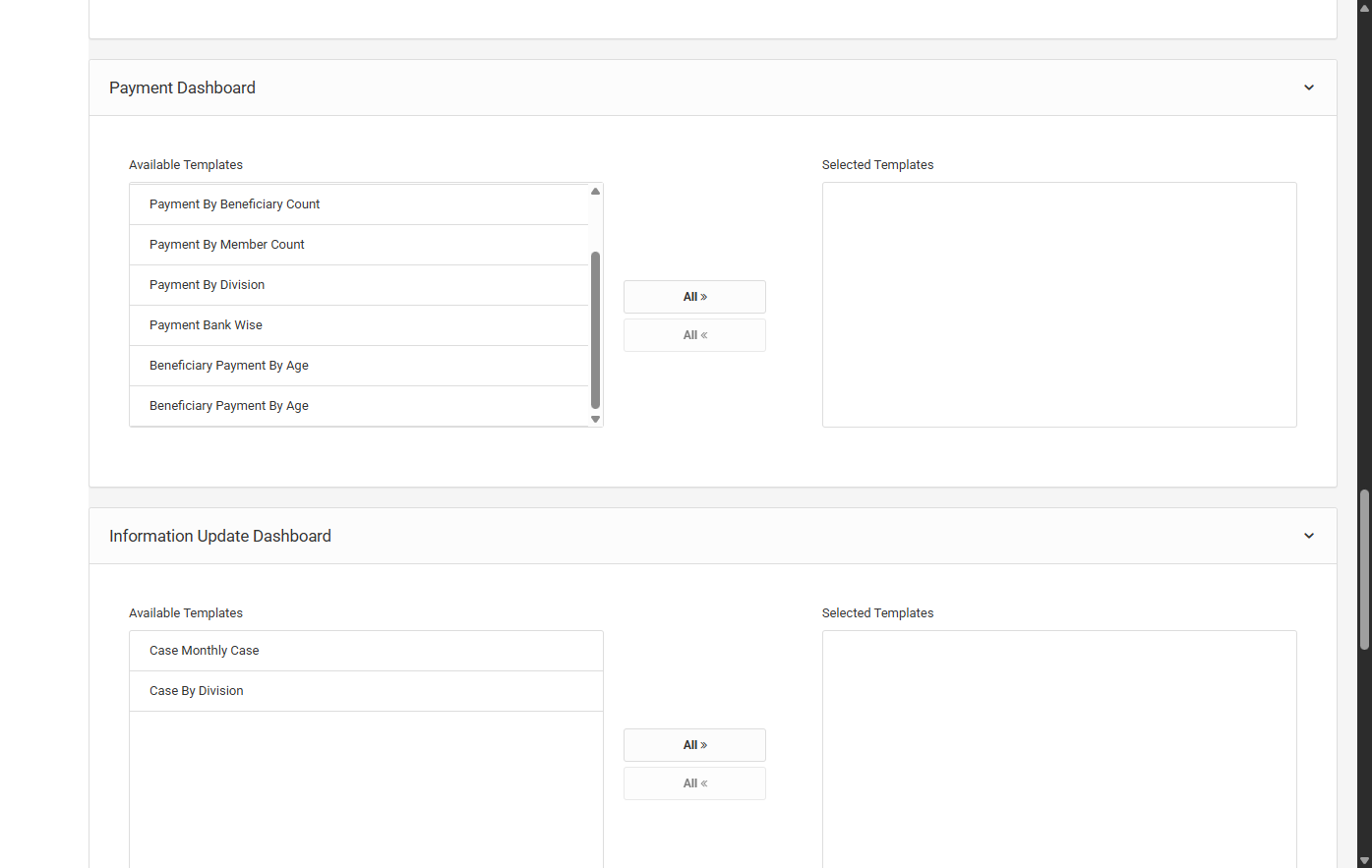
Visible. A second view shows payment report names available for selection.
Likely connection. This capture continues the payment dashboard template catalog.
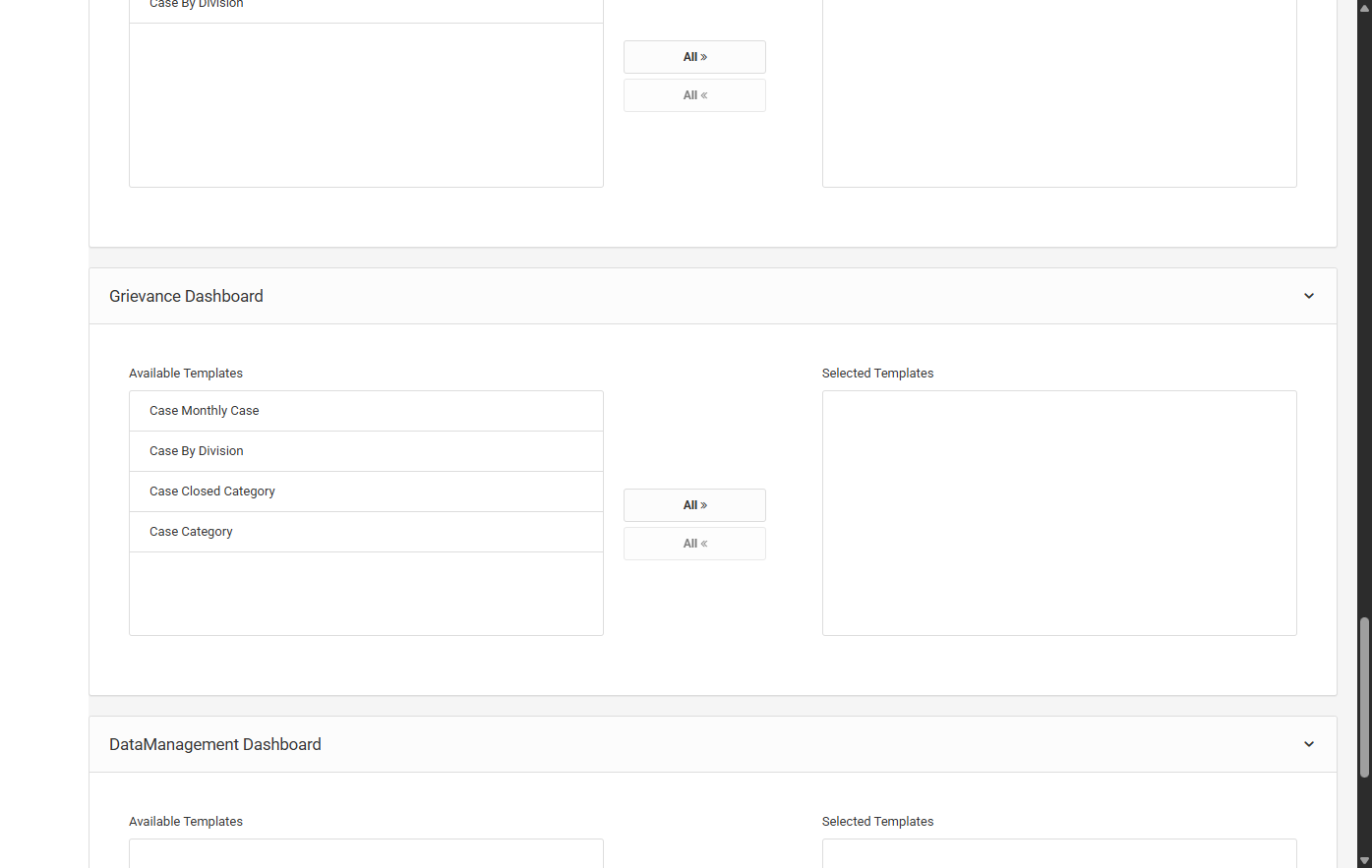
Visible. Grievance dashboard templates are visible in the role-template section.
Likely connection. This connects dashboard visibility settings with the GRM reporting area.
Settings and reference data

Visible. The page offers list/hierarchical views, name and level filters, search/export, and create controls.
Likely connection. Geographic levels can be referenced by user assignment and operational forms that ask for division, district or village.

Visible. The list includes MRID, Disability ID, Social Security No., Student ID, Health ID and Birth Registration ID.
Likely connection. Identifier types are available to the member-ID mapping and search forms.

Visible. A case category list with create, active and approval controls is shown.
Likely connection. Categories are used as classification choices on case and grievance forms.
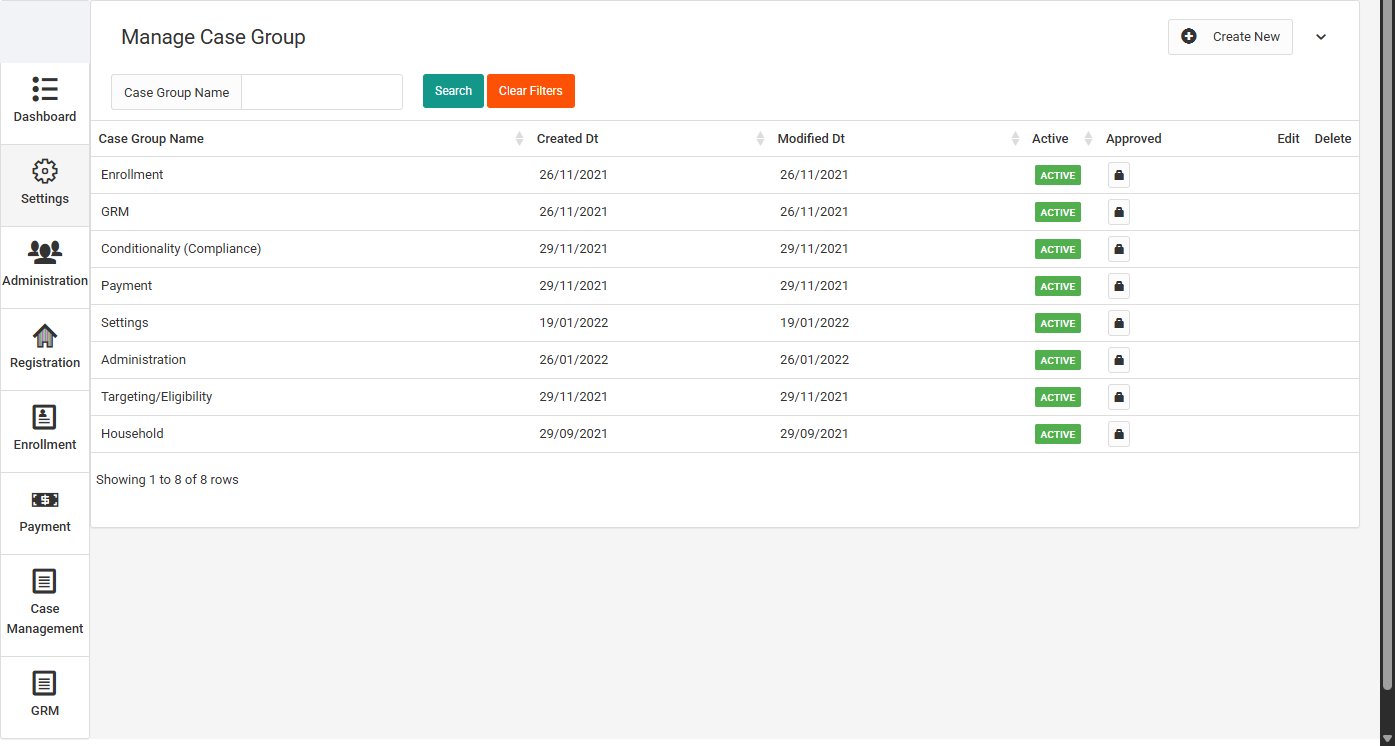
Visible. The list contains groups such as Enrollment, GRM, Compliance, Payment, Settings and Administration.
Likely connection. Case groups appear to organize case categories; they are distinct from Administration user groups.

Visible. The list contains Email, Phone Call, Social Media and Walk in.
Likely connection. Source values are shown as choices for case or grievance intake.

Visible. The document list includes Birth Certificate, National ID, Photo, Proof/Evidence and SSN with type and size.
Likely connection. Document types connect to upload steps in registration and case forms.

Visible. A reason create form asks for reason code, description, source and active state; the result list is empty in the capture.
Likely connection. The source field suggests reasons are linked to a source/type; the screenshot does not show which transaction uses each reason.
Visible. Settings include OTP hour, time-zone interval, banner text, idle timeout, password expiry, version and banner controls.
Likely connection. These are system-wide settings; the screenshot alone does not verify their runtime effect.

Visible. The lower page shows editable content fields for user creation, password reset, OTP, Contact Us, About Us and application information.
Likely connection. This content appears to support system messages and help/about pages.

Visible. The list shows fiscal-year descriptions and start/end dates with active and approval states.
Likely connection. Fiscal-year settings may be referenced by reporting or payment periods; the screenshots do not prove the rule.
Visible. The page heading is visible, but the page body appears blank in the capture.
Likely connection. A help authoring destination exists in the menu; published user help is not demonstrated.
Household registration

Visible. A create form is shown under Household Master.
Likely connection. This is a reference/setup page linked to the Household Master menu, separate from the six-step household application.

Visible. The list shows question/field settings such as short name, code, name, dependent, next question, skip and active.
Likely connection. This appears to configure household form questions rather than list registered households.

Visible. The initial Registration stage and first-step form are visible.
Likely connection. Starts the guided household capture sequence.
Visible. A first-step form is visible with the registration progress indicator.
Likely connection. Continues entering household/application details before location and members.

Visible. A later part of the registration form is visible with location-related fields and navigation.
Likely connection. The step sequence links household registration to the location hierarchy.
Visible. Household Head Information and a member entry form are visible.
Likely connection. Begins adding household members; the page states the first member must be the household head.
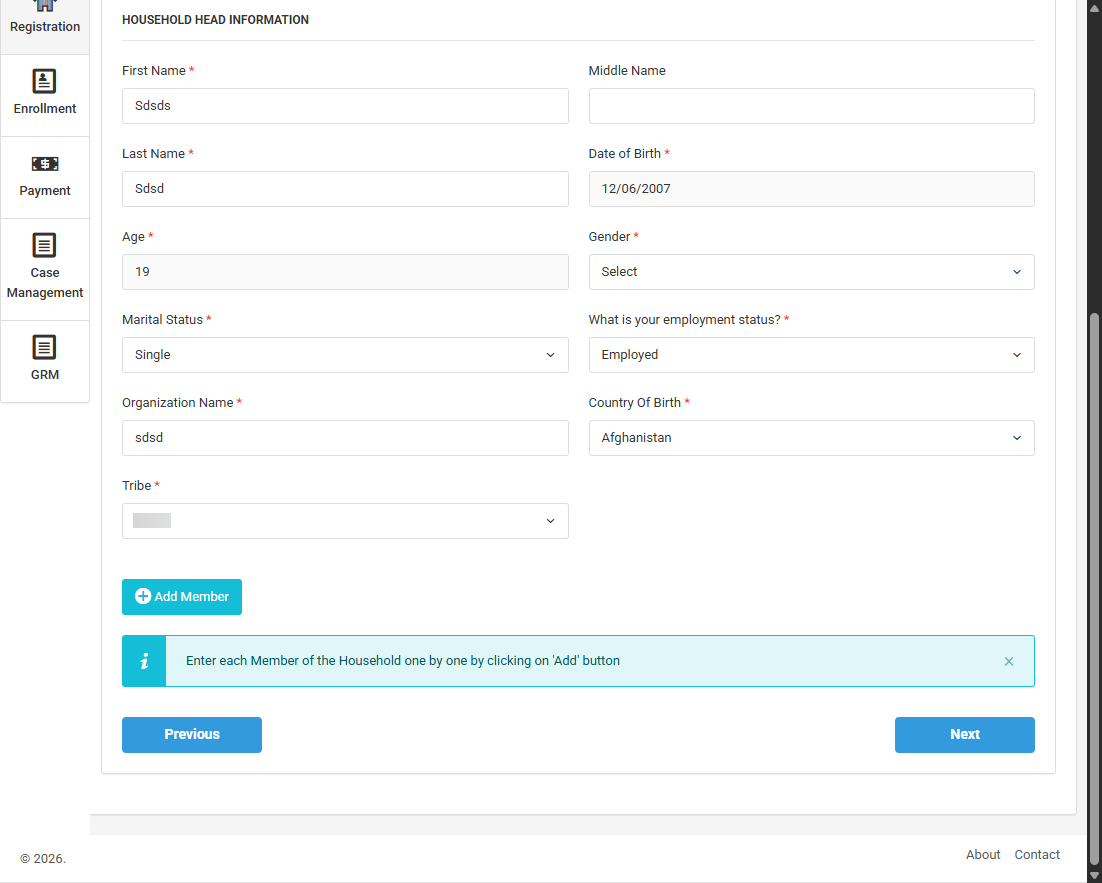
Visible. More household-head fields and date entry controls are visible.
Likely connection. Completes the member identity/demographic details before mapping identifiers.

Visible. Member rows and identifier-mapping controls appear under the Map Member ID step.
Likely connection. Associates member records with configured identifier types.

Visible. The member mapping table and step controls are shown again.
Likely connection. Continues the identity-mapping step; no successful verification outcome is visible.
Visible. The document upload step shows document type selection and upload controls.
Likely connection. Adds evidence to the registration record using configured document types.

Visible. The final step shows declaration/consent text and a submit/continue control.
Likely connection. The sequence reaches an authorization/confirmation stage.

Visible. A confirmation dialog asks whether to process the transaction.
Likely connection. This is the final visible confirmation prompt; the result after confirmation is not shown.
Enrollment and eligibility
Visible. Filters include constituency/division, district, gender and entered-by; summary cards and program panels are displayed.
Likely connection. This dashboard summarizes enrollment activity by geography, gender, program and time.

Visible. Additional age-group, member-exit and enrollment panels show "No Data Available."
Likely connection. These are further dashboard sections; empty states may reflect the displayed test data.

Visible. A menu/submenu view shows Beneficiary Enrollment and the Enrollment Search area.
Likely connection. Opens the beneficiary lookup route from the Enrollment module.

Visible. Search filters include location, program type, member/household ID, name, relation, age, gender, bank, enrollment state and documents.
Likely connection. Uses household/member identifiers and enrolment attributes to find candidate records.

Visible. A results table is visible with household/member and enrollment columns.
Likely connection. Displays matching people after search; the screenshot shows no matching records.

Visible. Rules include Disabled, Back to School, Death, Birth and Aged with age and household member limits.
Likely connection. Rules provide visible eligibility parameters associated with benefit enrollment.
Payment processing and reconciliation
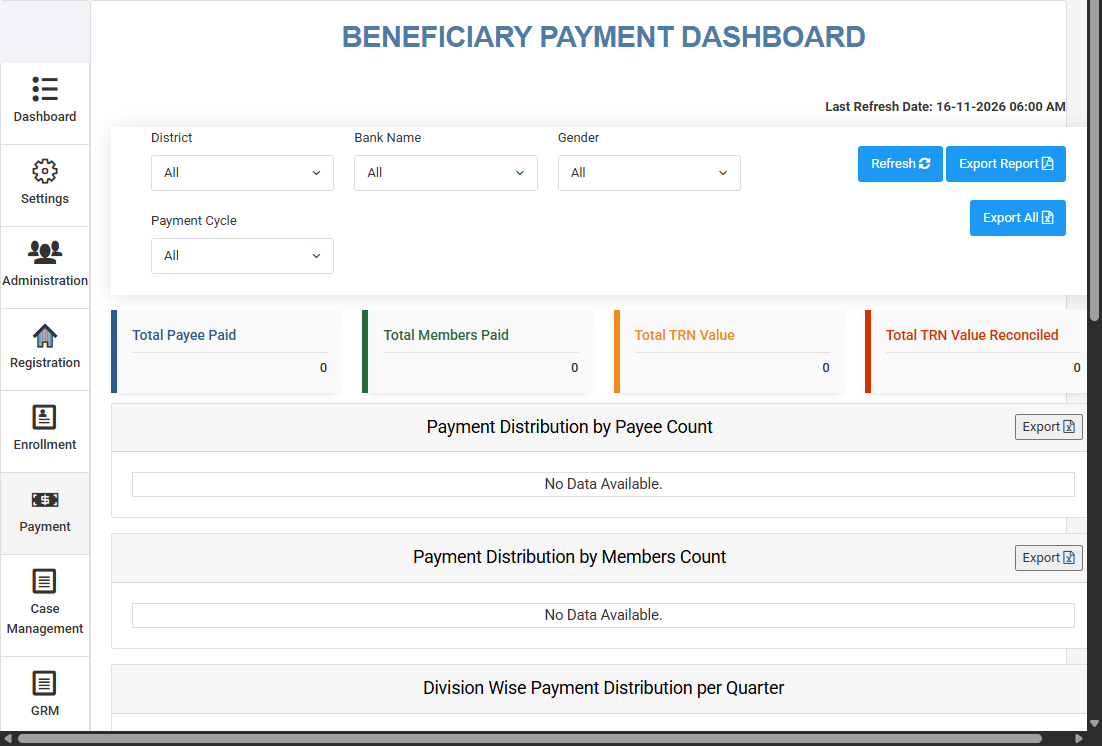
Visible. Filters and summary panels for payment distribution are visible, with refresh/export controls.
Likely connection. Provides payment monitoring and report export.
Visible. The page shows a Generate Paysheet section and paysheet search.
Likely connection. The screen is the visible entry point for creating and locating payment batches.
Visible. Reconciliation filters include payment criteria, cycle, bank and status.
Likely connection. Used to locate and reconcile payment records against a cycle/bank.
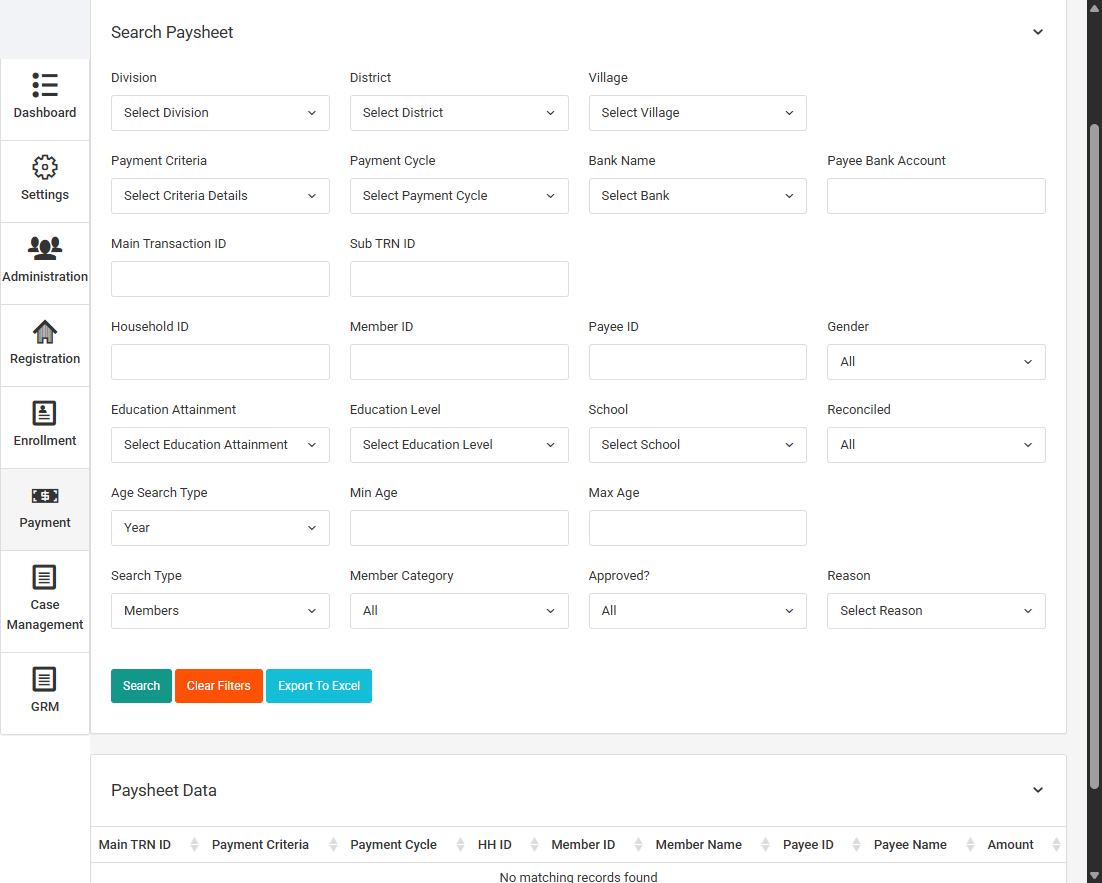
Visible. Search controls include division/district/village and payment-related filters.
Likely connection. Supports locating paysheet/payment records by geography and payment attributes.

Visible. The page shows a create form and a criteria list area.
Likely connection. Defines payment eligibility/processing criteria used by payment operations.

Visible. A table of payment criteria and statuses is visible.
Likely connection. Shows configured criteria records; no provider transaction is demonstrated.
Case Management and grievance redress
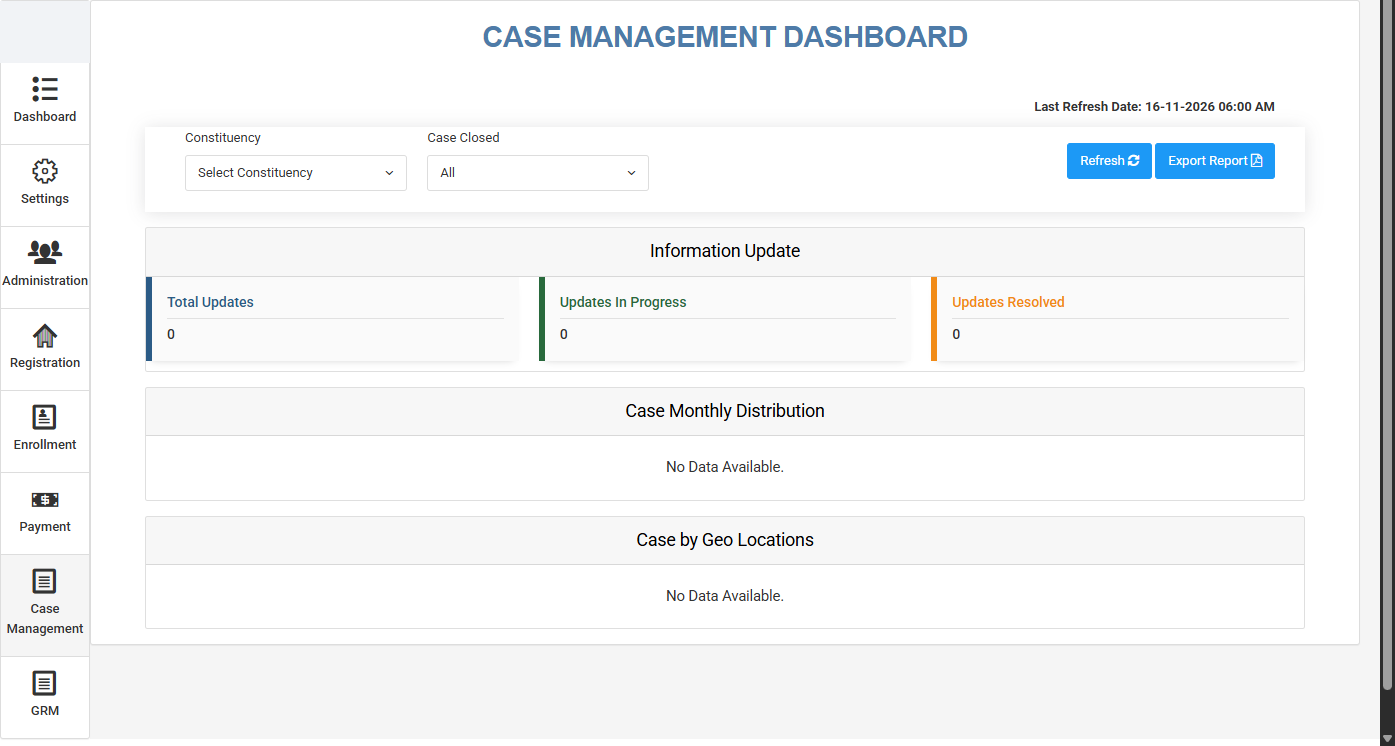
Visible. Filters and information-update summary cards are visible with monthly/location panels.
Likely connection. Summarizes case activity; the panels show no data in this capture.
Visible. Case Registration begins with service and case fields.
Likely connection. Starts a service/case record and captures its context.
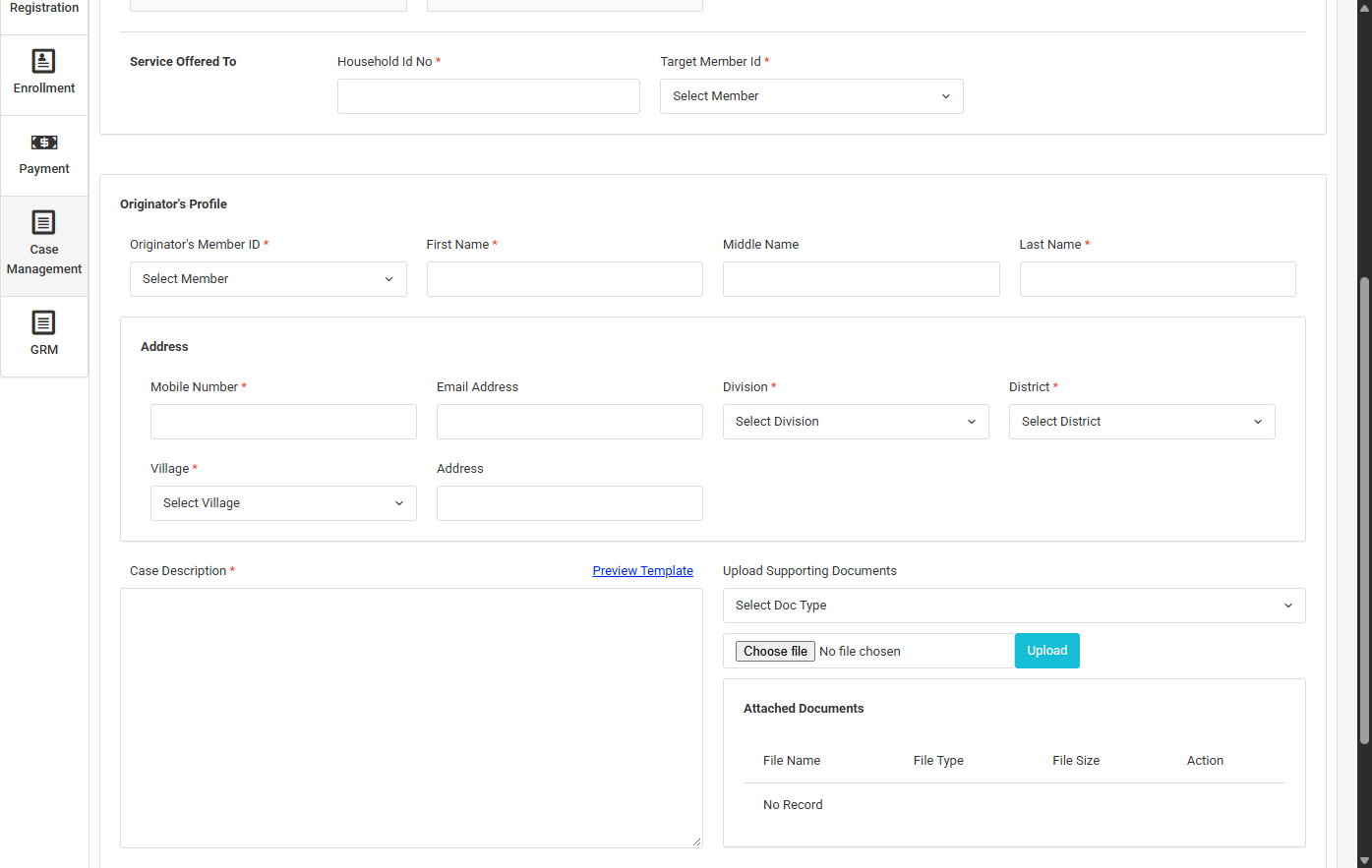
Visible. The form continues with additional service, household/member and description fields.
Likely connection. Links the case to people and supporting information as entered by the operator.
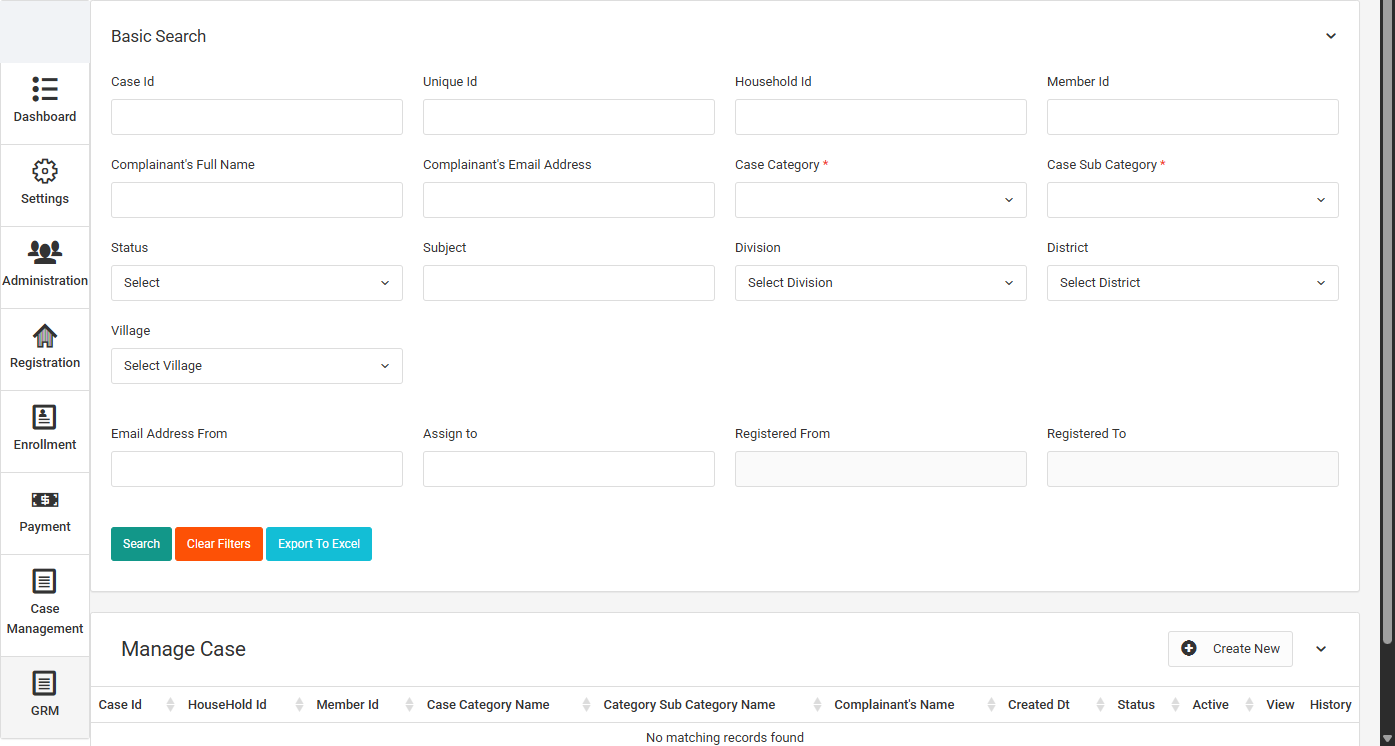
Visible. Basic Search includes case IDs, complainant fields, category/subcategory, status, location and assignment.
Likely connection. Finds case records for review or follow-up.

Visible. A fuller search and result area is shown.
Likely connection. Connects search filters to a case result list; individual case history is not shown.
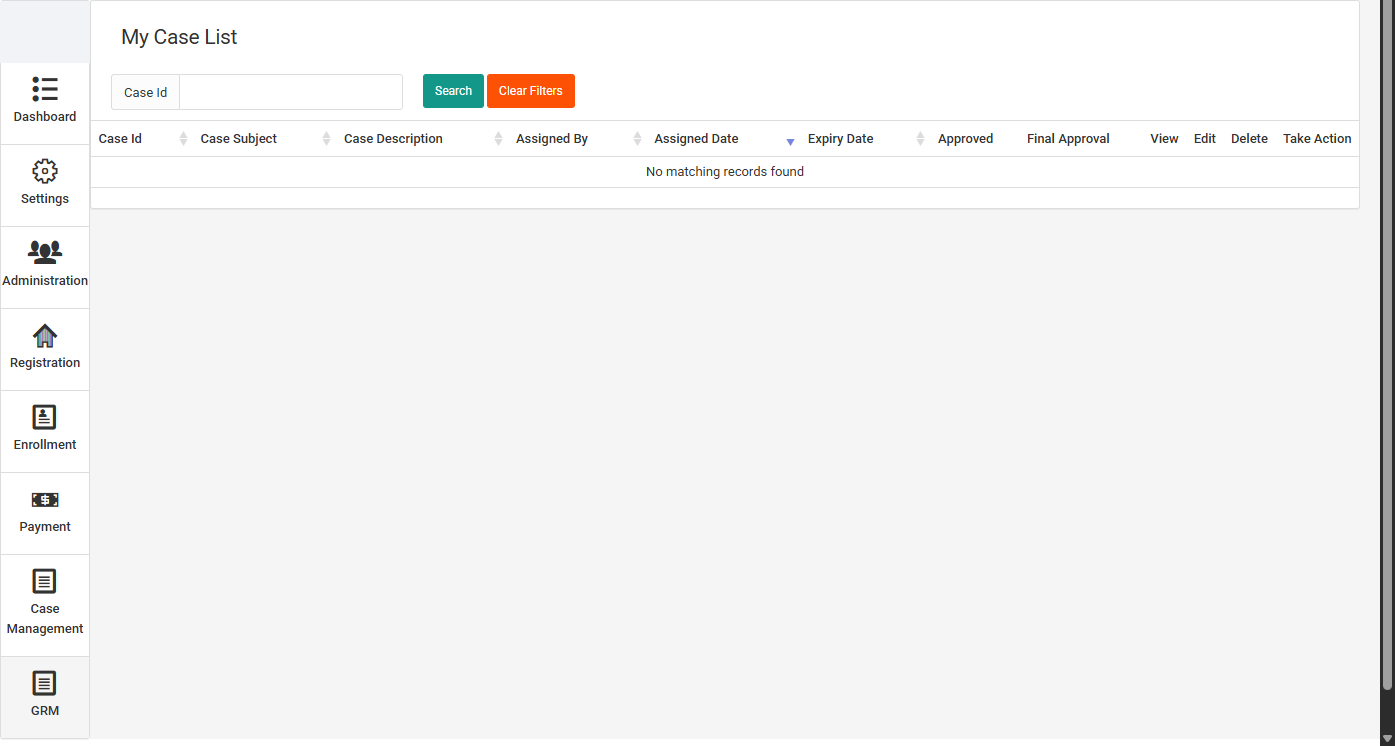
Visible. Assigned-case columns include subject/description, assigned-by/date, expiry, approval and actions.
Likely connection. Shows cases allocated to the current user for action.

Visible. A second capture shows the assigned-case list and action controls.
Likely connection. Repeats the assignment workflow from a related view; final case closure is not demonstrated.

Visible. Grievance totals, status cards, monthly/location panels and category breakdown are visible.
Likely connection. Summarizes grievances and provides refresh/export controls.
Visible. The form captures grievance category/subcategory, subject, source, dates, profile, location, description and supporting documents.
Likely connection. Starts a grievance record and uses case settings for classification and source choices.

Visible. The profile section asks for unique identifier type/value, name and personal details.
Likely connection. Associates the complaint with a complainant identity.
Reference · version history
Change log
What each discussion changed in this specification, newest first. The current version is 1.2.2, updated 28 November 2026.
How versions work
- Every discussion that changes this document gets a new version, recorded the same day.
- Versions run 1.0, 1.1, 1.2 and so on, one step for each discussion. The first number goes up (2.0) when management approves the document, or when an item or a phase is added, removed or moved.
- A fix with no discussion behind it, such as a typo, the layout or a wrong cross-reference, is logged as a point release (1.1.1).
- Each entry says who the discussion was with and lists what is new, updated and removed, with the items it touches.
- Requirement numbers, such as 4.12, are stable. A number never changes and is never used twice. A removed requirement is listed in the Change log as retired, and a new one takes the next free number in its group.
- The version and date on the document, on the designed page and in this log always match. An entry is never edited afterwards; a correction goes in a new entry.
v1.2.2Screen mockups moved inside the page28 November 2026 · Discussion with: None. Point release for a layout change1 updated
The screen mockups no longer open in a separate page. They are now a Screen mockups section under Design, and each item that has screens shows them in a Screen mockups panel at the top of the item. The 30 screens and their requirement numbers are unchanged.
Updated1
- Where the Screen mockups are found: the Design group in the menu, and a panel inside each item.
v1.2.1Screen mockups link at the top of the Specification tab28 November 2026 · Discussion with: None. Point release for a layout change1 updated
The link to the screen mockups is now also shown under the version line at the top of the Specification tab, so it is easy to find.
Updated1
- The version line and a new Screen mockups line under it on the Specification tab, and this Change log.
v1.2Screen mockups for the developers28 November 2026 · Discussion with: Product owner, on screen mockups for the developers1 new1 updated
Thirty key screens are now drawn as mockups on a separate page, in the look of the current system, so the developers can see how each new or changed function should appear and behave. The mockups add no new requirements. Each screen sits beside the requirement numbers it comes from.
New1
- Screen mockups page: 30 screens across Items 2 to 14, with numbered marks tied to requirement numbers, the states of each screen (such as empty, error and offline), and build notes. Seven screens also show today's screen for comparison. Names and figures on the mockups are made up.
Updated1
- The version line, the About note on other tabs and this Change log, which now describe version 1.2.
v1.1Requirement numbers and seven new tabs27 November 2026 · Discussion with: Product owner, on what else the specification should include9 new1 updated
Every requirement now has a number, so tasks, tests and bug reports can point at one line. Seven new tabs give the developers what they need to plan the work. The developers have not confirmed them yet, so each is Proposed or marked pending until they do.
New9
- A number on every requirement (808 in all), written 4.12 for item 4, requirement 12. B is Bugs and errors fixing, M is Database migration and X is the requirements that apply across all items. The numbers are stable and are explained in About this document.
- Dependencies and build order: what each item needs before it can start, a recommended order in six waves, and the longest chain. Proposed, pending the developers' confirmation.
- Scale and volumes: what is known today about users, offices, records, documents and connections, what is not known and who can supply it, and working figures to size the design. Pending the Department and the developers.
- External services and integrations: how every outside service is handled, a register of 16 services with the fallback for each, and the four services still to be chosen. The handling advice is Proposed.
- Risks and assumptions: 21 risks rated by likelihood and impact, each with what reduces it, and 17 assumptions to check with the developers.
- Data model overview: the 12 main groups of records, the rules every table follows, and what the early code audit must add.
- Messages the system sends: 29 messages to people and staff and 20 messages shown on screen, with when each is sent and to whom.
- Screens for the new functions: a list of the screens each item adds or changes, 103 rows in all, 71 of them new.
- A note in About this document on requirement numbers, and a list of the seven new tabs.
Updated1
- The version line and the Change log, which now describe version 1.1.
v1.0Baseline27 November 2026 · Discussion with: Developer meetings of 25 November 2026, with Development Scope 27 new
The first numbered version. It gathers everything in the document so far, so that later versions can be compared with it.
New7
- The 15 points of Development Scope 2, written out as detailed functions, rules and settings.
- Three delivery phases with two-week sprints. Phase 1 stabilises the system: the repository, test environment and pipeline, the bugs and errors fixing, and an early code audit. Item 1Item 15
- Offline-first way of working: a Windows app that saves on the office computer first and syncs automatically. Item 4
- Developers work with real data, under a signed agreement and a non-disclosure agreement.
- The development team's own option for the repository, test environment and pipeline, used as the base. Item 1
- A chart that shows how the whole system works.
- Notes on what the live screens show today, with 15 screenshots in the document and a guide to all 63 screens on the designed page. Item 2Item 3Item 6Item 9Item 10Item 11Item 12Item 13